Homepage (Web UI)

Please note:
For more information on the general Web UI features, refer to the WebUI user manual [1MRC000084]. Some of the applications in the FOXMAN‑UN GUI are still legacy application dialogs whereas others have been migrated to the Web UI.
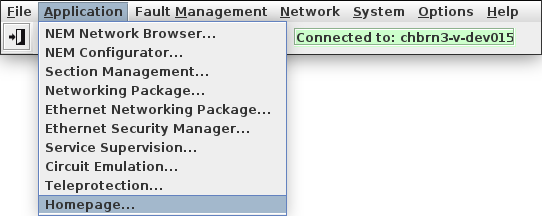
The “Homepage” application is a browser based application (Web UI) providing the home for all application UIs. The Web UI homepage (“Homepage”) is opened from the NEM Desktop Application menu by selecting “Application – Homepage...”:
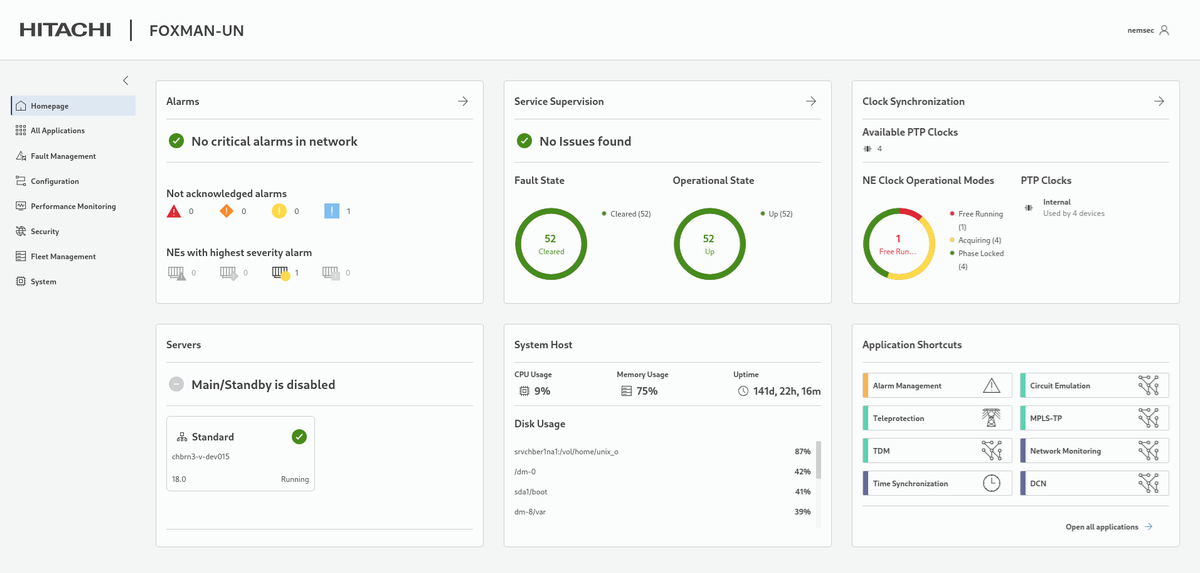
In the current release, the default view of the Web UI homepage looks as shown below. The icon
 | Homepage |
provides the following overview - note that depending on screen size and your network setup the widgets may be arranged differently:
In the upper right corner of the Web UI the “logged-in user” icon provides some user settings:
 | Current User Settings |
When the icon
 | All Applications |
is selected in the entity browser (left panel) of services and applications, application widgets are shown, grouped into categories as follows; each of the groups can be selected separately:
 | Fault Management: |
− Alarm Management with map views (Alarms, Section, NE) and the legacy applications:
 | Configuration: |
− MPLS-TP; also see legacy applications Ethernet Networking Package, NEM Network Browser Main Window and Create Map
− Spanning Tree, see Spanning Tree Map
− Element Management with map views (NE, Section) and the legacy applications
 | Performance Monitoring: |
− Network Monitoring with
− PM Client, see Performance Management
− Time Synchronization map views (NE, Section) and the legacy application:
− DCN
 | Security: |
− Ethernet Security Manager, see Ethernet Security
 | Fleet Management: |
− Inventory, also see legacy applications Inventory Report (legacy dialog) and Request Inventory Report (legacy dialog)
− ESW Network Overview
− ESW Distribution Task, see Distribution Wizard
− ESW Task Management
− ESW Job Management
 | System: |
− System Event List
Applications can be opened from the homepage by clicking on the respective application widget.
Please note:
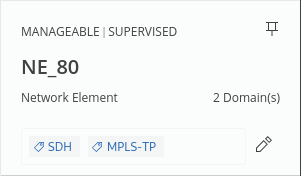
For any selected item in an application (“app”), except system events, alarms, and tasks, one or several tags can be added. Adding tags can ease the individual assignment of objects to a specific subject. The tags are added in the “Add Tag” field of the details panel on the right hand side of the Web UI dialogs. Example for an NE with two tags added; the tags are colored blue:
Please note:
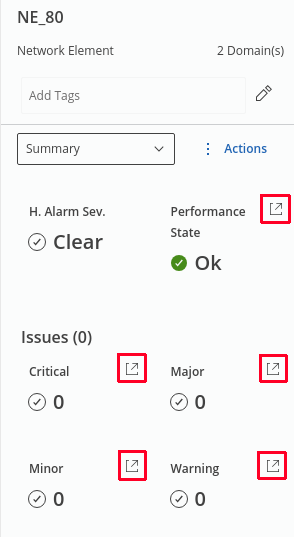
For any item with a link icon:  , a page with further information or further details of the item is opened when clicking on the link icon.
, a page with further information or further details of the item is opened when clicking on the link icon.Such link icons can be found in many places of the Web UI, e.g., in the right panel of a selected NE of the MPLS-TP Map (marked in red here):
Please note:
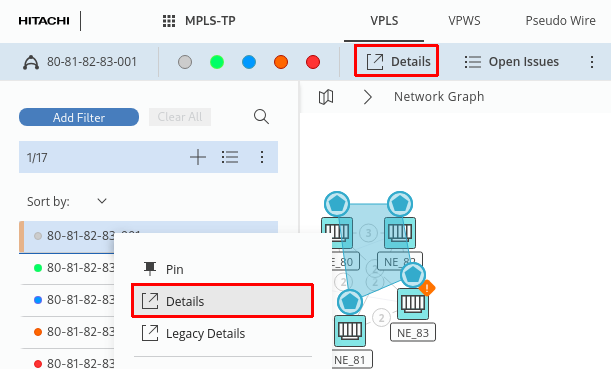
For any element selected in the entity browser (left panel) or in the map, detailed information can be obtained either in the right panel or via the Details link in the ribbon or in the context menu (marked red):