
DCN
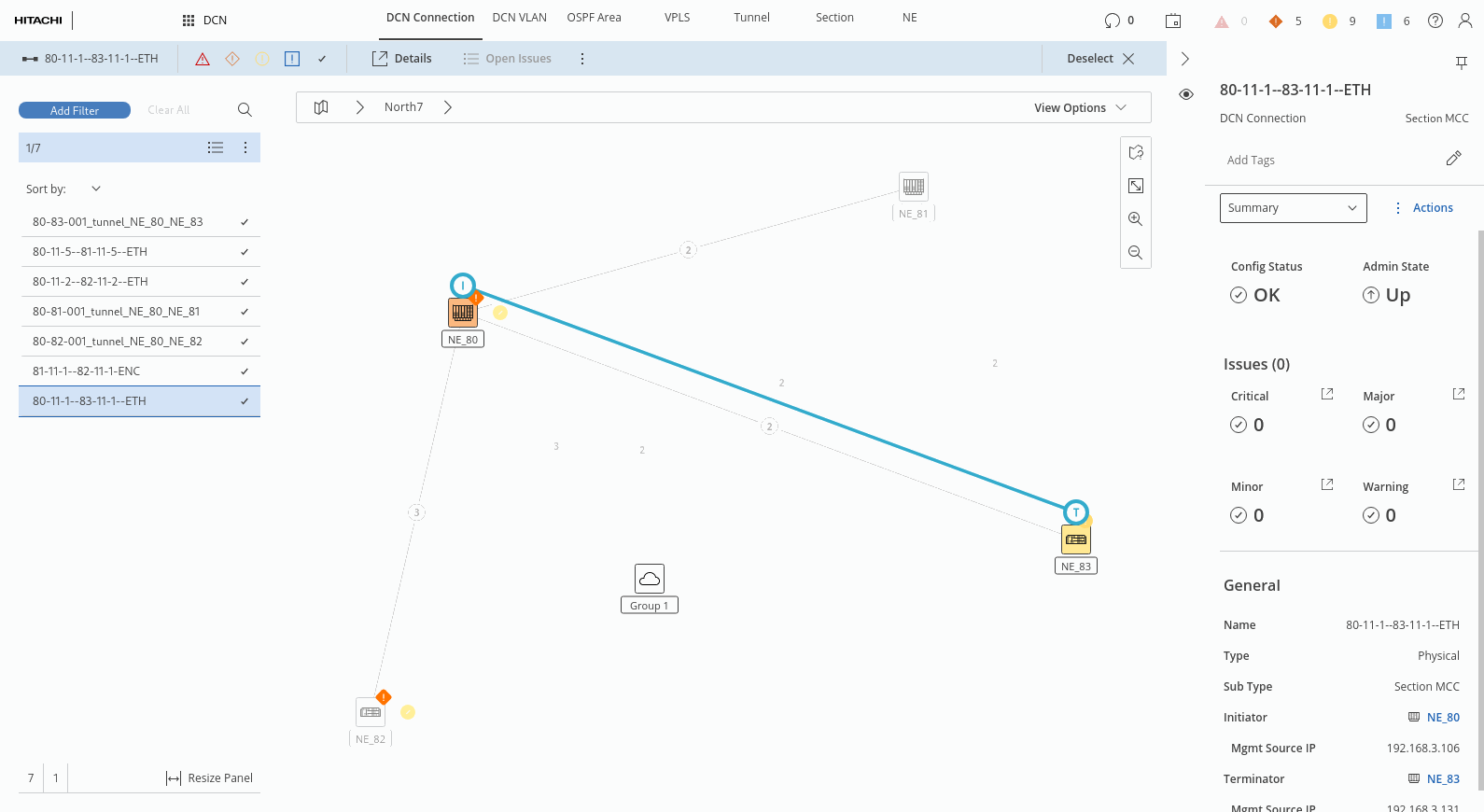
The DCN (Data Communication Network) application provides map and table views with all relevant information on the management communication network as available via the tabs
• DCN VLAN,
• OSPF Area,
• VPLS,
• Tunnel,
• Section,
• NE of type FOX61x.
Any SNMP, FO, FOX51x or other NE types are not supported and will be shown as disabled.
The DCN application is mainly related to management communication features and allows a user to view information on the above topics within the right panel. The related details can be viewed by selecting an item from the entity browser (left panel). Upon selection it is also highlighted on the map.
Note that there is a default map graph that is specific to the DCN. It is named “DCN Graph” and can be selected from the map selector drop-down menu on the left-hand side of the map options bar.
Apart from the context sensitive summary, all tabs show the generic parameters for:
• Configuration,
• Supervision (only for MCC connections, VPLS, and tunnels),
• Health Monitors,
• Issues,
• Related (Using, Used By...).
DCN Connection
A configured DCN connection can be selected from the entity browser (left panel), and its Initiator and Terminator on NEs are shown in the map.
When selecting a single DCN connection, the following details are provided in the right panel:
• Summary (Status, Issues, General),
• Configuration (General, Initiator, Terminator),
• Supervision (details only for supervised entities; otherwise, supervision can be enabled here),
• Health Monitors,
• Issues,
• Related (Summary, Using, Used By).
DCN VLAN
In the DCN VLAN tab, a configured DCN VLAN can be selected from the entity browser (left panel), and all involved NEs are highlighted on the map. In the right panel, the following details on the selected DCN VLAN are provided:
• Summary (Status, Issues, General),
• Configuration (General, Initiator, Terminator),
• Health Monitors,
• Issues,
• Related (Summary, Using, Used By).
OSPF Area
In the OSPF Area tab, A configured OSPF area can be selected from the entity browser (left panel), and its coverage on NEs is shown in the map.

Please note:
Only OSPF areas that are assigned to a DCN interface are shown.
In the right panel, the following details on the selected DCN VLAN are provided:
• Summary (Status, Issues, General),
• Configuration (General, Initiator, Terminator),
• Health Monitors,
• Issues,
• Related (Summary, Using, Used By).
VPLS
In the VPLS tab, existing DCN VPLS are listed in the entity browser (left panel). New DCN VPLS can be created using the “Create VPLS” wizard from the DCN VPLS tab. After creation, it needs to be deployed individually.
When selecting a VPLS from the entity browser (left panel), detail information related to the VPLS is shown in the right panel, and the VPLS is marked in the map, provided the map includes the VPLS.
Tunnel
In the Tunnel tab, existing DCN tunnels are listed in the entity browser (left panel). New DCN tunnels can be created by clicking on “+ Create”, starting the “Create VPLS” wizard. After creation, the tunnel needs to be saved or saved & deployed individually.
When selecting a tunnel from the entity browser (left panel), detail information related to the tunnel is shown in the right panel, and the tunnel is marked in the map, provided the map includes the tunnel.
Section
In the Section tab, existing sections carrying a configured DCN are listed in the entity browser (left panel). New DCN sections can be created by clicking on “+ Create Section”, starting the “Create Section” wizard. After creation, the section is stored, and the wizard is closed (Create and Close), or you can continue creating sections (Create and define next).
When selecting a section from the entity browser (left panel), detail information related to the section is shown in the right panel, and the section is marked in the map, provided the map includes the section.
NE
Independent of the selected tab, the details provided in the right panel – when selecting an NE within the map – show the main DCN parameters of the NE, such as:
• Mgmt source IP address,
• DCN interfaces (MCC, VLAN, PPP),
• Main OSPF information (to get the OSPF neighbors, the specific button “OSPF Neighbors” in the right panel must be pressed),
• Diagnostic feature for restarting OSPF (button “OSPF Restart” in the right panel).