
Inventory Report (legacy dialog)
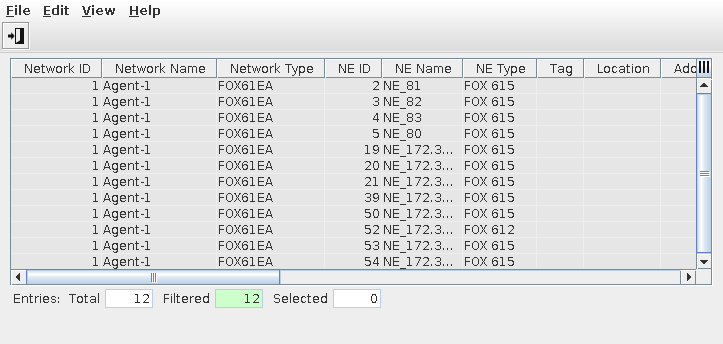
You can call an inventory report from the NEM Desktop via the menu “Network - Inventory Request...”. It opens the Inventory Reports dialog, and, on top of it, the Request Inventory Report dialog window. Once an Inventory Report has been requested, the Inventory Reports table (see Dialog image below) is shown.
There is also an Inventory request application in the Web UI that provides the same features and will substitute the legacy dialog.
Purpose
The “Request Inventory Report” dialog generates reports containing different types of inventory data of selected NEs. Data to be included can be NE inventory, unit inventory, port inventory, FOX51x configuration inventory, or service inventory (for FOX61x only).
A report is configured in the Request Inventory Report (legacy dialog) dialog. The information retrieved is displayed in the dialog “Inventory Report” if “Report to Screen” is active.
The status line at the bottom of the dialog “Inventory Report” displays a confirmation if “Report to File” is active.
A new report can be requested via the menu “Edit – Request Inventory Report”.
Dialog image
Inventory Reports NE Inventory
Optional entries
Not applicable.
Informational content
The retrieved inventory data is displayed as a table if the “Report to Screen” was activated in the request.
The data can be sorted and / or filtered via the context menu available from the top right corner of the table.
The status displays a confirmation of the path and file saved if “Report to File” was activated in the request.
Controls (buttons, menu items, etc.)
Menus
File – Exit | Closes the dialog. |
Edit – Request Inventory Report | Opens the “Request Inventory dialog” for configuring a further inventory report. |
Help – ? Help | Calls the help viewer and opens this page. |
Table Sorting and Filtering /Export and Printing
Please refer to Table Sorter section for details
Related dialogs / windows