
Alarm List
Purpose
The Alarm List dialog displays all current alarms of the current FOXMAN‑UN user’s managed network, filtered according to where it is called from:
• All alarms of the total managed network:
NEM Desktop > Fault Management > Alarm List
• All alarms of all NEs belonging to a specific map:
− From NEM Configurator:
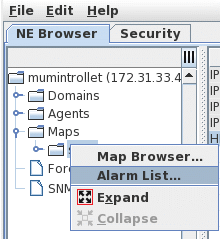
− From NEM Network Browser:
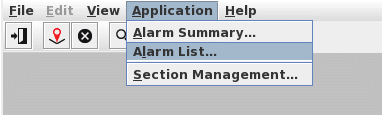
• All alarms of selected service(s):
NEM Desktop > Application > Service Supervision > “Select Service(s)” > Alarm List
• All alarms of a single severity in the total network:
NEM Desktop > Fault Management > Alarm Summary > “Double click a selected Severity”
• All alarms of a single severity belonging to a specific map:
− From NEM Network Browser:
Call the selected map’s alarm summary, then double click the selected Severity

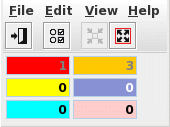
If an NE is added/removed from the map, the alarm lists dynamically shows/removes the corresponding alarms of this NE.
• All alarms of a single NE:
− From NEM Configurator:
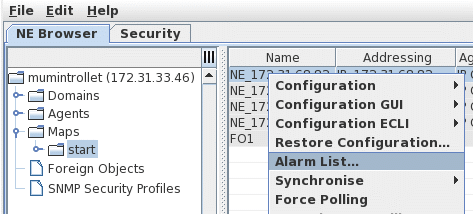
− From NEM Network Browser:
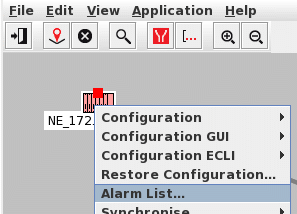
• All the alarms of the system:
− From NEM Network Browser:
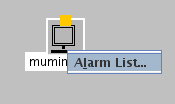

Please note:
Double click on an alarm in the list opens the corresponding “Alarm Properties” dialog.
Dialog image
Alarm List
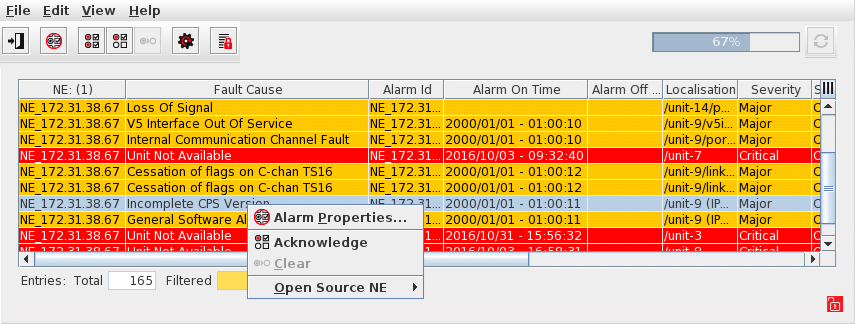
Mandatory entries
Not applicable.
Optional entries
Not applicable.
Informational content
The list shows the Current Alarms matching the presently active filter settings. The filter is set automatically according to where the alarm list is called from. It can be modified subsequently by the user via the filter (refer to Table Sorter section).
Controls (buttons, menu items, etc.)
Menu “File”
Exit |  | Exits from the alarm list and close the window. |
Menu “Edit”
Synchronize Alarms… |  | Synchronize alarms with the network and update the list accordingly. This will display a progress bar on the left hand side of the icon until all alarms are synchronized. |
 | Only available if a single alarm is selected. Calls the “Alarm Properties” dialog for alarms contained in the alarm list. | |
Acknowledge All |  | All unacknowledged alarms in the list are getting acknowledged. Cleared alarms are getting acknowledged and then moved from the database to the alarm history and therefore removed from the Alarm List. |
Acknowledge |  | Acknowledge the selected alarm(s). A multiple selection is possible. This menu item is grayed out if there are no alarms selected. |
Clear |  | Clears an outstanding system alarm. This function is not applicable to NE alarms. |
Menu “View”
Options | Opens the Alarm List Options dialog | |
Open Source NE ► [User Class] |  | Only available if a single alarm is selected. Opens a device specific view to provide a graphic alarm overview of the whole NE where the alarm originated. For FOX61x NEs, the user class is to be selected in the sub-menu which will open the NE at the specific alarm entry within the FOXCST. |
Freeze List |  | The list can be frozen (new alarms occurring are not added to the list till the Freeze function is turned off again). |
Menu “Help”
? Help | Starts the FOXMAN‑UN help viewer and opens this page. |
Context menu on table entries
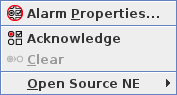
For the explanations of menu items, please refer to the previous sections.
Table Sorting and Filtering/Export and Printing
Please refer to Table Sorter section for details.
Related dialogs / windows