
Inventory
The Inventory Request application is used to generate inventory reports via inventory requests. The request options are available for the item types
• NE (managed network elements),
• Unit (units within managed network elements),
• Port (ports on units), and
• Configuration (for legacy network elements),
which are reflected by the four tabs with the above-mentioned names. The item type “Configuration” includes the items with sub-types
− NE Inventory,
− TTP,
− Matrix Connections,
− Software,
− Timing Source,
− NE Parameters,
which are listed within their own tabs in the generated report.
Initially, when no requests have been created yet since last opening the Inventory Request application, the message “No data available” is shown:
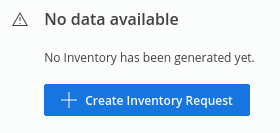
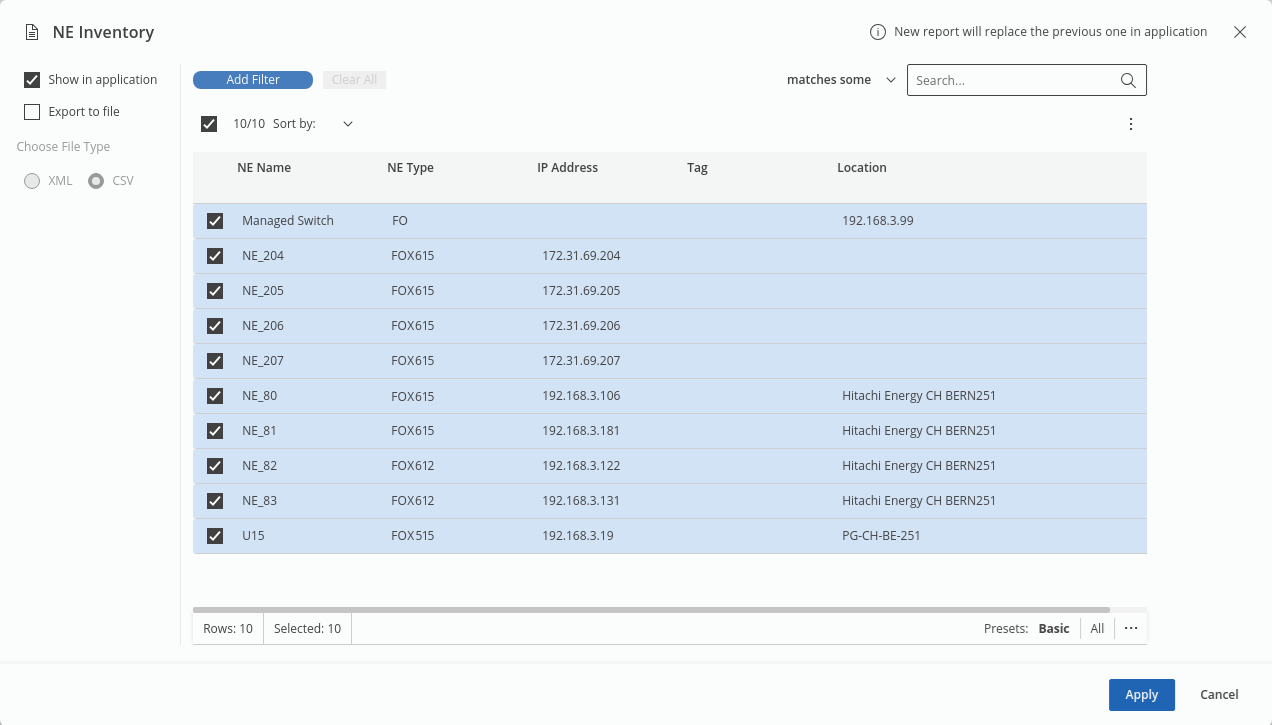
To create an inventory request, select the appropriate tab (NE, Unit, Port, Configuration) and click on “+ Create Inventory Request”. This will open a list of NEs to select from; you can also create a filter to determine the scope of the request. Select where the report shall be generated to: as output in the application (“Show in application”), and/or exported to a file (“Export to file”), either as type CSV or XML. Once the request scope is defined, click on the “Apply” button to create the report.
Depending on your selection, the report is exported to a file and/or displayed in a table in the current application. You can customize the table as usual for the Web UI by selecting one of the presets, resize the entity browser (left panel) to large, medium, or small, and apply filters.
When closing the Inventory application, the generated inventory report table is cleared.