Time Synchronization
Purpose
Shows a graphical presentation of the PTP synchronization for the managed MPLS-TP network(s).
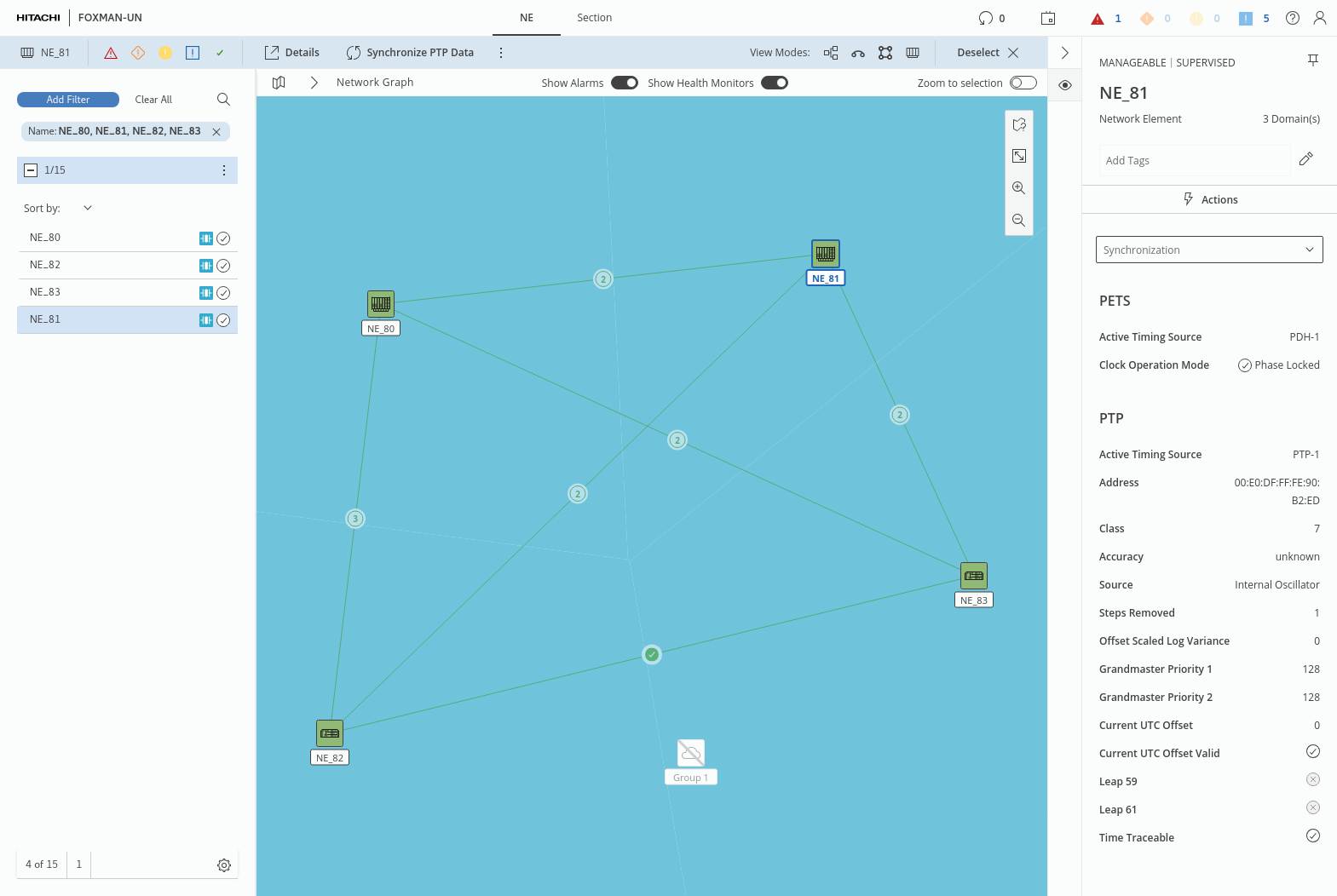
The dialog is based on the WebUI general concept and provides the following elements (also see the Dialog image):
The ribbon (features area above the map)
• If any item on the map is selected, the ribbon is colored light blue. If nothing is selected it is colored gray.
• The ribbon shows basic information on
− the selected item(s),
− on the alarms of the selected item(s),
− the available and/or selected view modes,
and it provides a link to a full details page for one selected item.
On the right-hand side of the ribbon there is a “Deselect” option to cancel the selection of any item(s).
NE table (left hand side, expandable view, small/medium/large)
• Lists all managed NEs and related information depending on the table width and presets.
Map view of the network (middle area, size dependent on selected table width)
• The map is selected above the map area, clicking on the arrow right of the map symbol:


• The default map is named Network Graph; user maps are as defined by the user in the NEM Network Browser (legacy) or the Manage Maps (Map Manager) application.
Map legend
• The map legend and the map zoom in and zoom out icons are placed in the upper right corner of the map area with the following symbols:

The symbols are (from top to bottom):
− Map Legend,
− Fit Content To Screen,
− Zoom In,
− Zoom Out.
Details view in the details panel on the right
• The details panel can be expanded and collapsed with its right-arrow icon. It provides detailed information on the selected item(s) and the selected area with the following available options:
− Summary,
− Configuration,
− Utilization,
− DCN,
− Synchronization,
− Health Monitors,
− Issues,
− Related.
• When an NE is selected in the left-hand table, and “Synchronization” in the details panel, detailed information on the NE’s synchronization status is shown.
In the map, each Clock Master domain has its own background color. All NEs that are synchronized to the same PTP master are shown within the same colored Clock Master domain.
NEs that are part of the same map, but do not provide PTP functionality, are grayed out and/or marked with a crossed out symbol.
For more information on the general use of the WebUI and its elements, refer to the WebUI user manual.
Dialog image
PTP Synchronization Map