
MPLS-TP
The MPLS-TP app is part of the “Configuration” group of applications.
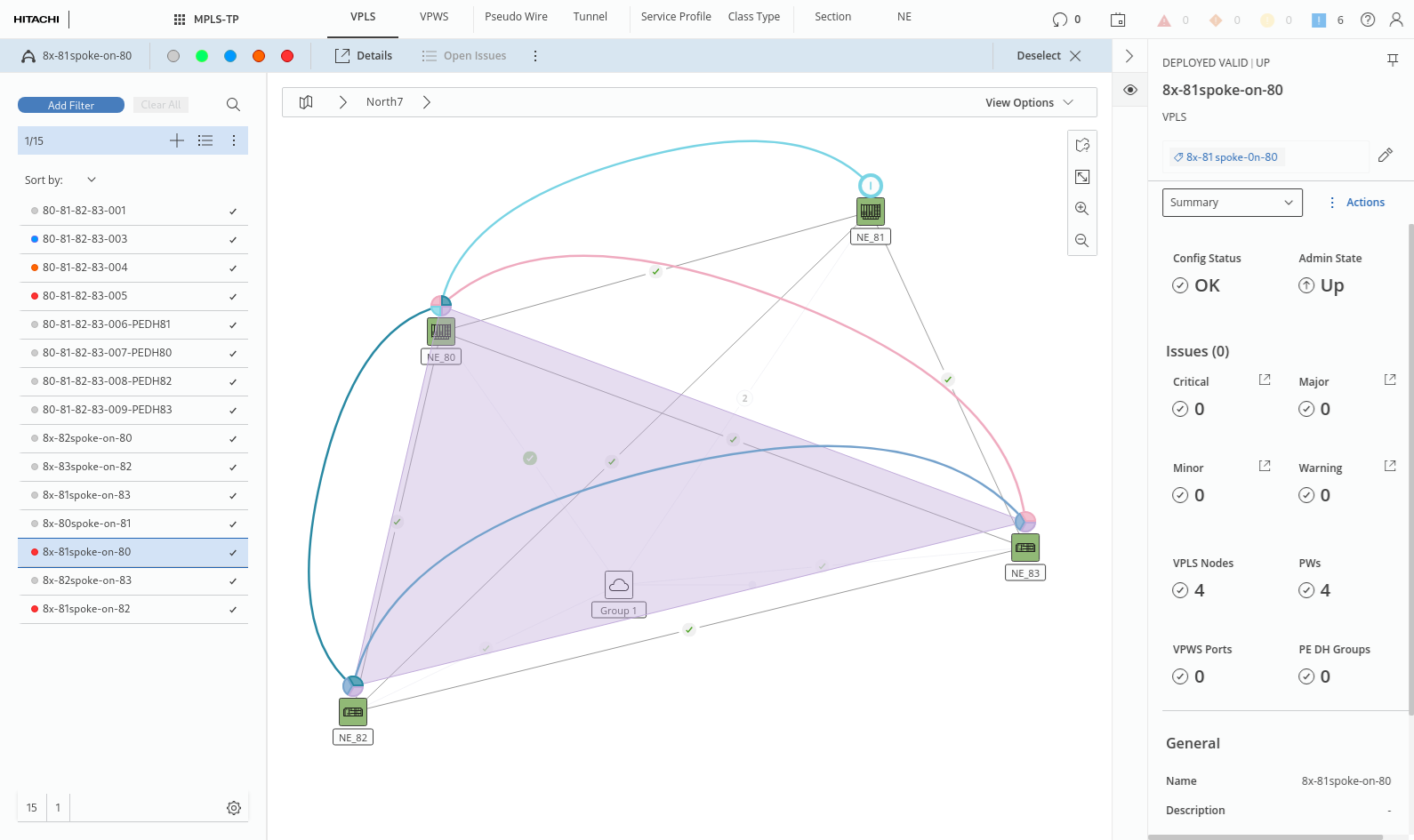
The MPLS-TP map shows your complete MPLS-TP network with its structural components, including
• VPLS (also see legacy dialog VPLS),
• VPWS (also see legacy dialog VPWS),
• Pseudo Wire (also see legacy dialog Pseudo Wire),
• Tunnel (also see legacy dialog Tunnel),
• Service Profile (also see legacy dialog Service Profile),
• Class Type (also see legacy dialog Class Type),
• NE (also see legacy dialog NE),
each of which is accessible via its own tab in the common header on top of the window.
It allows you to select individual components from the entity browser (left panel) or from the map and display any kind of information on the selected component.
It also allows you to create services using the built-in service creation wizard.
• Create VPLS,
• Create VPWS,
For the creation of Class Types, Sections, Links, and NEs refer to the legacy dialogs.
In the MPLS-TP map you can also
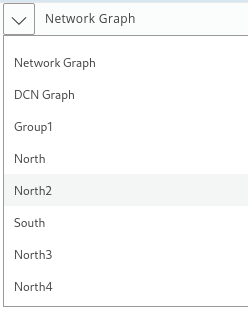
• select the overall network graph or a specific network graph,

Please note:
For arranging NEs on the map, use the NEM Network Browser. Any edit action (adding, deleting, rearranging NEs) done on the NEM Network Browser map(s) will be reflected on the MPLS-TP Map.
→ To see a specific map on the MPLS-TP Map application, select the respective map instead of the overall network graph, as shown in the following sample:
• Show Context:
− enable or disable showing alarms (“Alarms”),
− enable or disable health monitoring (“Health Monitors”),
− enable or disable showing encryption (“Encryption”)
• activate the View Modes
− Entity View,
− Service View,
− Transport View,
− Connections View,
− Physical View,
• Interaction Options:
− enable or disable to fit the view to the selected object (“Fit View to Selection”),
or return to the application overview (All apps) or to the Homepage via clicking on the 9-dots “all apps” icon.