
Alarm Customisation
Purpose
The Alarm Customisation main frame allows the following:
− Display existing Alarm Customisations.
− Modification/Deletion of existing Alarm Customisations.
− Creation of new Alarm Customisations.
− Transfer the Port Alarm Customisation to a foreign object (applicable to Port Scope only).

Please note:
The alarm customisation for the FOX51x alarms must be done from the NE Hardware View. Such existing customisation will then be displayed in this dialog. The HW View can be launched by clicking on an existing alarm customisation with “Unit” as its Scope.
Dialog image
Alarm Customisation
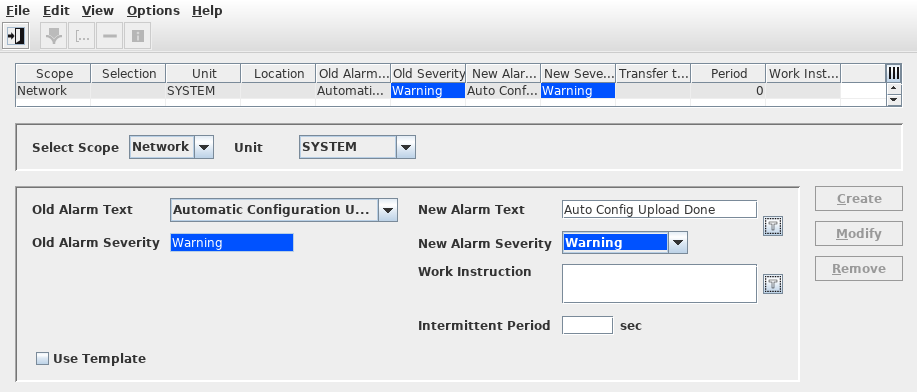
Mandatory entries
Please note:
Conflicts between entries made under different scopes are resolved according to the following list of priorities:
• Port: 1 (highest),
• NE: 2,
• NE Type: 3,
• Domains: 4,
• Network: 5 (lowest).
Alarm Customisations created/modified via the FOX51x NE Hardware Views (Scope: Unit) overrule any Alarm Customisations made for FOX51x unit/subunit. This is discussed separately in Alarm Customisation – Unit/Subunit section.
FOX61x Alarm Customisations made via FOXMAN‑UN overrule local alarm customisations via the FOXCST (only when Alarm Severity has been changed).
Select Scope | Selects the Scope to which the customized Alarm is to be applied. The content of the scope selector dynamically changes depending on the selected scope. The different scopes are as follows: Network The Alarm Customisation is valid for the selected unit in the entire managed network. The user needs to define the following: - Select Scope, - Unit. Domain The Alarm Customisation is valid for the selected unit NEs within the specified domain only. The user needs to define the following: - Select Scope, - Domain, - Unit. NE Type The Alarm Customisation is valid for the selected unit of the specified NE type only. The user needs to define the following: - Select Scope, - NE Type, - Unit. NE The Alarm Customisation is valid for the selected unit of the specified NE(s) only. The user needs to define the following: - Select Scope, - NE(s) (Select NEs of the same type family), - Unit. Port The Alarm Customisation is valid for the selected unit in the specific slot of the specified NE only. The user needs to define the following: - Select Scope, - NE, - Slot# - Unit. | |
Domain | Applicable for Domain Scope only. Selects the Domain from the User’s assigned Domain(s). | |
NE Type | Applicable for NE Type Scope only. Selects the NE Type. | |
NE(s) |  | Applicable for NE Scope only. Calls the “Select NEs” dialog to select one or more NEs from the user’s assigned Domain(s) to which the Alarm Customisation is to be applied. |
NE |  | Applicable for Port Scope only. Calls the “Select NE” dialog to select a specific NE from the user’s assigned Domain(s) to which the Alarm Customisation is to be applied. |
Unit | Select the specific unit to which the Alarm Customisation is to be applied. | |
Slot# - Unit | Applicable for Port Scope only. Select the unit in a specific slot of the NE to which the Alarm Customisation is to be applied. Note: Once the user has selected an NE, the “Slot# - Unit” combo box is initialized with units that are actually equipped in the selected NE. | |
Port | Applicable for Port Scope only. Select the specific port to which the Alarm Customisation is to be applied. | |
Old Alarm Text | Select the default alarm text whose text or/and associated severity you want to modify | |
Old Alarm Severity | The perceived severity assigned to the selected alarm text. Its value is given by FOXMAN‑UN and can’t be changed by the user. | |
New Alarm Text |  | Edit selected alarm text as required. Calls the “Select from template” dialog to select an existing Alarm Text & Severity template. |
New Alarm Severity | Modify the Alarm Severity of the selected Alarm Text as required. |
Optional entries
Work Instruction | | Attach alarm-specific work instruction to an alarm message. This instruction can be displayed in the Alarm Properties dialog Calls the “Select from template” dialog to select an existing Work Instruction template. |
Intermittent Period | Intermittent alarm or multiple occurrences of the same alarm can be limited to a single report per a specified period. The shortest period in seconds after which an alarm can be reported again. Maximum value is 86400 seconds (24 hours). Note: If the period is set to zero, the alarm will not be generated anymore. | |
Transfer to FO | Applicable for Port Scope only. Select a Foreign Object (FO), to which the customized alarm shall be transferred. Note: The transferred customized alarms can be viewed via Map Population > Map Background. |
Informational content
The Alarm Customisation Table lists all alarm customisations (including those generated via the hardware views) at the top of the dialog indicating
− Scope,
− Selection,
− Unit,
− Location,
− Old Alarm Text (FOXMAN‑UN default alarm text),
− Old Severity (FOXMAN‑UN default severity),
− New Alarm text (modified alarm text if applicable),
− New Severity (modified severity if applicable),
− Transfer to FO (applicable to Port Scope only),
− (Intermittent) Period,
− Work Instructions.
Controls (buttons, menu items, etc.)
Allows creating Alarm Customisations using template.
Menus
File – Exit |  | Closes the dialog. |
Edit – Create |  | Adds new Alarm Customisation. |
Edit – Modify |  | Modifies/Edits the selected Alarm Customisation. |
Edit – Remove |  | Deletes the selected existing Alarm Customisation(s). |
Edit – Info |  | Displays the list of involved NE(s). Applicable for Scope: NE and Port only. |
Options – Audible Alarm | Calls the Audible Alarm dialog. | |
Options – Manage Templates | Calls the Manage Template dialog. | |
Help – ? Help | Calls the help viewer and opens this page. |
Buttons
Add | The same as “Edit – Add”. Creates a new Alarm Customisation entry. |
Modify | The same as “Edit – Modify”. Edits the selected existing Alarm Customisation entry. |
Remove | The same as “Edit – Remove”. Deletes the selected existing Alarm Customisation entry. |
Table Sorting and Filtering/Export and Printing
Please refer to Table Sorter section for details.
Related dialogs / windows
Map Population – Map Background.