
Service Supervision
Purpose
The Service Supervision main window displays details of all the configured services that have service supervision enabled with their corresponding paths and components.
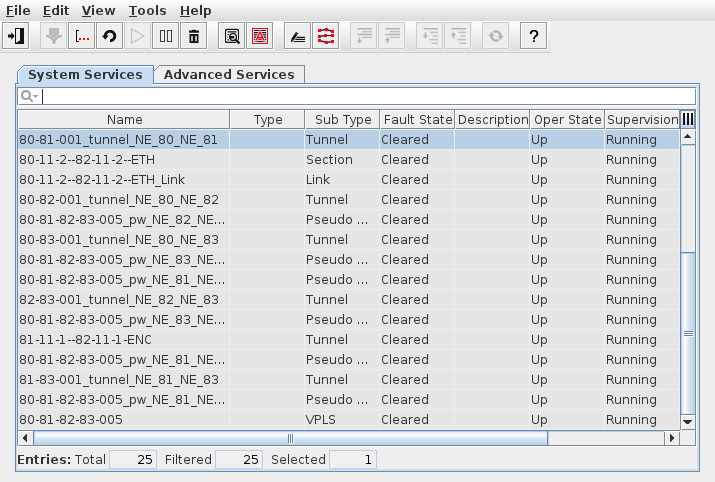
The tab “System Services” lists services that were added to Service Supervision from services created in the MPLS-TP or NP application GUI (see Networking Package > Main Window and Ethernet Networking Package > ENP Main Window).
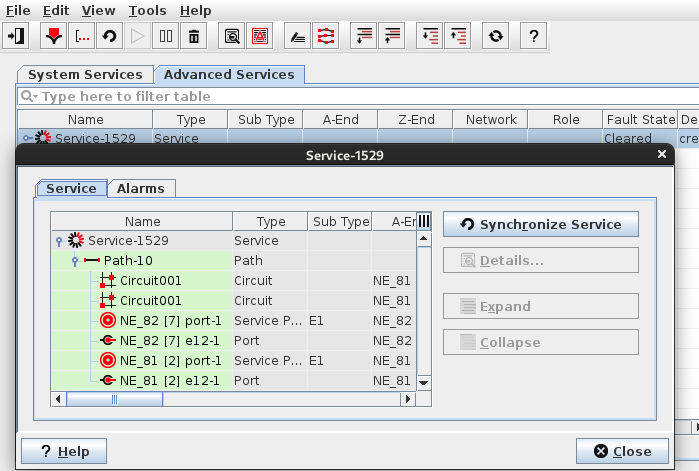
The tab “Advanced Services” lists services manually created by the user via the “Create” command/icon.
From the main window you can call the relevant dialogs such as:
− Alarm list of the service(s),
− Create/edit/delete services,
− Synchronize services,
− Manage Customer,
− Manage SLA,
− Manage Report Profile,
− Generate Report.
If at least one of the managed Network Elements is in maintenance mode a yellow labeled notice is added in the upper right area of the dialog window. Also see NE Maintenance Mode.

Please note:
When exceeding the maximum number of services licensed for supervision of “System Services” or for “Advanced Services”, a non-clearable alarm is raised.
→ To check the licensed number of advanced services or system services, view the License Information in the NEM Remote Admin Tool.
→ The alarm can only be acknowledged and cleared by either reducing the number of supervised services, or by purchasing and applying a new license covering an appropriate number of services.
Dialog image
Service Supervision - System Services
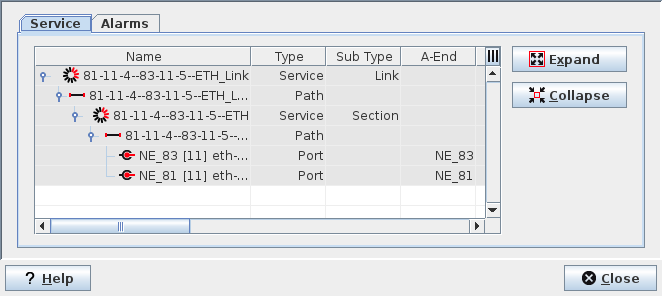
Service Supervision - System Services - Details
Service Supervision - Advanced Services
Mandatory entries
Not applicable.
Optional entries
Not applicable.
Informational content
Displays all the configured services. Providing service details as follows (note that some of the parameters are only available in the Details view):
Name | Service path(s) and service components. Components with an active alarm are colored according to the alarm severity. |
Type, Sub Type | Type of the service supervision component (see Components) or path (see Service Editor). |
A-End and Z-End | A-End and Z-End of the service component. |
Network | red, green, blue or yellow (as selected during service creation). |
Role | The Type or Sub Type role if defined. |
Fault State | Current fault state of the service component (Cleared, Warning, Minor, Major, Critical). |
Description | Information on when a service or path has been created or added, or from which service point it has been generated. Applicable to services or paths. |
Admin State | Administrative state of the type or sub type (Up, Down, Unknown). Admin state also applies to the protection service component where applicable. |
Operational State | Operational state of the service component (Up, Down, Unknown). |
Prot. Fault State | Current fault state of the protection service component (where applicable). |
Prot. Oper State | Current operational state of the protection service component (where applicable). |
Supervision | Status of the supervision (usually running or paused). |
Customer | Configured customer of the service component (as selected during service creation). |
Service Level Agreement | Configured service level agreement of the service component (as selected during service creation). |
A notice appears when NEs are in maintenance mode. The notice with yellow background appears in the upper right area of the main window. To check which NEs are in maintenance mode, please see more details in NE Maintenance Mode.
Controls (buttons, menu items, etc.)
File menu
Exit |  | Closes the current dialog window. |
Edit menu / icon bar
Create… |  | Calls the Service Editor dialog to create a new service and opens the Service Info Attributes dialog. |
Edit… |  | Calls the Service Editor dialog for a selected service. |
Synchronize Service |  | Re-synchronizes the selected service. |
Supervision ► Resume |  | Resume paused supervision for the selected service. The status shown in the “Supervision” column will go back to “Running”. |
Supervision ► Pause |  | Pause supervision for the selected service. The status shown in the “Supervision” column will go to “Paused”. The entry is colored cyan. |
Delete |  | Deletes the selected service element entry and all its lower level members. |
Manage Customer… |  | Calls the Customer Manager dialog to create a new customer entry. |
Manage SLA… |  | Calls the SLA Manager dialog to create a new SLA profile. |
Manage NE Maintenance Mode… | Calls the NE Maintenance Mode dialog to enable or disable maintenance per NE. |
View menu / icon bar
Details… |  | Opens a details view of the service and, where applicable, its alarms. |
Alarm List… |  | Calls the Alarm List dialog listing the currently selected “Service Type” alarms, e.g. Total Service Loss. Only applicable to entries where active alarms are present. |
Show Tree Table |   | When enabled, loads service details and shows Advanced Services as a tree structure in the main table. When disabled, only shows the top level for each service in Advanced Services. |
Tools menu / icon bar
Generate Report… |  | Calls the Service Reporting dialog. |
Manage Report Profile… |  | Calls the Report Manager dialog to create new Report profile. |
Additional options in icon bar
Details… - Expand (next level) |  | In the details view, shows the members of the selected service in the table. The next lower level of the selected item is expanded. |
Details… - Collapse (last level) |  | In the details view, hides the members of the selected service in the table. The lowest level of the selected items is collapsed. |
Details… - Expand (all levels) |  | In the details view, shows the members of the selected service in the table. All lower levels of the selected item are expanded simultaneously. |
Details… - Collapse (all levels) |  | In the details view, hides the members of the selected service in the table. All lower levels of the selected items are collapsed simultaneously. |
Reload |  | Reloads all System Services and Advanced Services. |
Service/Path/Service Components menu; Context menu
Details… | | Opens a detailed view of the selected service. |
Alarm List… | | Calls the Alarm List dialog listing the alarms for the currently selected item in the table. This is only available for a selected component with an active alarm. |
Edit | | Calls the Service Editor dialog for a selected service. |
Synchronize Service | | Re-synchronizes the selected service. |
Supervision ► Resume | | Resume paused supervision for the selected service. The status shown in the “Supervision” column will go back to “Running”. |
Supervision ► Pause | | Pause supervision for the selected service. The status shown in the “Supervision” column will go to “Paused”. The status entry is colored cyan. |
Delete | | Deletes the selected service element entry and all its lower level members. |
Expand |  | Shows the members of the selected item in the table. All lower levels of the selected item are expanded simultaneously. |
Collapse |  | Hides the members of the selected item in the table. All lower levels of the selected items are collapsed simultaneously. |
Help
? Help |  | Calls the FOXMAN‑UN help viewer and opens this page. |
Table Sorting and Filtering
Please refer to Table Sorter section for details.
Related dialogs/windows