
Alarm History
Purpose
This dialog is called from the NEM Desktop’s Fault Management menu.
To keep the size of the database as small as possible, all cleared alarms are removed from it on acknowledgment. They are transferred to the Alarm History which covers the period of the past 30 days (default setting in the configuration file alarming.conf).
The Alarm History dialog provides access to these past alarms. A time/date window can be set for which the alarms shall be retrieved from history. The maximum span of the date/time window is the complete 30 day period. It can be specified, whether the Alarm On or the Alarm Off time shall be within that window.
Double click on an alarm in the list opens the corresponding Alarm Properties dialog. This dialog can also be opened via the context menu of a selected alarm in the list.

Please note:
To find all relevant alarms for the specified date/time window, the history files have to be searched from the start date/time right up to the most recent entry. This can take a long time, particularly if
• the start date/time is many days in the past
• the value in “Max. Entries” is large
• the number of alarms occurring per day is large
Dialog image
Alarm History
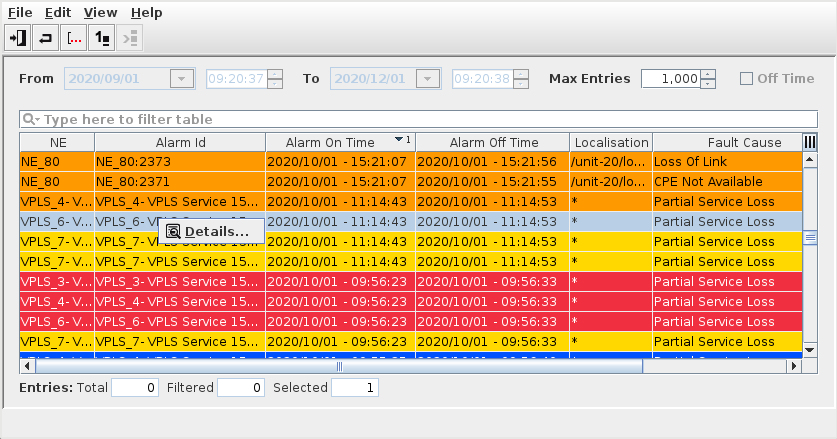
Mandatory entries
Search parameters
Start Date / Start Time | Begin of the date / time window for the retrieval of history alarms. Default is the current day at current time. |
End Date / End Time | End of the date / time window for the retrieval of history alarms. Default is the current day at current time. |
Max Entries | To speed up the retrieve process, alarms are fetched in batches of a definable size. Default is 500. |
Off Time / On Time | Defines whether the Date / Time window shall be applied to Alarm On Time or the Alarm Off Time. |
Optional entries
Not applicable.
Informational content
List of history alarms filtered for date / time window and filter settings. The list is sorted in ascending order for the attribute User.
The list can be resorted for each attribute in ascending or descending order by clicking on the column header.
A double click on any alarm in the list calls the Alarm Properties dialog.
Controls (buttons, menu items, etc.)
Menu “File”
Get First |  | Gets the first batch of alarms from the history files. |
Get Next |  | Gets the next batch of alarms from the history files. The button is grayed if there are no more alarms in the history files matching the search parameters. |
Exit |  | Clears the alarm list, resets the search parameters to the default values and closes the dialog. |
Menu “Edit”
Details… |  | Only available if an alarm in the list is selected. Calls the “Alarm Properties” dialog for alarms contained in the alarm history. |
Modify |  | Clears the alarm history list. |
Reset |  | Clears the alarm list and resets the date/time window to default (current date/time). |
Menu “Help”
? Help | Calls the FOXMAN‑UN help viewer and opens this page. |
Table Sorting and Filtering/Export and Printing
Please refer to Table Sorter section for details.
Related dialogs / windows