
NEM Network Browser Main Window
Purpose
The NEM Network Browser dialog is the operational part of FOXMAN‑UN. It presents the managed network or parts thereof in a graphical way. Each such view is called a Map.
Maps contain Network Elements and Foreign Objects which are shown as Symbols, their color being dynamically modified to show the highest severity of the currently active alarms. Unacknowledged alarms are indicated by a blinking symbol.
Depending on the map’s global preferences and the settings for “Map Style (also see NEM Network Browser Main Window)” and “Hide legacy graphics on editor palette”, the node symbols, flags, and alarm indications are presented in a different style.
With modern map style, a symbol can carry alarm flags and message flags. The alarm flag is colored in accordance with the highest active alarm severity. The message flag indicates that an operator has entered an Operator Message related to the node:
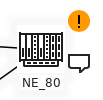
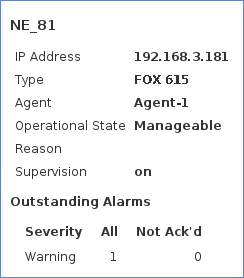
When placing the mouse pointer over the symbol, information related to the node is displayed such as its
• name,
• address,
• type,
• agent,
• operational state,
• reason (cause) for the operational state being “not manageable”,
• supervision status,
• outstanding alarms, and
• alarm severity.
The information banner is updated when the mouse is moved away and back over the NE:
Nodes where the last forced polling failed are shown with an “x” in a red circle:

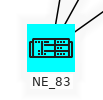
Nodes that are in the “not manageable” operational state are colored cyan (default color):
With legacy settings, a symbol can carry three different colored square flags:
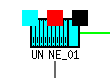
• A light blue flag in the top left corner indicates an unmanageable NE.
• A flag in the top center shows the color for the highest severity of all unacknowledged alarms.
• A black flag in the top right corner indicates that the polling has been stopped (i.e. the element agent has been suspended) by an operator.
Traffic between the elements on a map can be indicated using Sections. These are shown as colored lines between the symbols. The line color indicates either inactive operational state (gray) or when active, the highest alarm severity of the sections.There is an option to indicate the total section bandwidth via the line thickness.
To provide a structuring method for maps of larger networks, Group symbols can be introduced. They represent a collapsed part of the network. A group symbol contains a number of NEs, and its color shows the alarm state of the group. A group symbol can be expanded and then shows an additional map window.
System alarms can be visualized by a special System symbol. It presents the system alarm situation in the same way as NE and FO symbols via color changes and blinking.
Maps can be assigned a Map Background, e.g. a geographical country outline or a floor plan.
The Network Browser dialog allows creating and populating maps, and with their aid, supervising the alarm situation. It gives to NEs configuration tools, provided the user has been granted the relevant access rights.
Dialog image
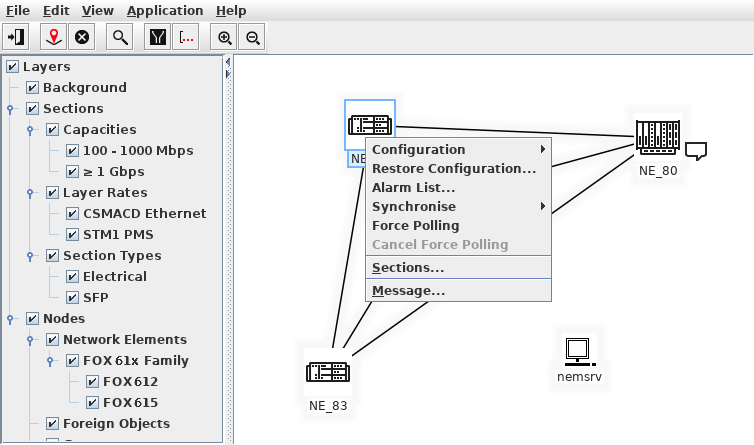
The dialog below shows the context menu of a selected NE.
NEM Network Browser
Mandatory entries
Not applicable.
Optional entries
Not applicable.
Informational content
Graphic representation of a network to be managed, containing NE and FO symbols linked with sections (traffic links).
Controls (buttons, menu items, etc.)
File
 | Calls the Open Map dialog, which allows creation, deletion as well as duplication of maps. | |
Close |  | Closes the currently open map. |
 | Allows bitmaps for NE symbols, FO symbols, group symbols, system symbols or backgrounds to be imported to, exported or deleted from the FOXMAN‑UN system. | |
Export Map as Image… |  | Allows the currently opened map to be exported from the FOXMAN‑UN system. The map image can be saved as GIF, JPEG or as PNG image file in a specified directory of the server. |
Exit |  | Exits the NEM Browser Window. |
Edit: Edit Mode Activated [View Menu > Edit Mode]
Symbol Palette
Lists all the symbols the user is allowed to create in the map through drag & drop mechanism.
The symbols are grouped as follows:
− NE,
− FO,
− Group,
− System.
New Symbol – NE/FO | Selecting and dragging to the map any of the NE/FO symbols will call the Select NEs/Select FOs dialog showing the available NE(s)/FO(s). |
New Symbol – Group | Selecting and dragging to the map any of the Group symbol will create the selected group symbol in the map and automatically assigns it a unique name containing date and time of its creation. This name can be modified via the Rename context menu. |
New Symbol – System | Selecting and dragging to the map any of the System symbol will create the selected system symbol in the map. The default name of the symbol is the name of the workstation that contains the FOXMAN‑UN core. This name can be modified via the Rename context menu command. Note: a newly created map automatically includes the system symbol with name of the workstation. |
Symbol on the map selected
Open Group | Applicable to a Group symbol only. Opens the selected group’s map. |
Delete/Cut/Rename | Delete/Cut/Rename a symbol. The Cut (and Paste) functions allow moving a symbol between a main map and its group maps (cut & paste is not possible between main maps) Rename calls the Rename Symbol dialog, which allows changing the default NE name. |
A-End Section /Z-End Section | Calls the Create Section dialog, with the selected NE or FO as the A/Z End NE. This allows you to create graphically a section between two elements. Note: It is also possible to create new section via Application Menu > Section Management. |
No Symbol on the map selected
Paste Undo Cut | The Cut & Paste functions allow moving a symbol between a main map and its group maps. |
Change Background | Calls the Select Backgrounds dialog, which lists all available background images. |
Edit: View Mode Activated [View Menu > View Mode]
NE Symbol on the map selected
Context Menu NE
Applicable to the NEs of the family FOX51x and on the NEM client for Windows® only. Calls the HW view of the NE giving a graphical view of the alarm situation. | |
Configuration (GUI) | Calls the configuration tool and automatically connects to the selected NE. |
Information Manager | Applicable for FOX660 only. Calls the configuration tool and connects using the selected user class (Information or Manager) |
Applicable to the NEs of the family FOX61x, FOX660, and FOX51x only. At regular intervals, FOXMAN‑UN checks if the NE configurations have been modified. Up to 5 (configurable) modified configurations can be recorded per NE. Any of these configurations can be restored via the “Restore Configuration” dialog. | |
Returns the Alarm List for the NE. This menu item is grayed out if there are no alarms. | |
Synchronize Alarm | Updates the alarms in the FOXMAN‑UN database to reflect the current situation in the managed network for the selected NE. |
Synchronize Time | Synchronizes the NE time. For some node types this command is not available. |
Synchronize Inventory | Updates the inventory of the selected NE by reloading it from the node. |
Synchronize Service | Updates the services of the selected NE by reloading them from the node. For some node types this command is not available. |
Force Polling | Requests an immediate poll of the NE. This will read the complete NE configuration, inventory, and alarm status information from the selected NE(s). |
Cancel Force Polling | Cancels a forced polling while running. |
Sections… | Opens the Section Management dialog for the selected NE. |
Opens the Operator Message dialog. An existing message can be viewed or a new one added. | |
Activate | Calls the third party element manager. |
FO Symbol on the map selected
Context Menu FO
Activate | Launches a Third party Element manager associated with the FO. The configuration is done via the “Third Party EM” section of Create NE of type “FO” / FO Properties dialog. |
Remote Command | Calls the Create Remote Command dialog. Lets you execute one of the predefined remote commands (see Create Remote Command). |
Returns the Alarm List for the FO. | |
Synchronise Alarms | Updates the alarms in the FOXMAN‑UN database to reflect the current situation in the managed network for the selected FO. |
Calls the FO Properties dialog. This dialog does not allow modifications. | |
Opens the “Operator Message” dialog for the selected FO. |
System Symbol on the map selected:
Context Menu Symbol
Returns the Alarm List for the System. |
Group Symbol on the map selected
Context Menu Group
Open Group | Opens the Group map. |
Returns the Alarm List for all the members of the Group. | |
Sections… | Opens the Section Management dialog. |
View
Calls the Map Options dialog, which defines the following: - Opacity of the map background. - To show the capacity of the section via line thickness. - Horizontal/Vertical gap in pixels and the Max. Nodes/row. | ||
Parent Map | Returns to the parent group of the currently active group. | |
Top Map | Returns to the main map of the currently active group. | |
 | Opens the Find Symbol dialog to locate a symbol on currently opened map The process also finds symbols, which are located on group maps of any level. | |
Show/Hide Filter |   | Applicable in View Mode. Show / Hide the layer filter tree, which allows filtering the information shown in the map based on Layers. |
View Mode |  | Used to work with the MOs (Managed Objects) represented by symbols and sections. Maps/groups and symbols remain untouched. - Symbol palette is hidden. - Select one or multiple MOs. - Execute MO actions (alarm list, configuration, force polling, etc.). Show/Hide Layer filter tree. |
Edit Mode |  | Used to edit the map. Maps/groups and symbols are modified. - Symbol palette is displayed. - Symbols can be modified as follows: Delete/Cut/Rename. - Change symbol graphics. Change map background. |
Zoom |   | The distance between nodes varies with factor 2 between each zoom step. Allows showing more details the deeper one zooms into the map. Zoom In: Increases the distance between nodes. Zoom Out: Decreases the distance between nodes. |
Application
Calls the alarm summary showing the numbers of currently active alarms per severity, of all symbols (NEs, FOs, System, Group) contained in the currently opened map. | |
If no symbol on the map selected, calls the Alarm List containing the currently active alarms of all the symbols contained in the currently opened map. If a symbol is selected, calls the Alarm List containing the currently active alarms of the selected symbol only. | |
Calls the Section Management dialog. |
Help
? Help | Calls the FOXMAN‑UN help viewer and opens this page. |
Related dialogs / windows