
Synchronization Map
Purpose
Displays a graphical view of the synchronization setup in all or part of the FOXMAN‑UN user’s managed network. The SDH and PDH synchronization can be displayed simultaneously in one map. All or only a subset of the NEs and FOs can be selected for the generation of the synchronization map.
The Application is launched by the NEM Desktop via Network > Synchronization Map.

Please note:
• The selection includes all currently manageable NEs of the user’s managed network, which have SETS and/or PETS. The clock source information of these NEs are used to create nodes in the synchronization map.
• The FOs provide no clock source information. FO clock source nodes are created for FOs, which have a section connected to a clock source TP (external clock source). All other FOs are ignored.
• The nodes of the synchronization map are not necessarily NEs, but could be individual units of an NE (i.e. for FOX61x).
• A clock connection can only be shown on a synchronization map if a Section has been defined between the NEs concerned.
• No map needs to be open to generate a synchronization map
Dialog images
Synchronization Map
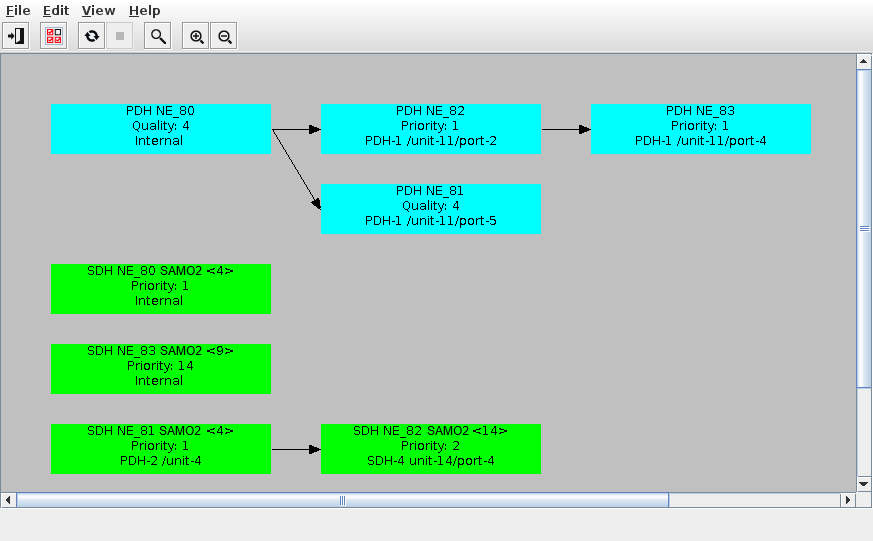
Synchronization Map – PDH & SDH – No Clock Source Path
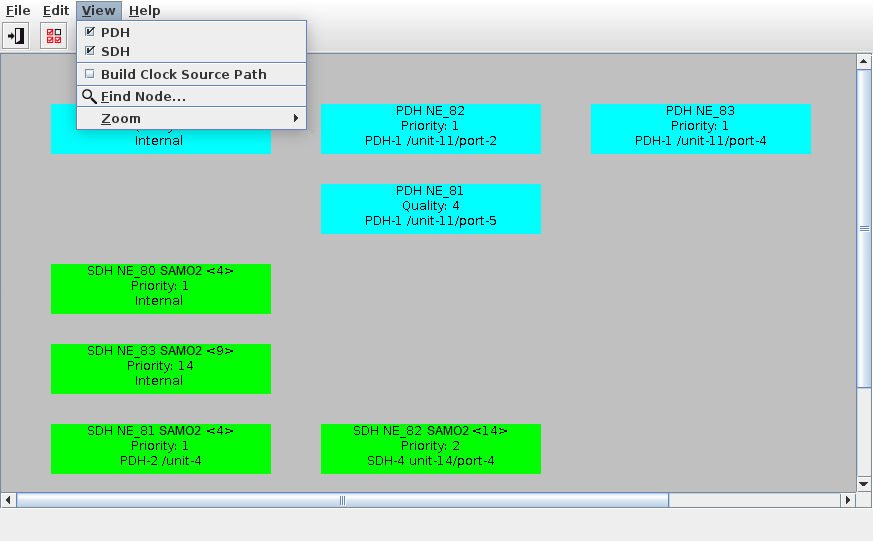
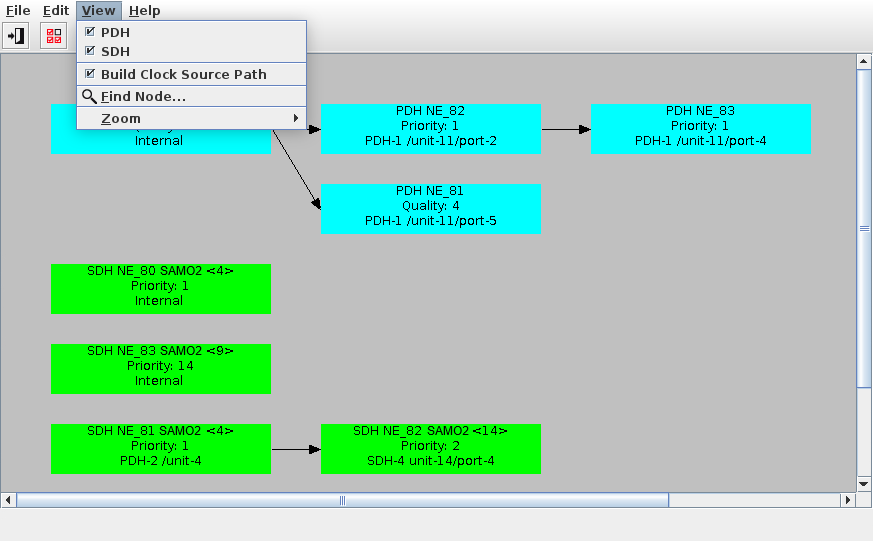
Synchronization Map – PDH & SDH – Build Clock Source Path
Mandatory entries
Selection of the NEs to be included for the generation of the map, entered via the Sync Map – Select NEs dialog.
Optional entries
Not applicable.
Informational content
Symbol for each selected NE and FO showing name, currently valid clock priority or quality level, currently active clock source.
Currently active clock connections shown in black.
Currently active clock loops shown in red.
Clock connections involving an external clock input shown using dashed lines.
Controls (buttons, menu items, etc.)
File menu
Select NEs | Calls the Select NEs dialog, which lists all the currently manageable NEs and FOs in the user’s managed network. |
Export as Image | Allows the currently opened sync map to be exported from the FOXMAN‑UN system. The map image can be saved as a GIF, JPEG or as PNG image file in a specified directory of the server. |
Exit | Closes the dialog. |
Edit menu
Calls the selected node’s Timing Sources Status. Note: - The menu item is only enabled when one node in the currently displayed clock synchronization tree or clock source path is selected. - Contrary to the same dialog called via the CST GUI, the entries cannot be edited - A double click on the selected NE will likewise calls the Timing Source Status of that particular NE. | |
Refresh | Refreshes the map to reflect the current synchronization configuration changes. |
Abort | Abort the refresh of the map. |
View menu
PDH/SDH | Displays the PDH/SDH clock synchronization tree or clock source path. Note: - Changing these parameters will cause a recalculation of the clock distribution tree adding or removing a node type. - It is not possible to disable both PDH and SDH. - If you enable SDH, an error message will be issued for nodes that do not provide SDH clock synchronization. |
Build Clock Source Path | Finds the clock sources of a node. The Synchronization tree is build back to the root clock source for every selected NE. Note: - This menu is applicable only if one specific NE is selected from the Select NEs dialog, e.g. NE_172.31.68.81. - The dialog images above show sample outputs when a specific NE is selected and the “Build Clock Source Path” menu item is selected/not selected. - In case of Build Clock Source Path menu item not selected, the map shows only the nodes of the selected NE. - In case of Build Clock Source Path menu item selected, the map shows all the nodes of the selected NE as well as the nodes’ parent clock sources. - The clock distribution path is build with the time source information of the nodes and the corresponding sections. |
Find Node | Calls the Find Node dialog. The user can enter the name of a node or select a node from the Select Nodes dialog. Note: If several nodes match the Node Name entry, a repeated click on the Find button will jump to the next matching node. |
Zoom | - Zoom In Increases the size of the nodes. - Zoom Out Decreases the size of the nodes. Note: You can click and zoom multiple times, each mouse click or scroll wheel click zooms in or out by a factor of 2. |
Help menu
? Help | Calls the FOXMAN‑UN help viewer and opens this page. |
Related dialogs / windows