
Credential Distribution
Purpose
The dialog window “Network Credential Distribution” provides distribution functions for passwords and SSH keys. It includes tabs for
• Password management (tab name: Passwords),
• SSH keys management (tab name: SSH Keys),
• Tasks for credential distribution (tab name: Tasks).

Please note:
The “SSH Keys” tab is only visible to users with user privilege “Administrator” enabled.
In the “Passwords” and “SSH Keys” tabs, the related network credentials can be managed. To make changes to existing settings, jobs can be created which can be executed for specific tasks.
The “Tasks” tab lists tasks, sub-tasks and involved NEs and allows you to abort, retry, delete tasks and show detailed information on network credential distribution tasks and jobs.
Dialog image
Network Credential Distribution - Passwords
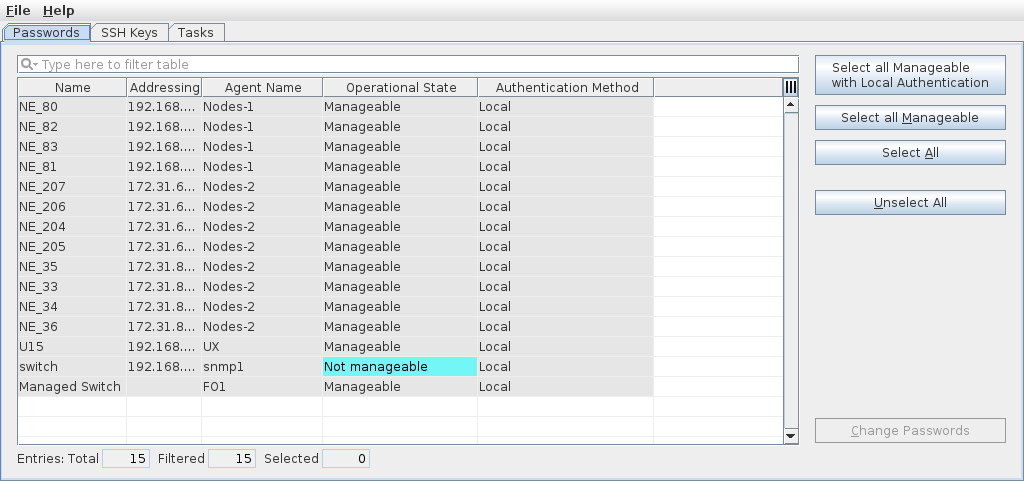
Mandatory entries
Not applicable.
Optional entries
Not applicable.
Informational content
List of all NEs as defined in the “NE Browser” tab of the NEM Configurator with the following columns:
Name | Name of the NE. | |
Addressing | Network address of the NE. | |
Agent Name | Agent name for the NE. | |
Operational State | Operational state of the NE, | |
Authentication Method | Authentication method configured for the NE (local, remote). |
Controls (buttons, menu items, etc.)
Select all Manageable with Local Authentication | Selects all nodes that are manageable and use passwords. | |
Select all Manageable | Selects all nodes that are manageable and use passwords. | |
Select All | Selects all nodes. | |
Unselect All | Unselects all nodes. | |
Change Passwords | Opens the “Network Credential Distribution - Enter Job Information for Password Change” dialog window to define a job for applying password changes to the selected nodes. | |
Menu commands on top of the dialog window: | ||
File - Exit |  | Closes the current dialog window. |
Help – ? Help | Starts the FOXMAN‑UN help viewer and opens this page. | |
Dialog image
Network Credential Distribution - Enter Job Information for Password Change
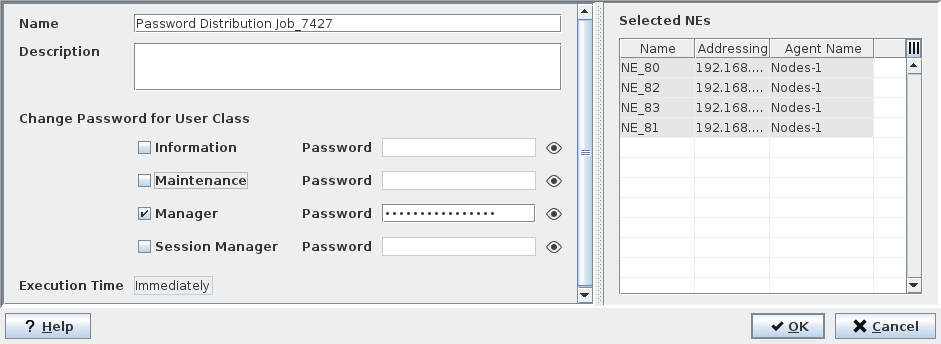
Mandatory entries
Name | Name of the password change job (mandatory entry). | |
Description | Description of the password change job (optional entry). | |
Change Password for User Class | At lest one user class needs to be marked, and the respective new password needs to be entered to start the job. Note: The entered password(s) must comply with the password policy applicable to NE passwords. For more information on NE password policies refer to the NE documentation. | |
Execution Time | Immediately - this is fixed and cannot be selected. |
Optional entries
Description | Description of the password change job (optional entry). |
Informational content
The selected NE or NEs are shown in the right-hand table named “Selected NEs”.
Controls (buttons, menu items, etc.)
? Help | Starts the FOXMAN‑UN help viewer and opens this page. | |
OK | Creates the password change job using the data entered and closes the dialog. | |
Cancel | Closes the dialog without creating a job. |
Dialog image
Network Credential Distribution - SSH Keys
The “SSH Keys” tab is only visible to users with user privilege “Administrator” enabled.
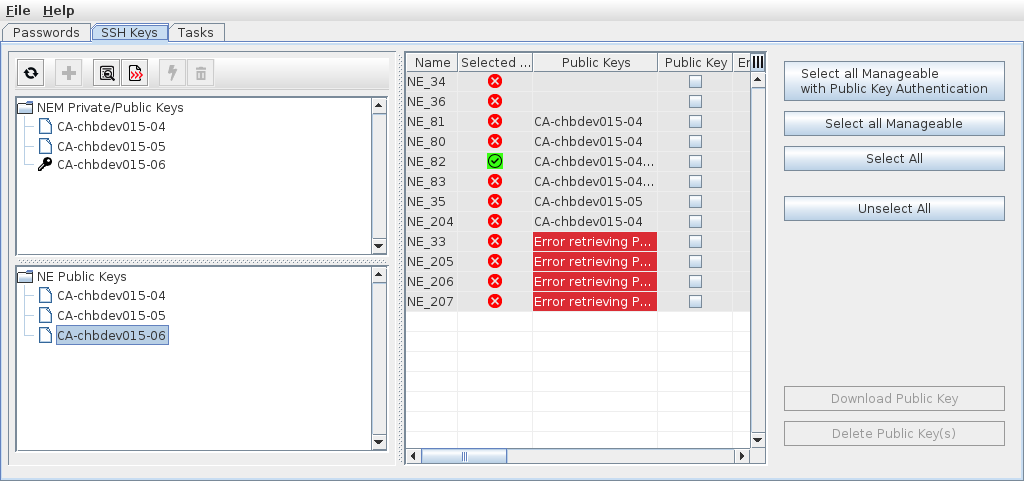
Mandatory entries
Not applicable.
Optional entries
Not applicable.
Informational content
• A list of all NEM Private/Public Keys (upper left area); this is a tree list of all generated private/public key pairs with their individual key pair name. Such a key pair is generated via the “+” icon.
Inactive keys are marked with a “white sheet” icon, whereas active keys are marked with a “key” icon.
An active key pair cannot be deleted.
• A list of all NE Public Keys (lower left area); this is a tree list of all generated NE public keys with their individual public key name.
• A list of all NEs (center area table of NEs) defined in the “NE Browser” tab of the NEM Configurator with the following columns (most of the columns are described in NEM Configurator):
Information in the center area table of NEs: | ||
Marked |  | Indicates that the table entry is marked for further actions such as “Delete Public Key(s)”. |
 | Indicates that the table entry is not marked for further actions. | |
NEs can be marked, e.g., by manually selecting NEs from the table and clicking on “Mark Selected”. Other options to mark NEs for key actions are available via the mark / unmark command buttons in the right area of the dialog. | ||
Name | NE properties or NE communication properties. For details see Create Agent / Properties, NE – Create / Properties, Create Discovery Request (Discover NEs), and Create NE of type “FO” / FO Properties. | |
NE Type | ||
Addressing | ||
Agent Name | ||
Selected Key(s) |  | The public key selected in the “NE Public Keys” tree is present on the NE. |
 | The public key selected in the “NE Public Keys” tree is not present on the NE. | |
Public Keys | Listing of the public keys on the NE. If the NE settings don’t allow SSH keys, this field is marked as “Forbidden”. If keys cannot be retrieved, e.g. due to a networking issue, the error message “Error retrieving Public Keys” is shown. | |
Public Key | NE properties or NE communication properties. For details see Create Agent / Properties, NE – Create / Properties, Create Discovery Request (Discover NEs), and Create NE of type “FO” / FO Properties. | |
Encrypted (SSH) | ||
Operational State | ||
Supervision | ||
Alarm State | ||
ID | ||
Agent Type | ||
Agent Access Type | ||
Agent ID | ||
Foreign Key | ||
Location | ||
Tag | ||
Type | ||
Security Profile | ||
Controls (buttons, menu items, etc.)
Icon commands on top of the NEM Private/Public Keys listing: | ||
Refresh |  | Refresh the contents of all windows of this dialog. |
Add |  | Add a private/public key pair. Execution of this command will request a name for the new key pair. After entering a unique name, the new key pair will be created and added to the list of NEM Private/Public Keys. A success window will pop up, which needs to be confirmed by clicking “OK”. |
Details |  | Show details of the selected key. The details include - Name, - Description, - Fingerprint, - Public Key, - Active (checkbox marked or not marked) |
Export |  | Exports the selected public key or the public key of a selected private/public key pair to a file. A file save dialog is opened to select a folder and a file name. The public key is stored with the OpenSSH file extension “.pub”. Applicable to a selected key from the list of NEM Private/Public Keys or from the list of NE Public Keys. |
Activate |  | Activate the selected private key. This initiates creation and execution of a job to activate the selected private key. To proceed, the following Job Information needs to be entered: - Name (mandatory), enter a new job name or confirm the proposed name; - Description (optional) Click OK, to continue. The job will be executed, and once done, the private/public key pair will be marked active. Any previously active key pair will be set to inactive state. |
Delete |  | Delete the selected private/public key pair. Applicable only to one selected, inactive key pair from the list of NEM Private/Public Keys. |
Command buttons on the right hand side of the dialog window: | ||
Mark All | Marks all nodes in the list of nodes, i.e., sets a mark in the checkbox in column “Marked”. | |
Mark MGD | Marks all managed nodes. | |
Mark All MGD w. Public Key | Marks all managed nodes with public keys. | |
Mark Selected | Marks the selected nodes. Select nodes by clicking on the table entry using the pointer device. Several nodes are selected using the “Ctrl”/”Strg” key. | |
Unmark All | Unmark all nodes. | |
Download Public Key | Creates a job for downloading the public key of a selected private/public key pair to the selected NEs. To be executable, this command requires one selected private/public key pair and at least one selected NE. For job execution, the following Job Information needs to be entered: - Name (mandatory), enter a new job name or confirm the proposed name; - Description (optional) Click OK, to continue. The job will be added to the job list in the “Tasks” tab (left area). The related task will be executed and listed in the details view (right area) of the selected job. | |
Delete Public Key(s) | Delete selected public keys. This is only applicable to keys that are not installed on any NE. | |
Menu commands on top of the dialog window: | ||
File - Exit | | Closes the current dialog window. |
Help – ? Help | Starts the FOXMAN‑UN help viewer and opens this page. | |
Dialog image
Network Credential Distribution - Tasks
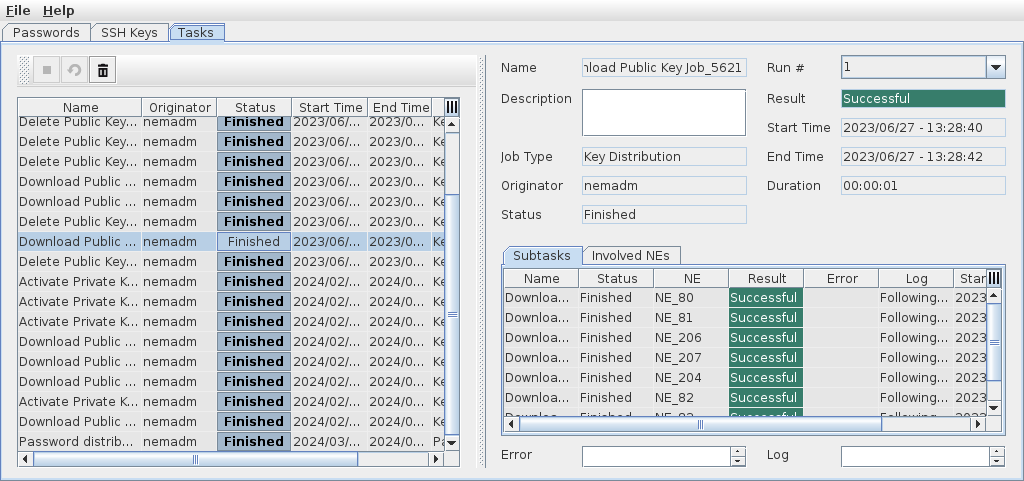
Mandatory entries
Not applicable.
Optional entries
Not applicable.
Informational content
• Left-hand table: A list of all Network Credential Distribution jobs.
In this table, the following information is provided:
Name | Name of the task entered during job creation. | |
Description | Task description entered during job creation. | |
Originator | Name of the user that has created the job. | |
Predecessor Task | Name of the predecessor task, if such task has been defined during job creation. | |
Predecessor Task must succeed | If a predecessor task has been defined, indicates whether the predecessor must be successful to execute the current task. | |
Status | Status of the latest task run for this job, such as “Scheduled”, “Running” or “Finished”. | |
Start Time | Start date and time of the latest task run. | |
End Time | End date and time of the latest task run. | |
Type | Type of the job, such as “Key Distribution” or “Password Distribution”. |
• Right-hand information: Task details for the task selected in the left-hand table.
In the details area, the following information is provided:
Name | Name of the task (as selected in the left-hand table). | |
Description | Task description entered during job creation. | |
Job Type | Type of the job, such as “Key Distribution” or “Password Distribution”. | |
Originator | Name of the user that has created the job. | |
Predecessor Task | Name of the predecessor task, if such task has been defined during job creation. | |
Predecessor Task must succeed | If a predecessor task has been defined, indicates whether the predecessor must be successful to execute the current task. | |
Status | Task status, such as “Scheduled”, “Running” or “Finished”. | |
Run # | If a task has been run more than once, lets you select the run # (>1) to see its details. | |
Result | Result of the task run # (1…n), such as “Successful” or “Failed”. | |
Start Time | Start date and time of the task run # selected. | |
End Time | End date and time of the task run # selected. | |
Duration | Duration (hh:mm:ss) of the task run # selected. | |
Subtasks table tab (table with more details on the sub-tasks): | ||
Sub-Task Name | Name of the sub-task(s). | |
Result | Result of the individual sub-task. | |
Error | If a sub-task failed, shows the error message related to the failure. | |
Involved NEs table tab (table with more information on the involved NEs): | ||
Name | Name of the NE(s) involved in the task execution. | |
Addressing | Network address of the NE(s) involved in the task execution. | |
Operational State | Operational state of the NE(s) involved in the task execution. | |
Encrypted (SSH) | Indicates whether or not the communication to the NE is encrypted as defined in the NE properties (NE – Create / Properties). | |
Controls (buttons, menu items, etc.)
Icon commands on top of the jobs table (default place): | ||
Abort |  | Aborts the selected job if any tasks are sill running. |
Retry |  | Retry running the tasks for the selected job. This may be useful if any of the tasks have failed on the previous run, e.g. due to temporary unavailability of one of the NEs. |
Delete | | Delete the selected job. Applicable only to one or several selected job(s). The delete action will also delete the records for tasks and subtasks of the selected job(s) if deletion is confirmed. |
Menu commands on top of the dialog window: | ||
File - Exit | | Closes the current dialog window. |
Help – ? Help | Starts the FOXMAN‑UN help viewer and opens this page. | |
Table Sorting and Filtering/Export and Printing
Please refer to Table Sorter section for details.
Related dialogs / windows