
Section Management
Purpose
The dialog can be called from the NEM Desktop > Application > Section Management or from NEM Network Browser > Application > Section Management. It displays all sections of the managed network, regardless of any map that may be opened.
A double click on a section line in a map calls a list of sections represented by that line.
This dialog allows section management, i.e.
− new sections can be added or existing sections can be deleted;
− the name of a section can be modified;
− the NP GUI for a specific section can be launched from here.

Please note:
When dealing with sections, both endpoints will always be identified by the NE and FO names specified at creation time. NE and FO names modified using the Rename function in the NEM Network Browser will be ignored.
Dialog image
Section Management
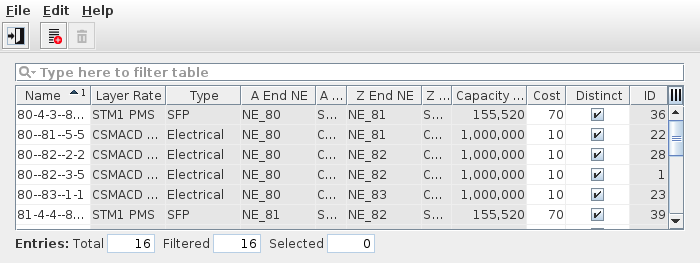
Mandatory entries
Not applicable.
Optional entries
A name for each section can be added or an existing name can be modified. Click in the name field of a section to start the edit process.
Informational content
List of the sections for the complete managed network.
Name | Name of the section. The name can be edited within the table. |
Layer Rate | Physical layer type of the section. |
Type | Physical signal type: electrical, optical |
Supervision | Service Supervision status, - Running: services are supervised on this section. Supervision can be paused or disabled via the “Supervision ► Pause” or “Supervision ► Disable…” commands in the context menu or the “Edit” menu. - Paused: service supervision is paused on this section. It can be resumed via the “Supervision ► Resume” command in the context menu or the “Edit” menu. - Disabled: service supervision is disabled on this section. It can be enabled via the “Supervision ► Enable…” command in the context menu or the “Edit” menu. |
Superv. Oper State | Shows the operational state (up, down) of the service supervision on this section. This field is empty when service supervision is disabled. |
Fault State | Shows the highest active fault state of the section. |
A End NE | Name of the NE at the A end of the section. |
A End TP Label | Termination point label at the A end. |
Z End NE | Name of the NE at the Z end of the section. |
Z End TP Label | Termination point label at the Z end. |
Capacity [kbit/s] | Capacity of the section in kbit/s. In case the capacity cannot be determined the field remains empty. |
Cost | Cost of the section. |
Distinct | If enabled, use the section for distinct routing. If disabled, only allow indistinct routing. This option can be enabled or disabled within the table. |
ID | Database ID of the section. |
Controls (buttons, menu items, etc.)
File menu
New Section |  | Calls the Create Section dialog. |
Exit |  | Closes the current dialog window. |
Edit and Context menus
Open A End NE Open Z End NE | Calls the FOXCST GUI for FOX61x NEs, or the FO properties dialog for Foreign Objects (FOs). | |
Open Circuit… | Launches the NP GUI for the specific section. The NP GUI will show the circuits or trails going over the Section. | |
Show NP Usage… | For NP sections, opens a dialog to show information on the usage of the selected NP transport entity, see NP Usage. For sections between two Foreign Objects “Show NP Usage” is grayed out. | |
For MPLS-TP links, opens a dialog showing details of the selected link. | ||
Delete |  | Removes the selected sections in the list from the database. |
Supervision ► Enable… | Enable supervision of all services on this section. To do that, the service information attributes Customer, Service Level Agreement, and Network need to be selected. | |
Supervision ► Disable… | Enable supervision of all services on this section. Must be confirmed by the user. If any service supervision cannot be disabled, an error message is shown with the respective reason(s). | |
Supervision ► Resume | Resume service supervision that has been paused before. | |
Supervision ► Pause | Pause service supervision. | |
Supervision ► Reload Configuration | Reloads the configuration from the NEs to make sure it is up to date in case of recent changes to the section. | |
Supervision ► Show Details… | Show service supervision details for this section. Opens the services in a view-only window of the Service Editor. The windows also provides an alarm tab showing active alarms of the section. | |
Supervision ► Show in Service Supervision… | Opens the service supervision dialog with a filtered view for the service(s) running via this section. |
Help
? Help | Calls the FOXMAN‑UN help viewer and opens this page. |
Table Sorting and Filtering/Export and Printing
Please refer to Table Sorter section for details.
Related dialogs / windows