
NEM Desktop main window
Purpose
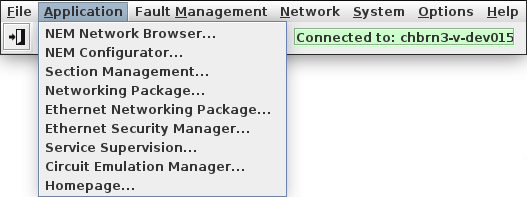
The NEM Desktop dialog serves as the initial control panel which is opened by the NEM login process. The login connects the desktop to an active NEM core. All applications and dialogs opened from the desktop are now automatically communicating with that NEM core.
Dialog image
NEM Desktop
Informational content
Colored field with the label “Connected to:” followed by the name and/or IP address of the core machine. In a main/standby setup, the machine name is followed by its type (in brackets):
• Main
The core machine (server) is the main server in a main/standby setup.
• Standby
The core machine (server) is the standby server in a main/standby setup.
• Standard
The core machine (server) is a standard core machine and not part of a main/standby setup.
The background color of the field indicates the status:
• Green:
The core machine (server) is working normally.
• Orange:
In a main/standby setup, the main server and the standby server are running at the same time. It is strongly recommended to take appropriate action as described in the respective user manual or application note.
• Red:
The connection to the server is lost.
Controls (buttons, menu items, etc.)
File
Exit | Terminates the NEM Configurator session. |
Application
Opens the NEM Network Browser window. | |
Opens the NEM Configurator window. | |
Opens the Section Management window. | |
Opens the Networking Package window. | |
Opens the Ethernet Networking Package window. | |
Opens the Ethernet Security Manager window. | |
Opens the Service Manager window. | |
Opens the Circuit Emulation application window (Web UI). | |
Opens the Teleprotection application window (Web UI). | |
Opens the browser-based NEM home page (Web UI). |
Fault Management
Calls the alarm summary showing the currently active alarms of all NEs and FOs managed by FOXMAN‑UN. | |
Calls the alarm list containing the currently active alarms of all NEs and FOs managed by FOXMAN‑UN. | |
Calls the dialog for retrieval of cleared and acknowledged alarms. In the default setting, alarms of the past 30 days are stored in the history files. | |
Calls the dialog for modification of the alarm criteria on a global or NE basis. |
Network
Opens the user interface for the configuration of the performance data collection. | |
Inventory Request… | Calls the “Request Inventory Report (legacy dialog)” dialog where a report can be configured by selecting the report type and either the relevant NEs or NE types. Additionally a logic filter can be set. The report can be displayed on the screen or/and saved as a XML or CSV file. |
Calls a dialog from where a map of the synchronization paths for a selectable number of NEs can be generated. | |
PTP Sync Map… | Calls the “Time Synchronization” dialog to show the PTP synchronization status and related information of an MPLS-TP network in case PTP is used. |
Spanning Tree… | Calls the “Spanning Tree Map” dialog where NEs can be displayed in a STP map. |
Legacy application. Calls an overview of all NE Password, and Profile/CPS. Selected tasks can be executed, aborted, resumed, retried or deleted. | |
Legacy application. Calls a list of the current NE Password tasks. Existing tasks can be monitored, modified or deleted. From this dialog, new tasks can be added. | |
Legacy application. Calls a list of the current Profile/CPS tasks. Existing tasks can be monitored, modified or deleted. From this dialog new tasks can be added. Also, import/export of profiles/CPS as well as creation of new profiles is possible. | |
Calls the Network Credential Distribution dialog. This dialog provides features to manage NE passwords and SSH keys. | |
Opens the sub-menu with the following Embedded Software (ESW) related functions: | |
Calls the Network Overview dialog. This dialog provides an overview of all ESW installed in the managed network(s) with different views. | |
Calls the ESW Distribution Wizard used to define ESW distribution jobs and activate related tasks. | |
Calls the Task Management dialog. In this dialog, tasks can be managed such as SW distribution tasks and key distribution tasks. | |
Calls the Job Management dialog. this dialog, jobs can be managed such as SW distribution jobs and key distribution jobs. |
System
Opens a list of all major system events kept in the NEM database. Up to 100'000 events can be stored. The overflow is saved into history files. | |
Remote Admin Tool… | The NEM Remote Admin Tool is used for local and remote administration tasks such as: - viewing license information, - managing authentication keys, - starting and stopping NEM services, - checking disk space, - backing up and restoring the database, - configuring main/standby server options. |
The Remote Executor allows you to execute scripts for specific purposes. | |
The Metrics Database lets you set up graphical representations of system and network performance monitoring data. |
Options
Preferences… | Opens the “Global Preferences” dialog to set GUI preferences. |
Help
? Help | Calls the FOXMAN‑UN help viewer and opens this page. |
About | Displays the software version of the installed FOXMAN‑UN. |
Dialog image
Global Preferences
Controls (buttons, menu items, etc.)
Maps
Map Style (also see NEM Network Browser Main Window) | |
Modern | When selected, the NEM Network Browser (Map) uses new symbols, graphic elements, and information pup-ups. Some settings are only applied for elements that are created after enabling this option. |
Legacy | When selected, the NEM Network Browser (Map) uses legacy symbols, graphic elements, and information pup-ups. |
Hide legacy graphics on editor palette | When enabled, legacy symbols are not shown anymore in the Edit mode of the NEM Network Browser. |
Indicate alarm on node background | When enabled, the background of symbols in the map is tinted with the alarm color of the highest severity alarm. |
Enable blinking | When marked, symbols in the map are blinking when an alarm is active. The blink rate can be set (see below). |
Blink Period | On: Set the on time for blinking graphic elements. Default is 2500 ms. Minimum is 100 ms. |
Off: Set the off time for blinking graphic elements. Default is 500 ms. Minimum is 100 ms. | |
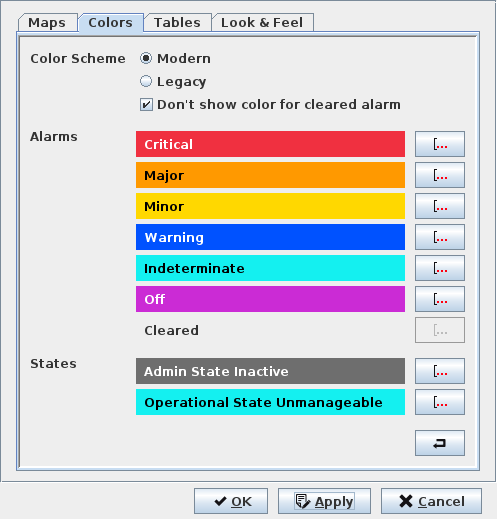
Colors
Color Scheme - Modern | Use new color scheme. The colors used for alarms in the GUI are shown below. Each bar is labeled with the respective alarm severity. | |
Color Scheme - Legacy | Use legacy color scheme. The colors used for alarms in the GUI are shown below. Each bar is labeled with the respective alarm severity. | |
Don’t show color for cleared alarm | If enabled, cleared alarms are shown without color in the alarm lists. If disabled, cleared alarms are shown with the color set in this dialog for the “Cleared” color bar. | |
Alarm color & severity bars |  | Each of the colors assigned to a specific alarm severity can be modified with the edit button right to the color bar. |
 | Reset all colors to their individual default. | |
Tables
Auto resize table columns | When enabled, table columns in GUI dialogs are auto resized to show all information contained in the table cells. When disabled, table columns can be resized manually. Also see more information on Table Column Resizing options. |
Look & Feel
CDE/Motif GTK+ Metal Nimbus | Select one of the GUI appearance styles. Default is “Metal”. |
Enhance Contrast | When enabled, the GUI contrast of certain read-only fields is enhanced to support GUI interaction for individuals with cognitive disabilities. |
OK | Applies changes and closes the dialog window. |
Apply | Applies changes without closing the dialog window. |
Cancel | Closes the dialog without applying changes. |
Related dialogs / windows