
NEM Remote Admin Tool
Purpose
The NEM Remote Admin Tool is used to configure server / database redundancy for FOXMAN‑UN. It allows you to set up a cold standby server or a warm standby server in addition to the main NEM server.
A switch-over to a cold standby server needs to be executed manually. A switch-over to a warm standby server is done automatically in case of failure of the main server. The following failures lead to an automatic switch-over in case of warm standby:
• core services are down on the main server, or
• main server is unreachable from warm standby server.
Dialog image
NEM Remote Admin Tool
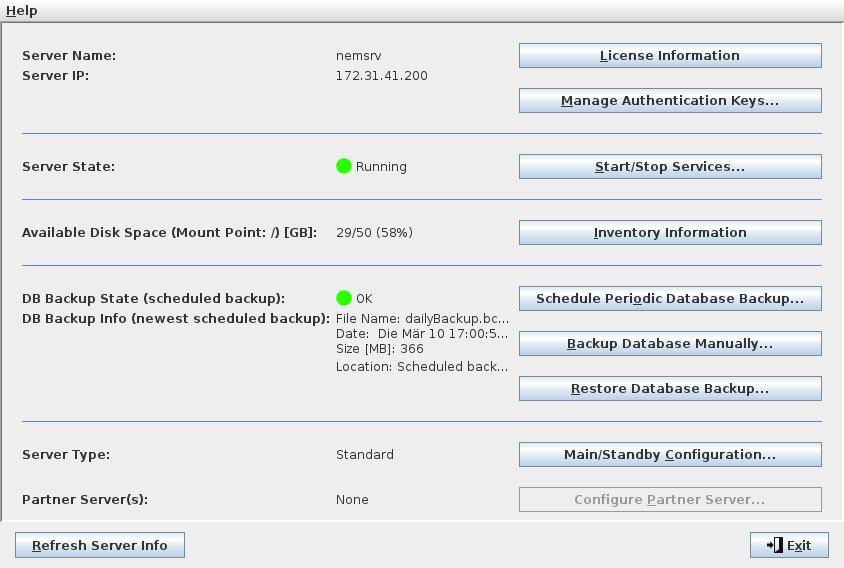
Mandatory entries
Not applicable.
Optional entries
Not applicable.
Informational content
Server Name | The NEM Server name. |
Server IP | The NEM Server IP address. |
Server State | The state of the NEM server. |
Available Disk Space | The available disk space in GByte, the total disk space in GByte, and the disk fill rate in %. |
DB Backup State | The current state of the DB backup process. |
Backup Info | Shows information on the database backup when available. The information includes file name, file date, file size, and location (path). |
Server Type | The server redundancy type. - Standard = no redundancy configured. - Main = redundancy configured, main server. - Warm Standby = redundancy configured, warm standby server. - Cold Standby = redundancy configured, cold standby server. |
Partner Server(s) | When redundancy is configured, shows the partner server with its server name, IP address, and server type. |
Controls (buttons, menu items, etc.)
License Information | Calls a dialog that collects and displays all available license information. |
Calls the “Manage Authentication Keys” dialog to activate, export or delete authentication keys. These keys are used for SSH login of the FOXMAN‑UN agent to NEs supporting this login type, e.g. FOX61x, as an alternative to RADIUS login. Creation of authentication keys used for NE login is done in the Credential Distribution dialog. | |
Start/Stop Services… | Calls the “Services Management” dialog to perform start and stop actions on NEM services. |
Inventory Information | Collects and displays NEM server inventory information, such as - Disk information, - Memory information, - CPU information. |
Schedule Periodic Database Backup… | Calls the “Schedule Periodic Database Backup” dialog to configure a database backup schedule. You can select from - periodic backup every specific number of minutes, - daily backup at a specific time, - weekly backup on a specific day of the week and a specific time, - monthly backup on a specific day of the month and a specific time, or a combination of the above options. You can also select how many backups shall be kept per backup type. The permitted range is 0 to 100. Please make sure that the disk size is suitable for the backup size and number of backups to be kept. |
Backup Database Manually… | Calls a dialogue to back up the database manually. You need to select a location (Manual backups, Scheduled backups) and a backup filename. |
Restore Database Backup… | Calls a dialog to manually restore a database backup. You can choose from available servers (Backup Source) and database backups, and restore a selected backup, or you can delete a selected database backup. |
Main/Standby Configuration… | Calls the “Main/Standby Settings” dialog to enable Main/Standby server functionality. This dialog allows you to: - Select a Server Type (Main, Warm Standby, Cold Standby). - Choose a Partner Server. - Pair the Main and Standby servers. - Unpair servers in existing pairings. - Set alarm options to raise alarms/warnings, and to generate events related to the Main/Standby setup. Note: Main/Standby must be enabled on both servers to be able to pair the two servers. |
Configure Partner Server… | Calls a dialog to configure the partner server. You can select a configured partner server, log in on the server and configure the server via the “NEM Remote Admin Tool” dialog of the partner server. |
Make This Server Active… | In a main/standby setup, calls a dialog to make the currently managed server the active one. |
Refresh Server Info | Refreshes the server information displayed in the status part of the dialog. |
Exit | Closes the dialog. |
Dialog image
Manage Authentication Keys
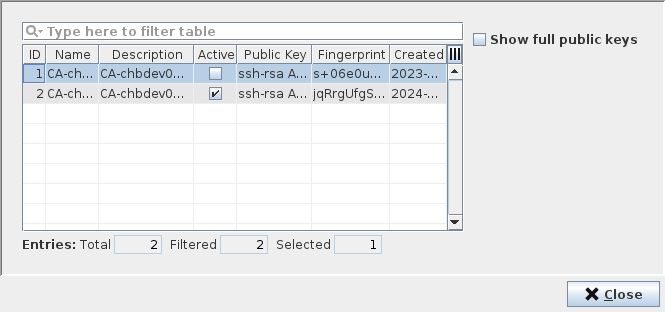
Informational content
The list of previously created authentication keys:
ID | The authentication key ID in the current list. | |
Name | The authentication key name. | |
Description | Shows a description of the authentication key. The description is generated automatically. | |
Active | When the authentication key is active, the checkbox is marked. To activate a key, select it in the list and click on the “Activate” command from the context menu. You need to confirm activation of a new key pair. | |
Public Key | The “Public Key” column is activated, showing the full public key. By default, only one of the two columns “Public Key” and “Fingerprint” is shown. | |
Fingerprint | The authentication key’s fingerprint. As an alternative you can enable “Show full public keys”; in this case the “Public Key” column is enabled which shows the full public key instead of its fingerprint. | |
Controls (buttons, menu items, etc.)
The controls allow you to activate a selected authentication key, delete a key or export a key to a file. Only one key can be active at a time. The commands are accessible via the context menu on a selected list entry.
Delete |  | Delete an existing key pair. |
Activate |  | Activate the selected key pair. |
Export |  | Export the selected public key. Opens a file browser window to select path and file name and to save the file with extension “.pub”. |
Show full public keys |   | When enabled, switch view to show the full public keys in the “Public Key” column instead of the “Fingerprint” column with the key’s fingerprint. When disabled, show the “Fingerprint” column and hide the “Public Key” column. |
Close | Close the dialog window. |
Dialog image
Services Management
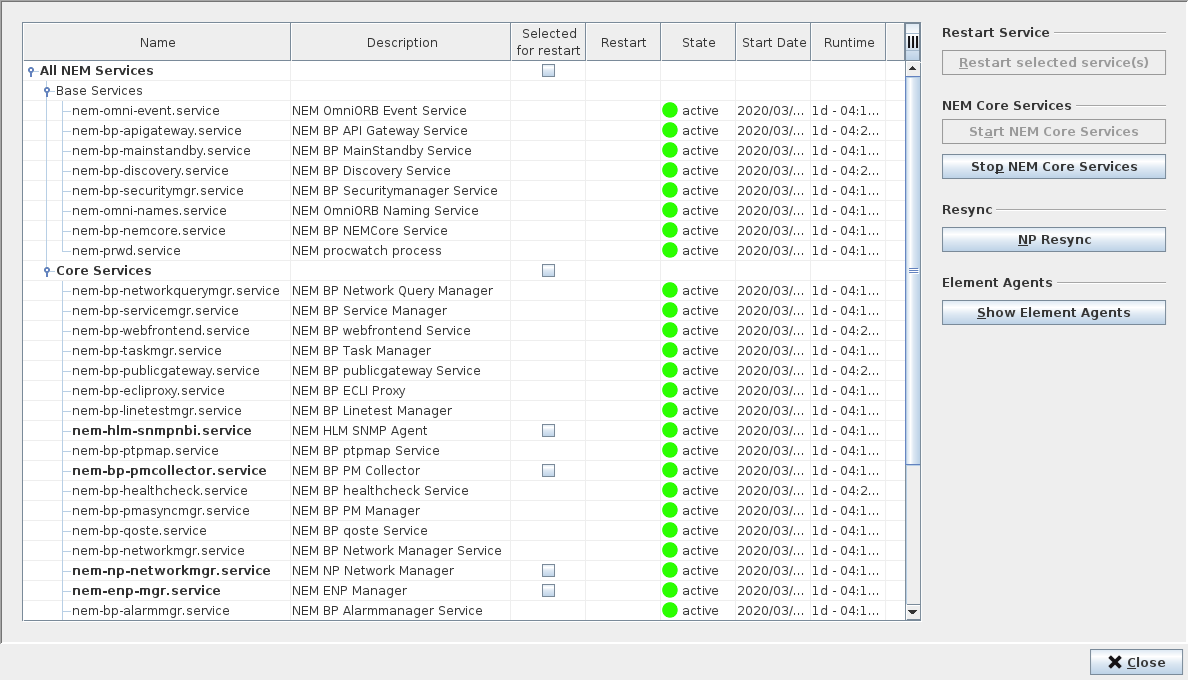
The current status of the NEM services is shown in a tree structure. The following actions are supported:
Controls (buttons, menu items, etc.)
Restart Service | - Restart selected service(s) Restarts all services that are selected in the tree on the left (column “Selected for restart”). |
NEM Core Services | - Start NEM Core Services Starts the Core Services listed in the tree under “Core Services”. - Stop NEM Core Services Stops the Core Services listed in the tree under “Core Services”. |
Resync | - NP Resync Performs a resynchronization of the NP database with the NP resources. |
Element Agents | - Show Element Agents Opens a new window listing all configured Element Agents with their Name, Host Name, Server Name, Port, Manager ID, NAT Manager ID, PID, Admin State, Status, and Database ID. |
Refresh Services Info | Command to refresh all FOXMAN‑UN services listed. |
Close | Closes the dialog. |
Dialog image
Main/Standby Settings
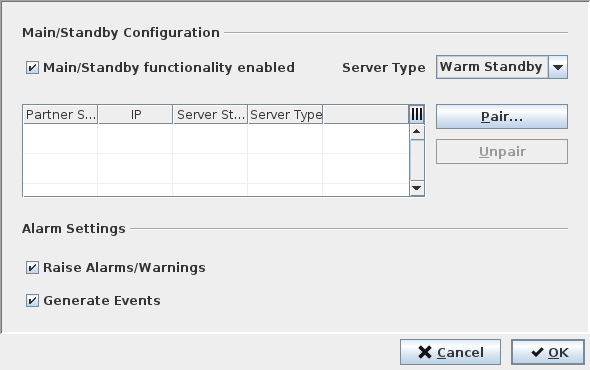
Informational content
The list of previously defined FOXMAN‑UN servers:
Partner Server | The name of the partner NEM Server. | |
IP | The NEM Server IP address. | |
Server State | The current state of the FOXMAN‑UN server. - Active: NEM services are running. - Standby: NEM services are ready to take over Active role in a Main/Standby setup. - Not running: NEM services are not running. | |
Server Type | The server redundancy setup type. “Standard” is a setup without redundancy. “Warm Standby” and “Cold Standby” are server setups supporting server redundancy. | |
Controls (buttons, menu items, etc.)

Please note:
Before configuring the main and warm standby server pair, both servers should have only the base services running.
Once server redundancy is configured, the normal state of FOXMAN‑UN processes on main and standby servers is:
• Main: base services and core services running.
• Standby: base services running; core services not running (stopped).
After the main and standby servers have been paired, a warm standby server polls the main server every 2 minutes to check for a new database backup. The poll frequency can be configured in the file “/opt/nem/etc/mainstandby.conf”.
In case there is a new database backup it will be loaded to the warm standby server and the database imported. The frequency of loading a new database to the warm standby server is determined by the “Schedule Periodic Database Backup…” settings on the main server.
Main/Standby functionality enabled | | Server redundancy is enabled, need to choose a server type. Server redundancy is disabled. |
Server Type | Select the Server Type for the server (selected in the Connection Manager). The following server types are available: - Main This is the Main server, operating on the main database, to which the clients normally connect. - Warm Standby This is a Warm Standby server that automatically takes over control when the Main server is not reachable or when its NEM base/core services are not running. The standby server needs to be configured properly and paired with the main server. - Cold Standby This is a Cold Standby server that takes over control after manual start of the NEM services when the Main server is not reachable or when its NEM base/core services are not running. The standby server needs to be configured properly and paired with the Main server. | |
Pair | Pair the Main Server and the Partner Server selected in the list. | |
Unpair | Unpair the Main Server and the Partner Server selected in the list. | |
Alarm Settings | ||
Raise Alarms/Warnings | | When enabled, alarms and/or warnings related to the server redundancy are raised. When disabled, no alarms or warnings are raised. |
Generate Events | | When enabled, events related to the server redundancy are generated. When disabled, no events are generated. |
Cancel | Closes the dialog without applying changes. | |
OK | Applies changes and closes the dialog window. | |
Related dialogs / windows