
Map Background
Purpose
This dialog lets you put a background image, e.g. a geographical country or city map, or a floor plan, on the currently opened map.

Please note:
The top left corner of the image is always placed at the coordinates 0/0. If you already have symbols on the map which were moved far enough outside the original map frame, they will be outside the background image.
Default background is no image. This corresponds to the background called “(Empty)”. Select it to remove an existing background image.
Dialog image
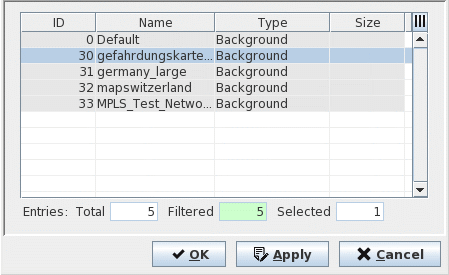
Select Backgrounds
Mandatory entries
Select an image from the list.
Optional entries
Not applicable.
Informational content
List of available background images.
Background images are added via the NEM Network Browser Main Window: File > Manage Graphics > Import > Map Background.
Controls (buttons, menu items, etc.)
Table Sorting and Filtering/Export and Printing
Please refer to Table Sorter section for details.
OK | Applies the selected background and closes the dialog |
Apply | Applies the selected background, without closing the dialog. |
Cancel | Closes the dialog without applying the selection. |
Related dialogs / windows