
Create Section
Purpose
This dialog allows creating graphical representations of traffic or clock distribution links between NEs and FOs. They are shown as colored lines.
More than one section can be created between the same two targets. Only one line will be shown in that case. The color of the line is modified to show the highest severity of all currently active alarms for both endpoints of all sections represented by that line.
A section leading from a symbol on a group map to a symbol on a higher level map is shown as an arrow pointing away from the symbol.

Please note:
When dealing with sections, both endpoints will always be identified by the NE and FO names specified at creation time. NE and FO names modified using the Rename function in the NEM Network Browser will be ignored. However when renaming an NE in the NEM Configurator via the NE – Create / Properties dialog, the name change is also reflected in the present dialog.
Dialog image
Create Section
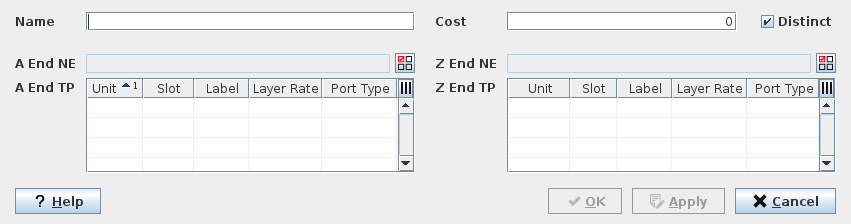
Mandatory entries
“A End NE” and “Z End NE” have to be selected from the list of available NEs. The list includes only the NEs to which the current user has read access (members of the Domain assigned to the user).
A TP (Termination Point) Label has to be selected in the A End TP and in the Z End TP fields.
Please note:
A filter based on the Layer Rate and Port Type of the currently selected End TP is applied., e.g. as shown in the dialog image above, Z End TP table is filtered based on the compatible Layer Rate and Port Type of the selected A End TP.
Optional entries
Name | The section can be given a name which can then be used for sorting in the Section Management |
Cost | Assigns a cost value to that section for use in the FOXMAN‑UN Networking Package. |
Distinct | When marked, creates a distinct section. |
Informational content
Lists of the available section termination points for the selected NEs.
Controls (buttons, menu items, etc.)
? Help | Starts the FOXMAN‑UN help viewer and opens this page. |
OK | Applies the selection and closes the dialog |
Apply | Applies the selection, without closing the dialog. |
Cancel | Closes the dialog without applying the selection. |
Table Sorting and Filtering/Export and Printing
Please refer to Table Sorter section for details.
Related dialogs / windows