
Components Selector
Purpose
Allows adding service components to the service path. It likewise allows automatically finding all of its related components and adding them to the service path.
The Components Selector is called from the Service Editor via the Add Components… button.
Dialog image
Components Selector
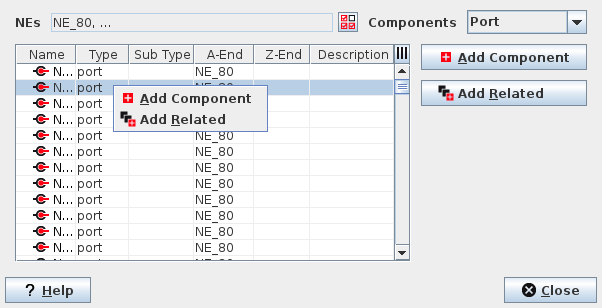
Mandatory entries
Select terminating NEs and Service Component(s)
Optional entries
Not applicable.
Informational content
Name | The specified name of the component. This name is usually composed of NE name, slot no. (including physical and logical slots), and AP (Access Point). Note: When setting labels on ports in the FOXCST GUI make sure to verify the label is set on the appropriate AP. As an example, the label that appears in the AP part of the Name for SFP-based ports of a CESM1 core unit is the one set on the “unit-x/port-y/mau” AP of the SFP-based port, while for electrical Ethernet ports of a CESM1 core unit this is the label set on the “unit-x/port-y” AP. |
Type | The type is determined by the selection made in the “Components” selector. |
Sub Type | Depends on the selection made in the “Components” selector. For components “Service Point” the Sub Type is used to unambiguously identify the available components. |
A-End Z-End | Identifies the A-End and / or Z-End NEs of the listed component. For valid circuits, sections, and tunnels both A-End and Z-End NEs are shown. |
Description | Shows the description of the component (where available). |
Controls (buttons, menu items, etc.)
Add Component |  | Add the selected component to the service path. Note: After having selected the required service component(s) in the Component Selector dialog list, you need to add them via either “Add Component” or “Add Related” in order to make them appear in the Service Supervision Service Supervision. |
Add Related |  | Add the selected component and all its related components to the service path. Also see the note for “Add Component” above. |
? Help | Calls the help viewer and opens this page. | |
Close | Closes the dialog. |
Components Filter
NEs |  | Calls the Select NEs dialog, where you can select one or several NEs available. |
Components | Select one of the applicable Components from the drop-down menu. The listed objects are filtered, and only items that are applicable for the current component layer are shown: - Port Table displays all the available ports of the selected NEs. This may include NE internal ports, local management ports, synchronization ports, etc. - Circuit Table displays all the circuits terminating in any of the selected NEs. - Section Table displays all the sections terminating in any of the selected NEs. - Service Point Table displays all the service points (e.g. for EoS, VPLS, VPWS, E1 services, etc.) of the selected NEs. - Tunnel Table displays all MPLS-TP tunnels available on the selected NEs. - Service Table displays all services available on the selected NEs. - Alarm Table displays all alarms available on the selected NEs. - MO Table displays all Managed Objects available on the selected NEs. |
Component Context menu
Add single component | | Add the selected component to the service path. |
Find and Add related components | | Add the selected component and all its related components to the path. |
Table Sorting and Filtering
Please refer to Table Sorter section for details.
Related dialogs/windows