
VPLS
Purpose
A Virtual Private LAN Service (VPLS) is a multipoint-to-multipoint Ethernet bridging service. Within the VPLS instance, all member nodes of the mesh type are connected with Pseudo Wires in a full-mesh topology. Member nodes attached as spoke nodes are not fully meshed with the other nodes, but usually connected to one mesh-type node via a single link.
On each node, the Pseudo Wires are connected to a Switching Virtual Interface (SVI). A local VLAN of the node is associated to the SVI. Bridge ports are attached to the VPLS if they share the same VLAN ID with the SVI.
The VPLS Tab displays all the saved and deployed VPLS. It likewise allows you to create, modify, see details, deploy or delete VPLS.
The VPLS are listed in a hierarchical table. The top level displays all the VPLS services. The second level displays all the member VPLS nodes. Under each node, all member ports, Pseudo Wires and tunnels are displayed.
For background information, please refer to Overview of VPLS Implementation.
Dialog image
ENP – VPLS
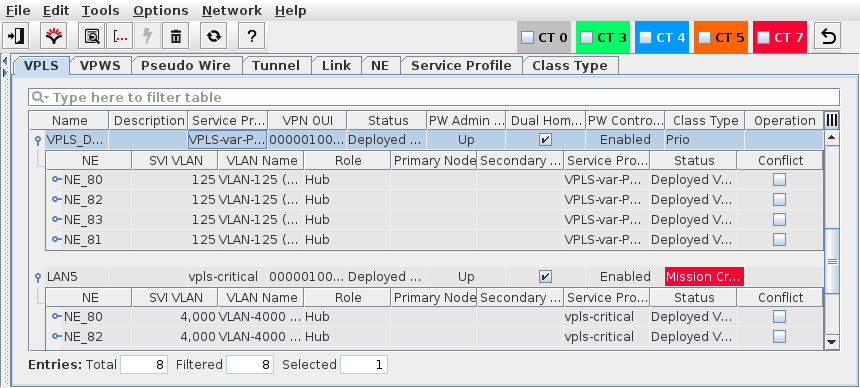
Mandatory entries
Not applicable.
Optional entries
Not applicable.
Informational content
Name | The specified Name of the VPLS service. |
Description | The specified Description of the VPLS service. |
Service Profile | Shows the Service Profile that was used to create the VPLS. |
VPN OUI | VPN authority Organizationally Unique Identifier (OUI) or VPN id. |
Status | The VPLS status: - Deploying/Removing: Display the Progress bar Indicating the current progress of deploying or deleting the selected Service(s). - Deployed Valid: The Service is deployed to the MPLS-TP nodes. A deployed VPLS service can be modified (add/remove nodes). - Deployed Invalid: One of the VPLS nodes or VPLS Pseudo Wire is missing or was not correctly deployed. It is saved in the FOXMAN‑UN database. - Deployed Deleted: One of the VPLS nodes and the related VPLS Pseudo Wire has been removed from the Service. Changes are saved in the database but not yet removed from the node. - Saved OK: The Service, Pseudo Wires are saved in the database but not yet deployed in the MPLS-TP nodes. - Unaligned: A deployed VPLS has been modified via the FOXCST GUI and is therefore not aligned any more with the ENP database. As an example, when a VLAN is added to a UNI port of the service by opening the FOXCST for one of the nodes involved in the service, and adding a VLAN to a port, or adding a port to the service VLAN, the service is not as originally configured any more. To get the VPLS aligned again, the VPLS needs to be modified. See the steps given in Modify VPLS. |
PW Admin State | Shows the current Pseudo Wire administrative status (Up/Partially Down/Down). During the transition between up and down the status may be shown as “Invalid”. |
Dual Home Capable | Indicates whether the VPLS has been configured as dual home capable service, based on a service profile that allows dual home capable services. |
PW Control Word | Indicates the status of the Pseudo Wire Control Word. For dual home capable services the PW Control Word must be enabled. For non-dual home capable services the PW Control Word can be disabled if required. A service with PTP mode “Transparent Clock” can only be used for PTP if the PW Control Word is disabled. For PTP mode “Transparent Clock with CW” Control Word must be enabled. When using an EPEX1 unit in any of the involved nodes, the use of “Transparent Clock with CW” is mandatory for PTP mode “Transparent Clock”. |
Class Type | The Class Type assigned to the service. |
Class Type Id | The ID of the Class Type assigned to the service. This parameter is hidden by default. It can be made visible via the table header context menu. |
Supervision | Note: A VPLS must at least have one path to be supervised. Incomplete services with only one end point cannot be supervised. Service Supervision status, - Running: this VPLS is supervised. Supervision can be paused or disabled via the “Supervision ► Pause” or “Supervision ► Disable…” commands in the context menu or the “Edit” menu. - Paused: service supervision is paused on this VPLS. It can be resumed via the “Supervision ► Resume” command in the context menu or the “Edit” menu. - Disabled: service supervision is disabled on this VPLS. It can be enabled via the “Supervision ► Enable…” command in the context menu or the “Edit” menu. |
Superv. Oper State | Shows the operational state (up, down) of the service supervision on this VPLS. This field is empty when service supervision is disabled. |
Fault State | Shows the highest active fault state of the VPLS. |
Operation | The operation status during deployment or removal: - Deploy Pending, - Deploy Executing, - Remove Pending, - Remove Executing, - Success. |
Controls (buttons, menu items, etc.)
Edit (also via Context Menu)
 | Calls the Create Service Wizard. Note: When Expert Mode is enabled the Create VPLS wizard allows you to create on a VPLS based on a single NE two VPWS with split horizon, or other VPLS without consistency check. | |
Details VPLS… |  | Shows details of a VPLS. Displays the whole Service in one view (Member NEs, Pseudo Wire, and Selected Tunnel). From the Details view, the possible actions are: - Edit Calls the Modify Service dialog. It is possible to remove VPLS NEs, add VPLS NEs, create tunnel(s) and PWs for the newly added VPLS NEs. - Deploy: Deploys the Service to the MPLS-TP nodes. - Delete: Deletes the Service. - Close: Closes the dialog. For details, please refer to VPLS Details section. |
Show Status Reason… | Opens a window with additional information on the most probable reason for an unaligned or invalid status if applicable to the selected item. | |
 | Calls the Modify Service dialog. It is possible to: - remove VPLS NEs, - add VPLS NEs, - create tunnel(s) and PWs for the newly added VPLS NEs, - align an unaligned VPLS. For details, please refer to Modify VPLS section | |
Deploy VPLS |  | Deploys the currently selected Service(s) to the nodes. A confirmation is required to start the deployment. |
Align VPLS… | Aligns the Service such that any misalignment between the ENP database configuration and the Service present in the network is corrected. | |
Delete VPLS… |  | Deletes the currently selected Service(s). A confirmation is required to delete the service. |
Synchronize VPLS |  | Synchronizes the selected VPLS with the configuration present in the network (i.e. present on the NEs included in the service). |
Open in Service Supervision… | Opens the service in a filtered view of the Service Supervision dialog. | |
PW Admin State | - Up: Sets the administrative state of the Pseudo Wires used for this service to “up”. - Down: Sets the administrative state of the Pseudo Wires used for this service to “down”. | |
Supervision ► Enable… |  | Enable supervision of all services on this VPLS. To do that, the service information attributes Customer, Service Level Agreement, and Network need to be selected. |
Supervision ► Disable… |  | Disable supervision for this VPLS. Must be confirmed by the user. If any service supervision cannot be disabled, an error message is shown with the respective reason(s). |
Supervision ► Resume |  | Resume service supervision that has been paused before. |
Supervision ► Pause |  | Pause service supervision. |
Supervision ► Reload Configuration | Reloads the configuration from the NEs to make sure it is up to date in case of recent changes to the service. | |
Supervision ► Show Details… | Show service supervision details for this VPLS. Opens the service in a view-only window of the Service Editor. The windows also provides an alarm tab showing active alarms of the VPLS. | |
Supervision ► Show in Service Supervision… | Opens the service supervision dialog with a filtered view for the VPLS. |
NE instance, informational content (when expanded)
Name | The specified NE Name. |
SVI VLAN | The specified Service VLAN ID on the NE. |
VLAN Name | The specified Name for the SVI VLAN. |
Role | The role of the node for the currently selected service: - Hub (default), - Spoke, - PE Dual Home. |
Primary Node | - When the NE role for the current service is “Hub” the field remains empty. - When the NE role for the current service is “Spoke” the attached hub NE is shown here. - When the NE role for the current service is “PE Dual Home” the primary dual home NE is shown here. |
Secondary Node | When the NE role for the current service is “PE Dual Home” the secondary dual home NE is shown here. |
Service Profile | The name of the Service Profile used for creating the VPLS on this NE. |
Status | The VPLS status: - Deployed Valid, - Deployed Invalid, - Saved OK, - Unaligned. |
Conflict | A mark in the checkbox is set if there is a conflict occurring on the VPLS on this NE instance. Possible conflicts are inappropriate QoS settings or an inappropriate port VLAN mode. |
Port instance, informational content (when expanded)
Reference | The port address with unit name, slot, and port number. |
Type | The port type (CVP, PWAC) as set via FOXCST, Main - Port Type - Usage. |
VLAN Mode | The VLAN Mode as set via FOXCST, Switching tab, bridge-1, Mode. |
PVID | The port VLAN ID for the service. |
Service Profile | The name of the Service Profile used for creating the VPLS on this NE. |
Status | The VPLS status: - Deployed Valid, - Deployed Invalid, - Saved OK, - Unaligned. |
Conflict | A mark in the checkbox is set if there is a conflict occurring on the VPLS on this NE instance. Possible conflicts are inappropriate QoS settings or an inappropriate port VLAN mode. |
PW instance, informational content (when expanded)
The service can be further expanded to show Pseudo Wires and Tunnels used. For details on parameters shown for these levels, refer to the Pseudo Wire and Tunnel sections.
Name | The specified Name of the Pseudo Wire. |
Description | The specified Description of the Pseudo Wire. |
Initiator | The ingress LER. |
Terminator | The egress LER. |
Tunnel | Tunnel Name. |
BW [kbit/s] | Configured bandwidth. |
Class Type | Shows the configured Class Type as configured in the Class Type (HQoS Class Type Definition) dialog. |
Dual-Home Group | Shows the Dual-Home group name. |
Dual-Home Role | Shows the Dual-Home role. |
Status | Indicates the Status of the Pseudo Wire. |
Tunnel Status | Indicates the status of the related tunnel. |
Admin State | The administrative state of the Pseudo Wire. It can be set to “up” or “down” via ENP menu or context menu. |
Operation | The operation status during deployment or removal: - Deploy Pending, - Deploy Executing, - Remove Pending, - Remove Executing, - Success. |
Related dialogs / windows