
Alarm Customisation – Use Template
Purpose
The Use Template function allows the user to select a Unit Alarms or a Unit Port Alarms template in order to ease the creation of multiple Alarm Customisations for a specific unit.
This dialog cannot be used for modifying or removing Alarm Customisations.
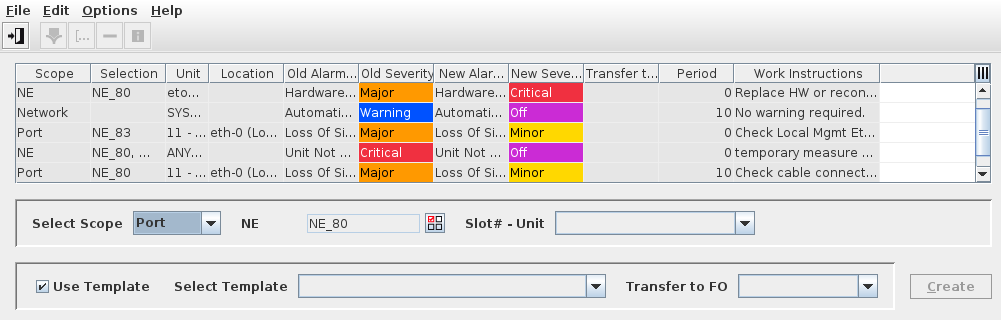
The layout dynamically changes depending on the scope. The dialog below shows the layout with “Port” as the Selected Scope.
Dialog image
When the Use Template button is selected, the Alarm Customisation frame changes to:
Alarm Customisation
Mandatory entries
Select Scope | Selects the Scope to which the template is to be applied. The content of the scope selector dynamically changes depending on the selected scope. Refer to Scope Selector description under the Alarm Customisation main section. |
Use Template | Allows the user to navigate between the Use Template frame and Alarm Customisation main frame. |
Select Template | Select from the list an existing Unit Alarms or Unit Port Alarms template for the specified Unit/ Slot#-Unit. The Unit Alarms templates can used in the scopes: Network, Domain, NE Types, and NE. The Unit Port Alarms templates can only be used the Port scope. |
Transfer to FO | Applicable for Port Scope only. Select a Foreign Object (FO), to which the customized alarm shall be transferred. |
Optional entries
Not applicable.
Informational content
The Alarm Customisation Table lists all alarm customisations (including those generated via the hardware views) at the top of the dialog indicating
− Scope,
− Selection,
− Unit,
− Location,
− Old Alarm Text (FOXMAN‑UN default alarm text),
− Old Severity (FOXMAN‑UN default severity),
− New Alarm text (modified alarm text if applicable),
− New Severity (modified severity if applicable),
− Transfer to FO (applicable to Port Scope only),
− (Intermittent) Period,
− Work Instructions.
Controls (buttons, menu items, etc.)
Buttons
Add | Adds and displays the new Alarm Customisation template (s) in the Alarm Customisation Table. |
Table Sorting and Filtering/Export and Printing
Please refer to Table Sorter section for details.