
Tunnel Details
Purpose
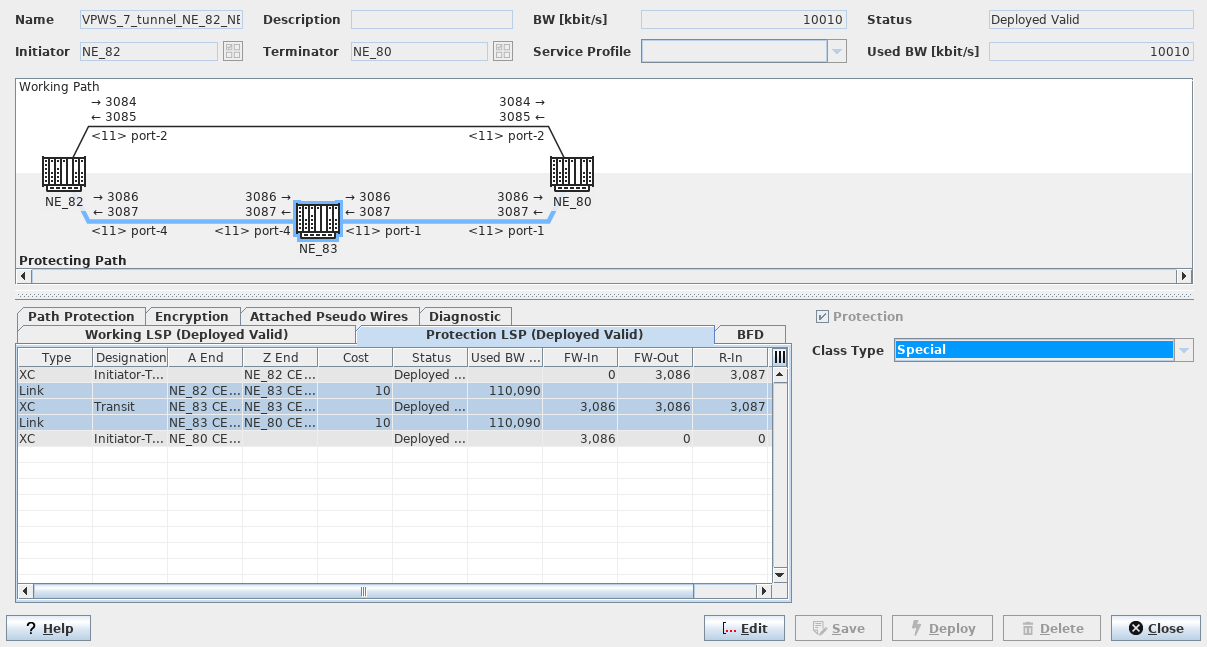
The Tunnel Details dialog displays all the information related to the tunnel including the working LSP, protecting LSP (if available), member NEs, BFD details, attached PWs, and a Diagnostic tab in one view.
In the upper part of the dialog the tunnel graph is shown.
For any node (NE) shown in the tunnel graph you can use the context menu to:
• open the “NE Details” dialog;
• open the node (NE) configuration; select “Configuration - <user class>”. Depending on the user class you will have a specific permission level on the node.
For any LSP segment shown in the tunnel graph you can use the context menu to:
• open the “Link Details (dialog window)” dialog;
• open the A End NE configuration;
• open the Z End NE configuration.
Any commands are applicable to deployed tunnels only.
Dialog image
Tunnel – Working LSP or Protection LSP
Mandatory entries
Not applicable.
The contents of this dialog are very similar to the “Create Tunnel” dialog. For more details refer to Create Tunnel and to the status information available under Path Protection and Diagnostic.
Via the context menu you can call details of a selected item in the tunnel graph, e.g.
• on any node, open the NE Details dialog, or open the NE configuration.
• on any LSP or LSP segment, the Link Details dialog.
Selected items both in the table and in the graph are colored light blue.
Controls (buttons, menu items, etc.)
? Help | Calls the help viewer and opens this page. |
Edit | Changes the dialog to Edit mode. In the Edit mode the tunnel Name, Description, and BW [kbit/s] (tunnel bandwidth) can be modified. See Modify Tunnel…. |
Deploy | Deploys the changes made to the Tunnel. |
Cancel | When in edit mode, closes the dialog without applying changes. |
Close | When in view mode, closes the dialog. |
Related dialogs / windows