
Create Service Category
The wizard helps you in defining new service categories in 3 steps. One service category at a time can be created. Service categories are used in the first step of setting up HQoS in your network, or creating a VPLS or VPWS service (see Create VPLS, Create VPWS).
You can create, modify, and delete a service category, and show details of a selected service category.
Dialog image
Create Service Category
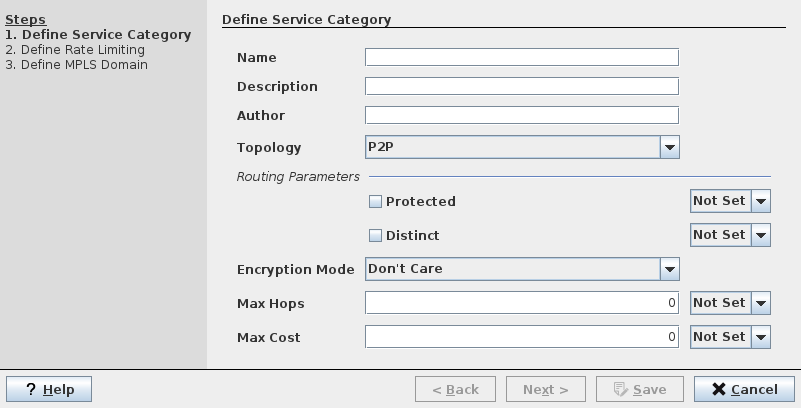
Mandatory entries
Step 1 (Define Service Category): Name.
Step 2 (Define Rate Limiting): None.
Step 3 (Define MPLS-TP Domain): None.
Optional entries
Step 1: Description, Author, Topology, Routing Parameters, Encryption Mode, Max Hops, Max Cost.
Step 2: Rate limiting parameters.
Step 3: MPLS-TP domain parameters.
Controls (buttons, menu items, etc.)
Where the option “Not Set” or “Set” is available for a specific parameter in the dialog windows of the wizard, select “Set” if you want the parameter to be mandatory for a service based on the service category. If you want the parameter to be optional, select “Not Set”.
Step 1: Define Service Category
Name | Specify a Name for the service category. Note: The Name must be unique and shall not contain characters like [ ] / | * ? { } = |
Description | Description for the service category. |
Author | The name of the author of the service profile. |
Topology | The topology of the service: - P2P (point to point), - P2MP (point to multipoint), - MP2MP (multipoint to multipoint), - Undefined (the topology of the service can be any of the above). Default is “P2P”. |
Routing Parameters (group): | |
Protected | Protected paths are used for the routing of the service. |
Distinct | Distinct paths are used for the routing of the service. |
Encryption Mode | Select the encryption mode: - NE Encrypted (only NEs with encryption capability are used), - NE Unencrypted (only NEs without encryption capability are used), - Don’t Care. Default is “don’t care”. |
Max Hops | The maximum number of hops allowed for a service. |
Max Cost | The maximum cost allowed for a service. |
? Help | Calls the help viewer and opens this page. |
Next > | Proceeds to the next step. |
Cancel | Closes the dialog without creating the service category. |
Step 2: Define Rate Limiting
Shaping Allowed | Specifies whether shaping is allowed for services based on the service category. |
Average Packet Size [bits] | The average packet size that is expected. |
Ingress Shaping (group): | |
Enable Rate Limiting | Specify whether rate limiting shall be enabled or disabled for this service category. |
Committed Information Rate [kbit/s] | Specify the Committed Information Rate (CIR) in kbit/s for this service category. Note: For VPWS profiles the CIR is set when you enter the Pseudo Wire BW [kbit/s]. |
Committed Burst Size [Bytes] | Specify the Committed Burst Size (CBS) in bytes for this service category. |
Excess Information Rate [kbit/s] | Specify the Excess Information Rate (EIR) in kbit/s for this service category. Note: Depending on the selected rate limiting type this parameter is fixed or may not available for modification. |
Excess Burst Size [Bytes] | Specify the Excess Burst Size (EBS) in bytes for this service category. Note: Depending on the selected rate limiting type this parameter is fixed or may not available for modification. |
? Help | Calls the help viewer and opens this page. |
< Back | Returns to the previous step. |
Next > | Proceeds to the next step. |
Cancel | Closes the dialog without creating the service category. |
Step 3: Define MPLS-TP Domain
Bandwidth [kbit/s] | The bandwidth in kbit/s allocated to the service category. |
Dual Home Enabled | If marked, PE Dual Home based services are allowed to be configured in this service category. |
PW Control Word | If marked, PW control word is applied in the service category. |
Min Label | Enter the minimum tunnel label. Default is 3000. |
Max Label | Enter the maximum tunnel label. Default is 1048575. It is however recommended to use tunnel labels that are smaller than the PW Min Label to avoid conflicts with the PW label range. |
? Help | Calls the help viewer and opens this page. |
< Back | Returns to the previous step. |
Save | Saves the service category and closes the wizard window. |
Cancel | Closes the dialog without creating the service category. |
Related dialogs / windows