
HQoS Profile (Definition)
The “HQoS Profile” dialog is called from the ENP menu “Tools – HQoS Configuration Manager…”, and by selecting the “HQoS Profile” tab.
Purpose
The purpose of this feature is to define all required Hierarchical Quality of Service (HQoS) profiles with their Class Type Shapers.
Dialog image
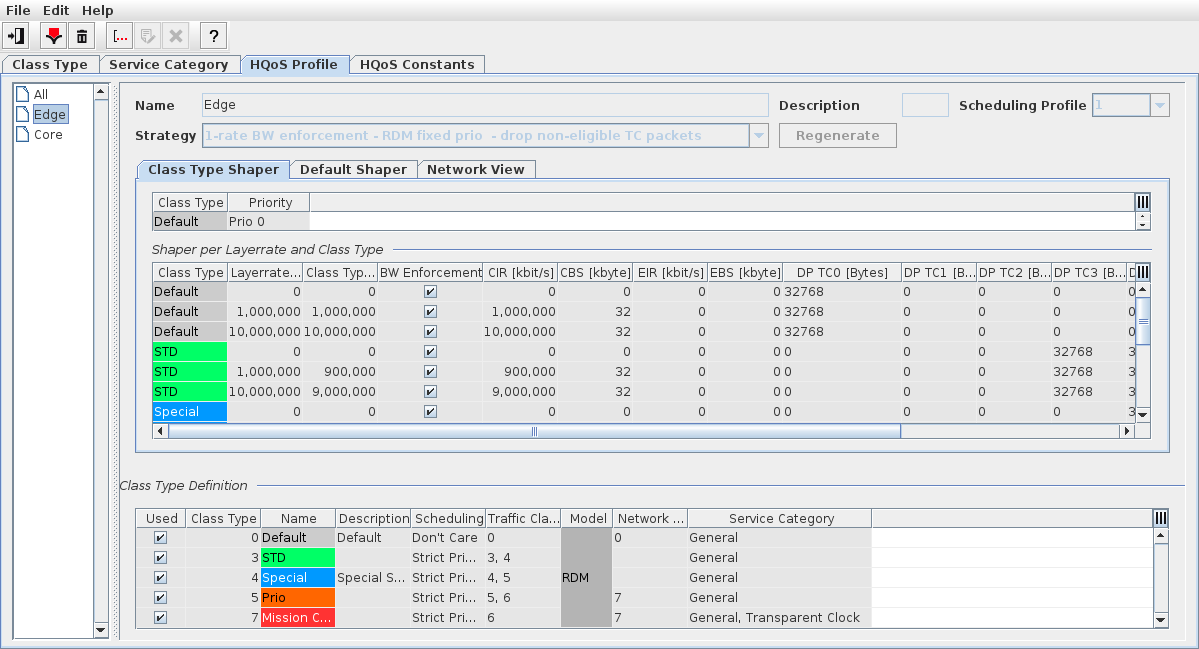
HQoS Configuration Manager - HQoS Profile - Class Type Shaper
Create HQoS Configuration
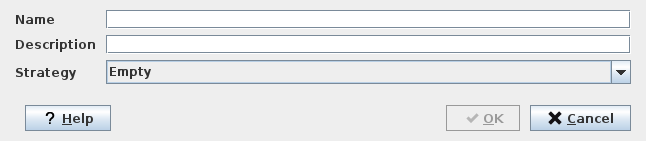
Mandatory entries
Name,
Strategy.
Optional entries
Description.
Informational content
Class Type Definition; these settings are taken from the Class Type (HQoS Class Type Definition) dialog.
Controls (buttons, menu items, etc.), HQoS Profile - Class Type Shaper
Create HQoS Configuration |  | Create a new basic HQoS configuration. The “create” dialog requires a name, an optional description, and a strategy. The Strategy is to be selected out of the following options: - (Empty) - No BW enforcement, - 2-rate BW enforcement, - 1-rate BW enforcement, - 1-rate BW enforcement - drop non-eligible TC packets, - No BW enforcement - RDM fixed prio, - 2-rate BW enforcement - RDM fixed prio, - 1-rate BW enforcement - RDM fixed prio, - 1-rate BW enforcement - RDM fixed prio - drop non-eligible TC packets. Bandwidth enforcement is strongly recommended to make HQoS work. The newly created HQoS configuration is added to the left-hand list of HQoS configurations. To edit the configuration, select it and click the “Edit” button. |
Delete (a configuration) |  | Delete a selected HQoS configuration. |
Edit HQoS Configuration |  | Switch to edit mode to modify a HQoS configuration. While in edit mode, a banner “Edit Mode” with yellow background is shown in the upper right corner of the HQoS Profile dialog. In the edit mode you can view or edit the following parameters: |
In the Class Type Shaper tab: For Class Type: - Class Type name (view only), - Priority (can be set to Prio 0 … Prio 7 or Propagated), For Shaper per Layer Rate and Class Type: - Class Type name (view only), - BW [kbit/s] (view only), - BW Enforcement (on, off), - CIR [kbit/s] (settable), - CBS [kbyte] (settable), - EIR [kbit/s] (settable), - EBS [kbyte] (settable), - DP TC0 … DP TC7 [Bytes] (settable). When settable, the above parameters are either selectable from preset values, or you can type in an appropriate value and press <Enter>. | ||
In the Default Shaper tab, separately for each available Layer Rate (BW): - BW Enforcement (on, off), - CIR, - CBS, - EIR, - EBS, - Priority (propagated; not propagated), - DP TC0 … DP TC7. | ||
In the Class Type Definition table: All Class Types defined up to now are listed here in view-only mode. | ||
Regenerate: A selected HQoS profile can be regenerated to set its parameters back to defaults in accordance with the selected Strategy. Specific user-defined parameters need to be set manually before saving the profile again. | ||
Save |  | Save the modifications made to the HQoS profile. Only available in edit mode. |
Cancel |  | Exit edit mode without saving HQoS profile modifications. Only available in edit mode. You need to confirm that you want to cancel the modifications. |
Help |  | Calls the help viewer and opens this page. |
Exit |  | Quit HQoS Configuration Manager. |
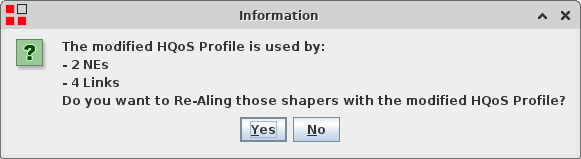
If you modify a HQoS Profile that is already used in the network, saving the modified profile causes a pop-up message that
• informs about on where the profile is used (i.e. on how many NEs and links) and
• asks you for a confirmation to re-align the respective shapers with the modified profile.
You can confirm (“Yes”) or deny (“No”) the re-alignment. Sample dialog:
Dialog image
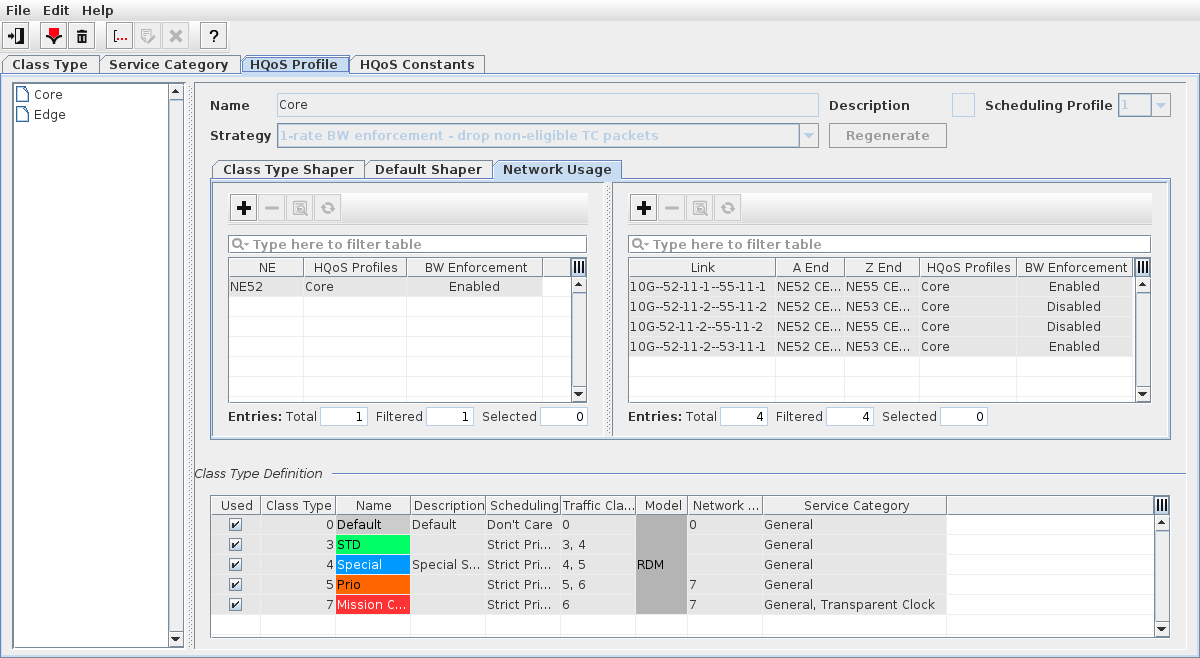
HQoS Configuration Manager - HQoS Profile - Network Usage
Mandatory entries
Not applicable. NEs and/or Links should be added to apply HQoS profiles to parts of a network or to a complete network.
Optional entries
NE,
Link.
Informational content
Lists the relevant parameters (NE name, HQoS Profiles, BW Enforcement) of the NEs that have been added (left hand table).
Lists the relevant parameters (Link name, A End, Z End, HQoS Profiles, BW Enforcement) of the Links that have been added (right hand table).
Controls (buttons, menu items, etc.), HQoS Profile
Add NEs… |  | When a HQoS profile is selected in the left hand list of created HQoS profiles, calls the “Add an NE to the HQoS profile” dialog. |
Clear NE(s) |  | Remove selected NE(s) from the list of NEs added to the HQoS profile. |
NE Details… |  | Opens the “NE Details” dialog for a selected NE. |
Re-align HQoS Profile on the NE(s) |  | Re-aligns the HQoS profile on the selected NE(s). This is useful if there is a difference in settings among database and NE(s). |
Add Links… | | When a HQoS profile is selected in the left hand list of created HQoS profiles, calls the “Add a Link to the HQoS profile” dialog. |
Clear Link(s) | | Remove selected link(s) from the list of links added to the HQoS profile. |
Link Details… | | Opens the “Link Details (dialog window)” dialog for a selected link. |
Re-align HQoS Profile on the Link(s) | | Re-aligns the HQoS profile on the selected link(s). This is useful if there is a difference in settings among database and link(s). |
Note:
Using a drop profile with buffer size “0” for a traffic class causes the traffic to be reduced to zero.
→ If no traffic is flowing while you would expect it to flow, check the buffer size of all drop profiles. This check can be done e.g. in the NE Details, Class Type Shaper, DP TC0…DP TC7. Identify buffer sizes of “0”. Increase the buffer sizes for required traffic classes.
Related dialogs / windows