
View Job
Purpose
This dialog shows details about the selected job.The details include the job name, actions, an overview, its processing order, and schedule steps and conditions.
Dialog image
View Job (sample: ESW distribution)
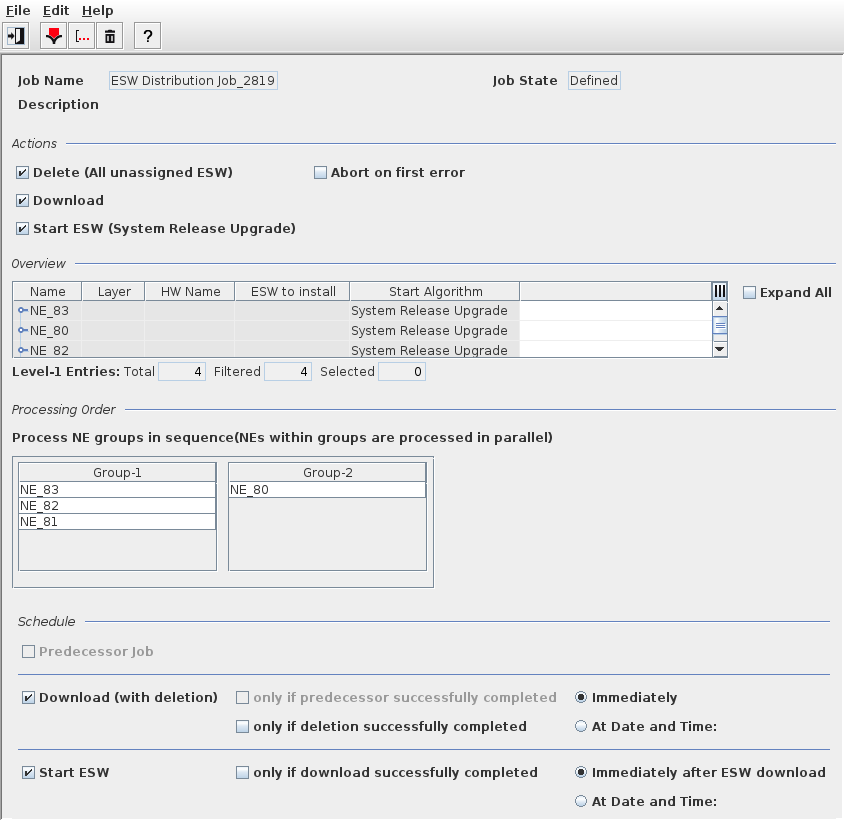
Informational content
General information: | |
Job Name | Name of the job. The job name is determined during the definition of the job in the Distribution Wizard. |
Description | Description entered as “Job Description” when creating the job. |
Job State | Current state of the job, see Distribution Wizard. |
Actions: | |
Delete (all unassigned ESW) | If marked, ESW present on the NEs shall be deleted as defined in the job definition done in the Distribution Wizard. |
Download | If marked, ESW shall be downloaded. |
Start ESW (<Start Algorithm>) | If marked, ESW shall be started after download. The start algorithm is shown in brackets. |
Abort on first error | If marked, the task shall abort on the first encountered error. If not marked, the task shall continue attempting a “best effort” execution. |
Overview: | |
Name | Name of the NE(s). When expanded, additional information includes the unit name(s). |
Layer | Shows the layer from 0 (corresponds to unit) to n, “1” is a subset of the unit. |
HW Name | The unit HW name. |
ESW to install | Name and version of the ESW to install. |
Start Algorithm | Start algorithm selected in the job definition. |
Expand All (can be set/unset) | If marked, all table entries are expanded. If not marked, the entries are collapsed to the NE name. |
Processing Order: | |
Group-n | For all defined groups 1 to n, the order for processing the tasks (groups from left to right) and the NEs assigned to each group are listed. |
Schedule: | |
Predecessor Job | If marked, predecessor job(s) has (have) been defined for the job. |
Download (with deletion) | If marked, the job includes the download of ESW. Further options are shown that apply for the “Download” sub-task(s). |
Start ESW | If marked, the job includes the start of downloaded ESW. Further options are shown that apply for the “Start ESW” sub-task(s). |
Controls (buttons, menu items, etc.)
Menu “File”
Exit |  | Closes the current dialog window. |
Menu “Edit”
Copy Job |  | Creates a copy of the selected job. The copy gets the name of the original job, complemented with “_clone” and a number starting from 1. The copy will have “Draft” state and can be edited and activated in the wizard. It is listed in the “Job Management” dialog. |
Edit Job |  | Edit a job. This will open the Distribution Wizard, which allows you to edit the job name and its further properties, and to activate the job. Editing is possible for activated jobs if the corresponding task has not been executed yet, or if a job has “Draft” state. Jobs with scheduled tasks can be edited, but, their related task will be deleted and replaced by the task resulting from the modified job properties. Jobs with corresponding tasks that are running or have already finished cannot be edited. |
Delete Job(s) |  | Deletes selected job(s). Requires confirmation before deletion is executed. A deleted job is removed from the list of jobs. |
Related dialogs / windows