
Sync Map – Select NEs
Purpose
This dialog presents the user’s currently manageable NEs and FOs for the generation of a Synchronization Map. From the selected NEs and FOs, the time source information is collected, and nodes are created and loaded in the synchronization map.

Please note:
• The NEs presented for selection are not filtered, i.e. all the user’s currently manageable NEs are shown regardless of whether they are synchronized via PETS or SETS.
• The NEs belonging to the wrong synchronization type will be listed in the Error Message dialog and will not be included in the generation of the synchronization map.
• All the FOs are presented for selection. However, only FOs, which have sections connected to an external clock source will be considered for the generation of the synchronization map. All other FOs will be listed in the Error Message dialog and will be ignored.
Dialog image
Choose NEs
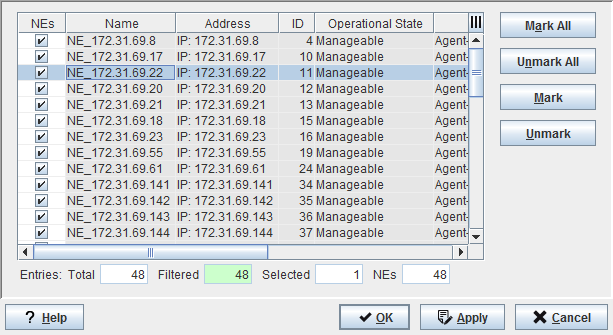
Mandatory entries
Check mark the NE(s) that are to be included in the Synchronization map.
Optional entries
Not applicable.
Controls (buttons, menu items, etc.)
Mark All | Check mark/tick all the NEs in the table. |
Unmark All | Clear all the check marks in the table. |
Mark | Check mark the selected NE(s) in the table. Note: - To select/highlight a single item from the table list: Click on a specific NE. - To select multiple items from the table list: Press “Ctrl key” then click on the required NEs. - To select a range of items from the table list: Click on the first NE, Press “Shift key” then click on the last NE to be included in the range. |
Unmark | Clears the check mark(s) of the selected/highlighted NE(s) in the table. |
? Help | Calls the FOXMAN‑UN help viewer and opens this page. |
OK | Applies the modifications and closes the dialog. |
Apply | Applies the modifications without closing the dialog. |
Cancel | Closes the dialog without applying the modifications. |
Table Sorting and Filtering/Export and Printing
Please refer to Table Sorter section for details.
Related dialogs / windows