
Circuit Emulation Service
This tab in the Circuit Emulation UI provides a list in the entity browser of
• existing Circuit Emulation services,
• filter options,
• a search utility, and
• a “+ Create” command button that starts a wizard for creating a new Circuit Emulation Service (CES).
To create a new CES, click on “+ Create” to start the Create CES wizard. It will guide you through the following 8 steps:
depicted with an example:
Step 1: General
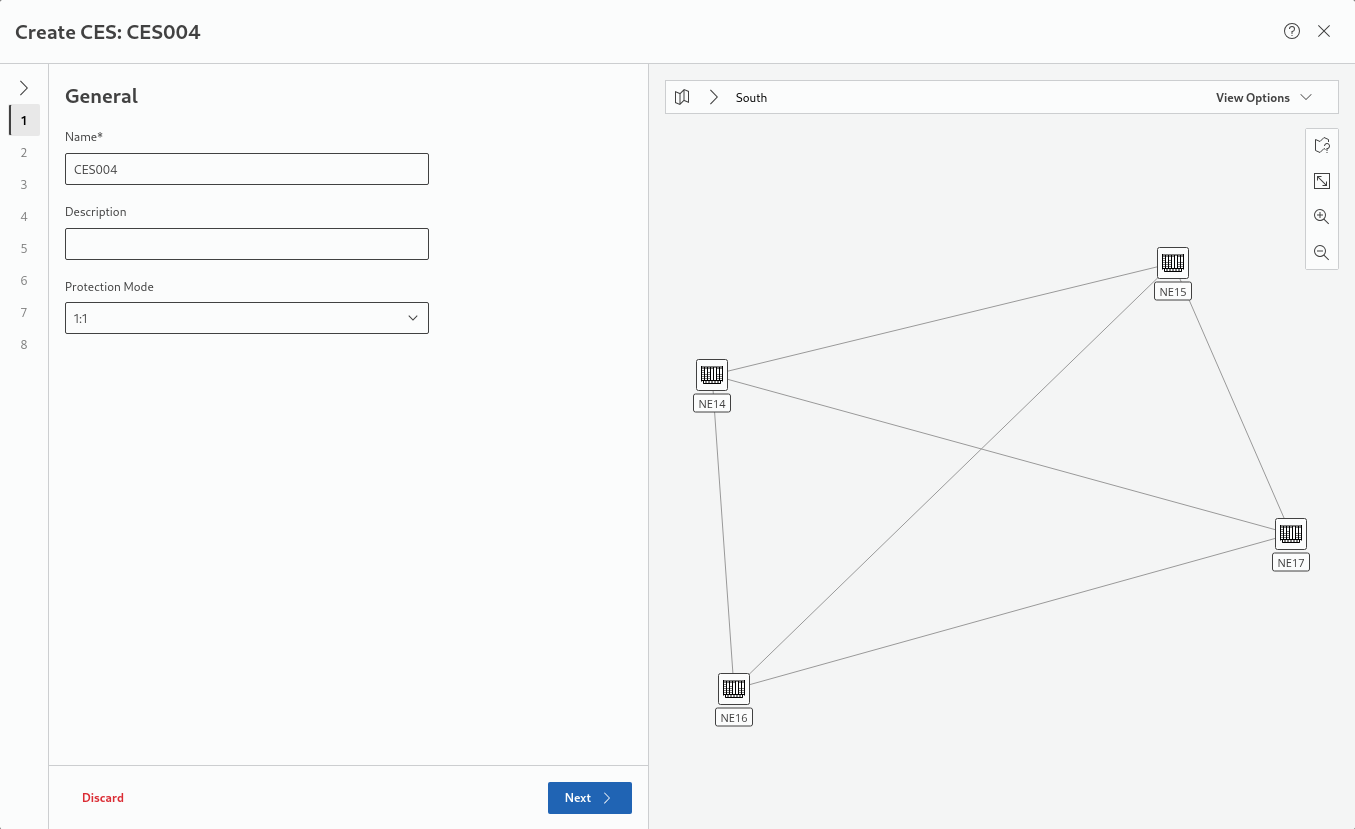
Enter a name (mandatory) and description, and select a protection mode (None or 1:1).
Click “Next >” to proceed to step 2 Endpoints.
Step 2: Endpoints
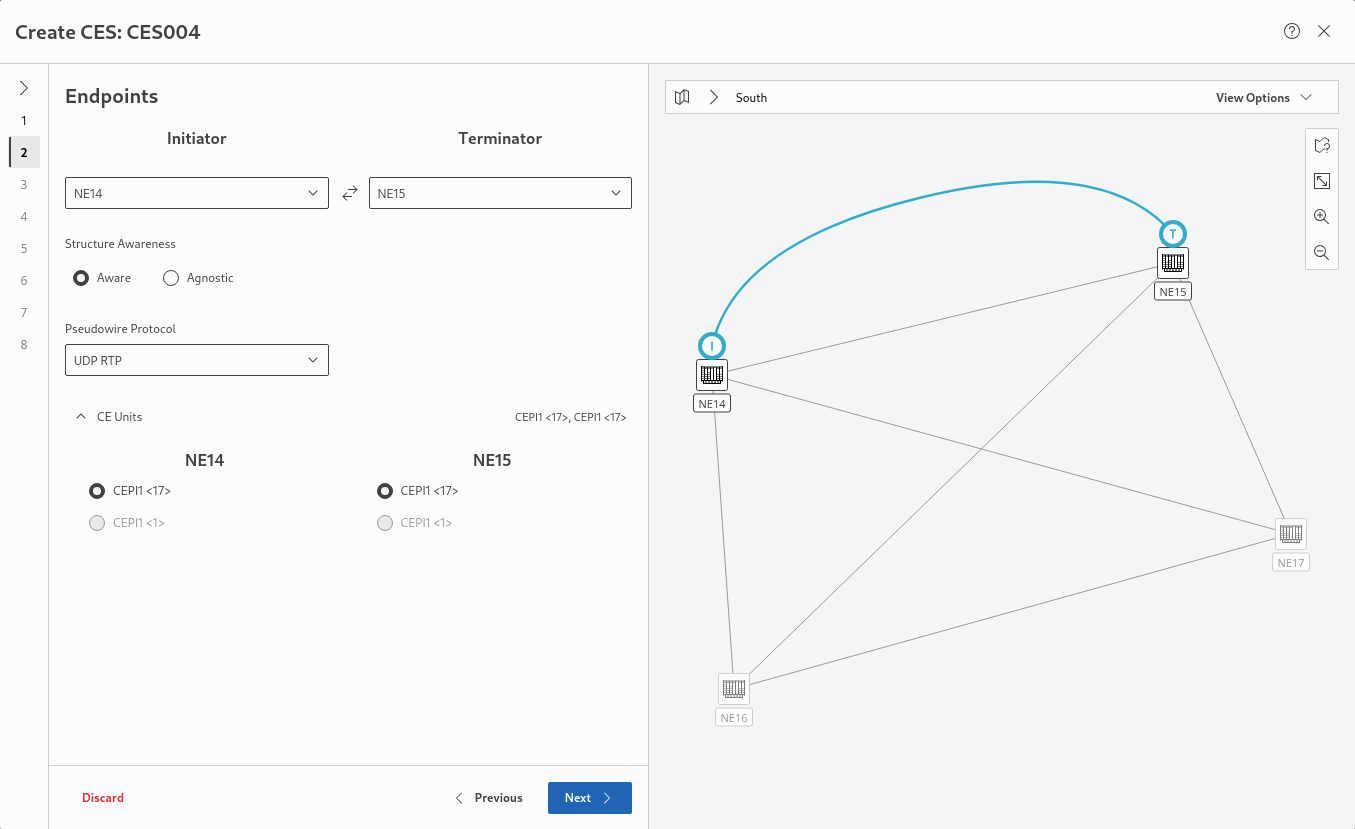
Select the initiator and terminator NEs and the required Structure Awareness (Aware, Agnostic). If that will not result in suitable NEs and units, open the required NE configurations using the FOXCST (user class: Manager) and set the CES Mode in the Circuit Emulation units configuration to either “Structure Aware” or “Structure Agnostic”, as required.
Select the Pseudowire Protocol from the for options
• MEF8
• MEF8 RTP
• UDP
• UDP RTP (default)
From the list of proposed units select the appropriate unit on each end (Initiator, Terminator) or accept the proposed ones.
Click “Next >” to proceed to step 3 Addressing.
Step 3: Addressing
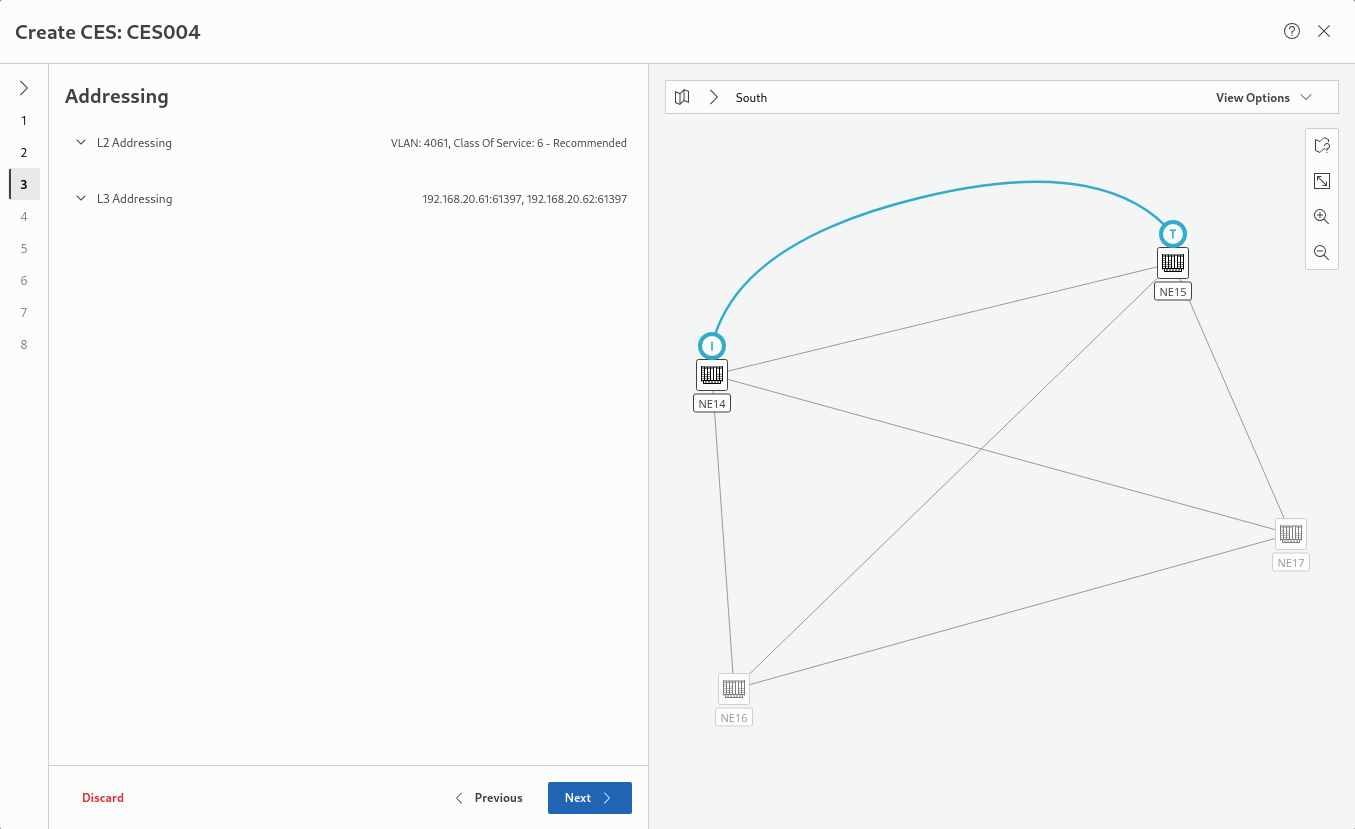
Verify the L2 and L3 addressing details listed in this step. If not OK, correct the required options. Note that manual correction is only successful if carefully evaluated. The available parameters depend, among others, on the structure awareness selected in step 3.
Click “Next >” to proceed to step 4 Quality of Service.
Step 4: Quality of Service
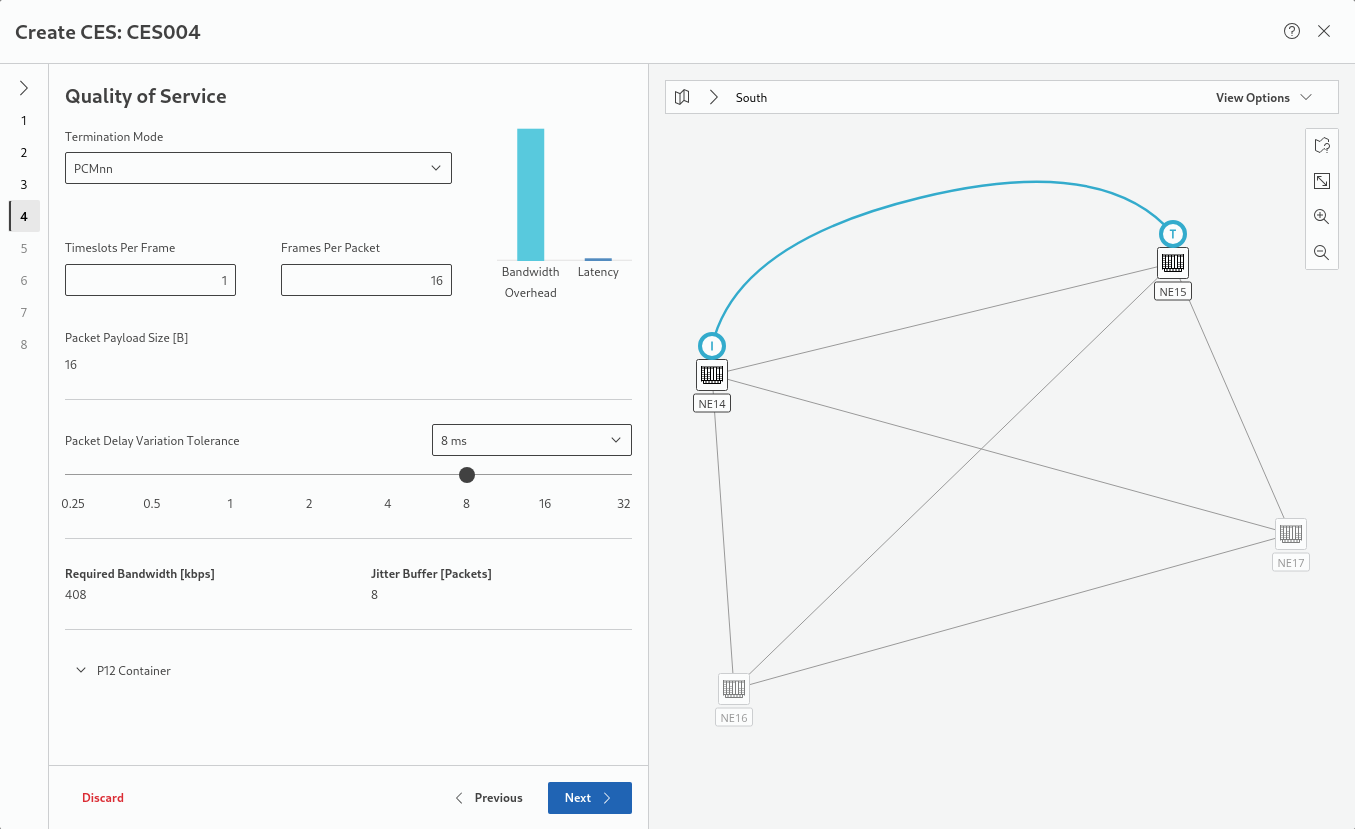
Accept the proposed settings or do the required changes. Note that manual changes require a thorough understanding of the consequences on service quality for each of the parameters.
Also make sure to select the P12 container from the list of drop down p12 terminations if required.
Click “Next >” to proceed to step 5 Timing.
Step 5: Timing
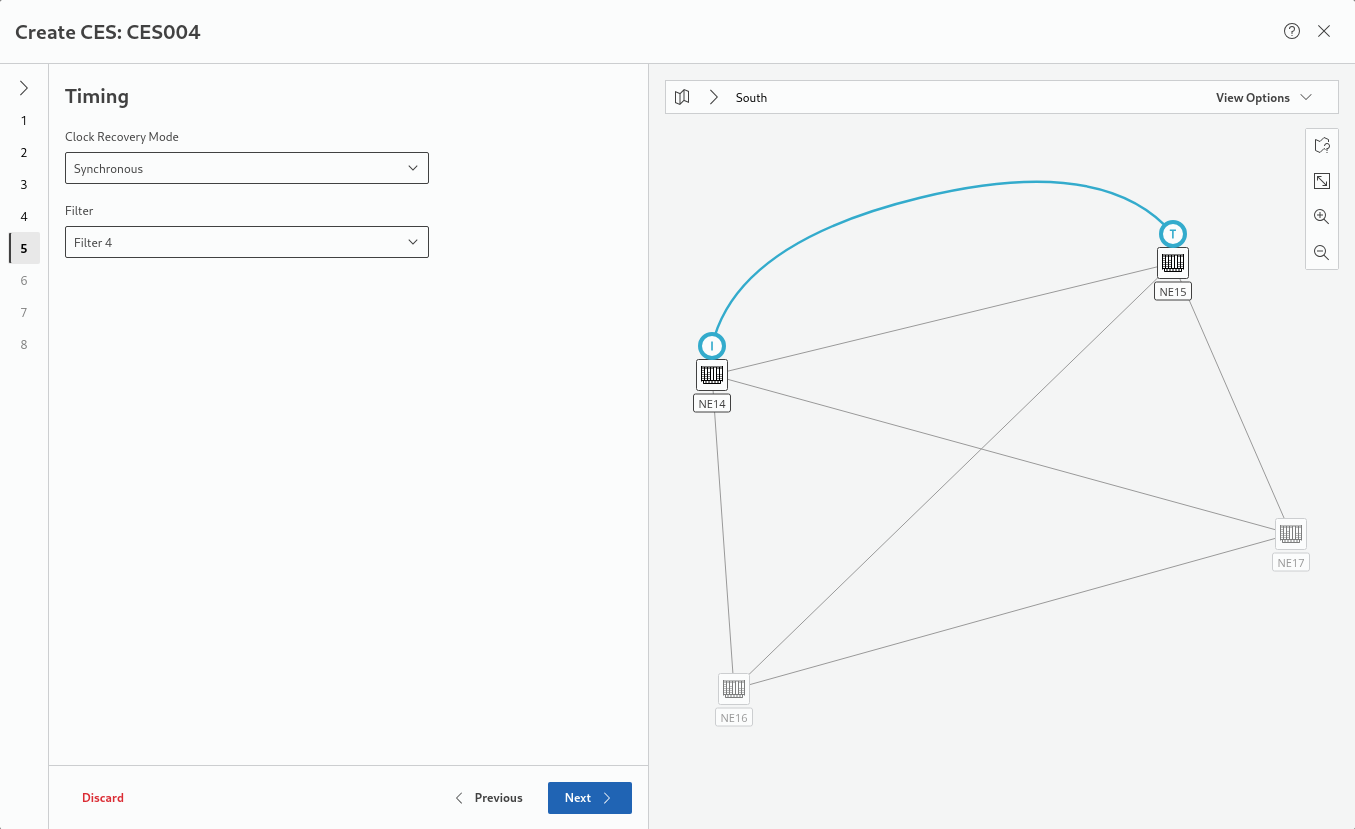
Select a Clock Recovery Mode (Synchronous, Adaptive 1, Adaptive 2, Adaptive 3), and the required Filter (Filter 1, Filter 2, Filter 3, Filter 4).
Click “Next >” to proceed to step 6 Transport.
Step 6: Transport
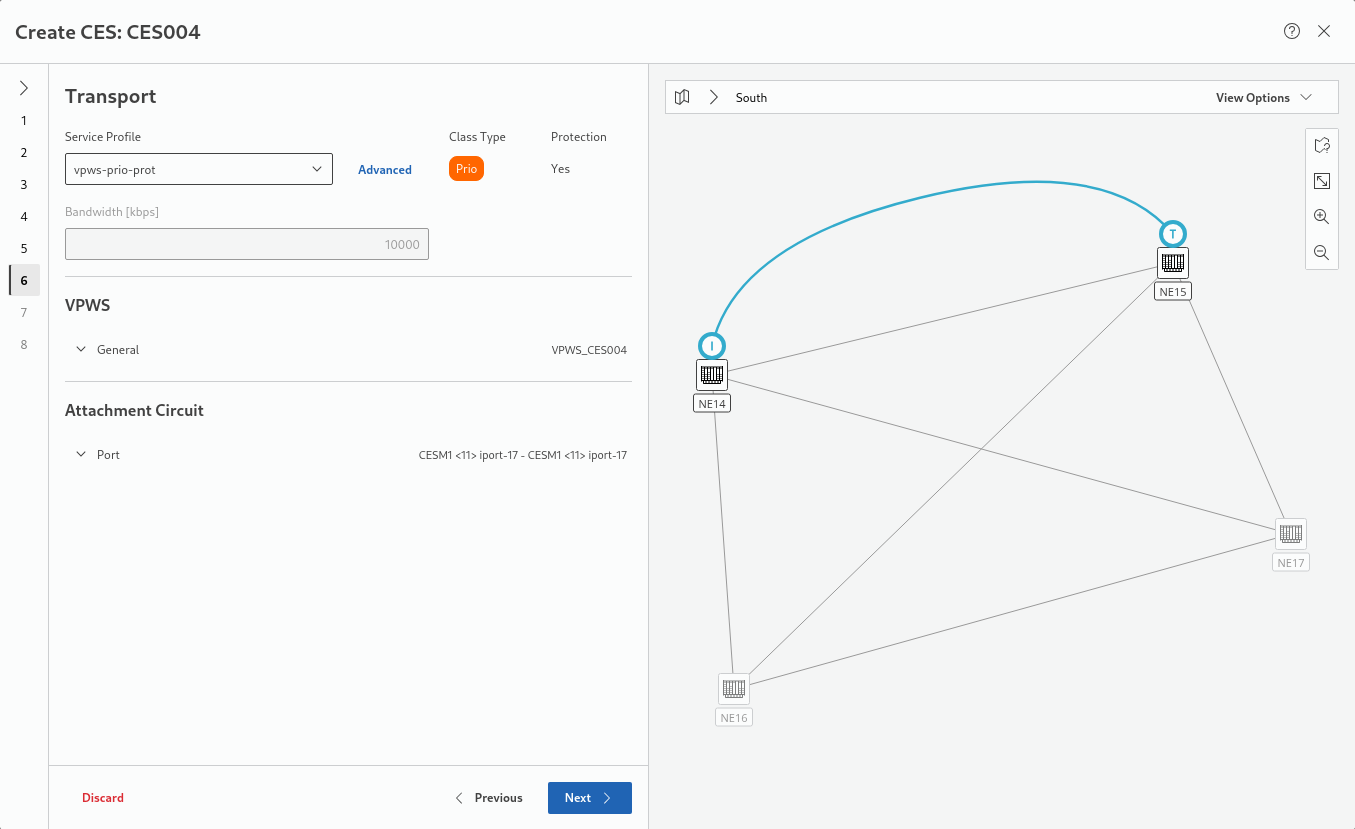
Select a Service Profile. If more information is required, click on “Advanced” to view details of available service profiles and to search for or filter specific service profiles. You can show all service profiles, including the ones not appropriate for the CES creation with an indication of their issues when selected from the list.
Once an appropriate service profile is selected, verify VPWS general information and Attachment Circuit (AC) port information. Edit their details if required.
Click “Next >” to proceed to step 7 Tunnel.
Step 7: Tunnel
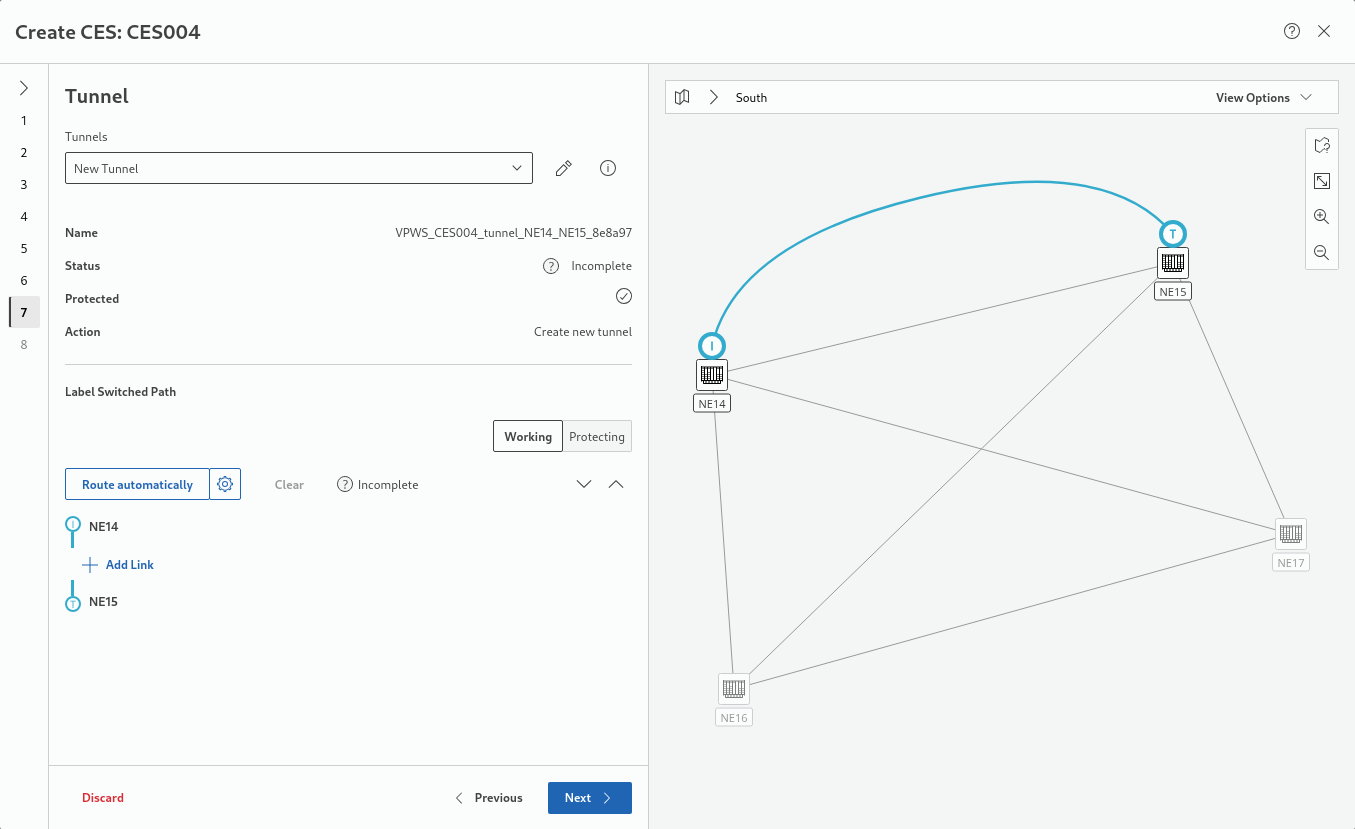
If no suitable tunnel is proposed, create a new tunnel. If a suitable tunnel is deployed already, it will be selected by default. It can be modified be clicking on the edit icon ( ) if required. Once a suitable tunnel is available, click “Route automatically” under Label Switched Path for the Working LSP. This will automatically route the Working LSP:
) if required. Once a suitable tunnel is available, click “Route automatically” under Label Switched Path for the Working LSP. This will automatically route the Working LSP: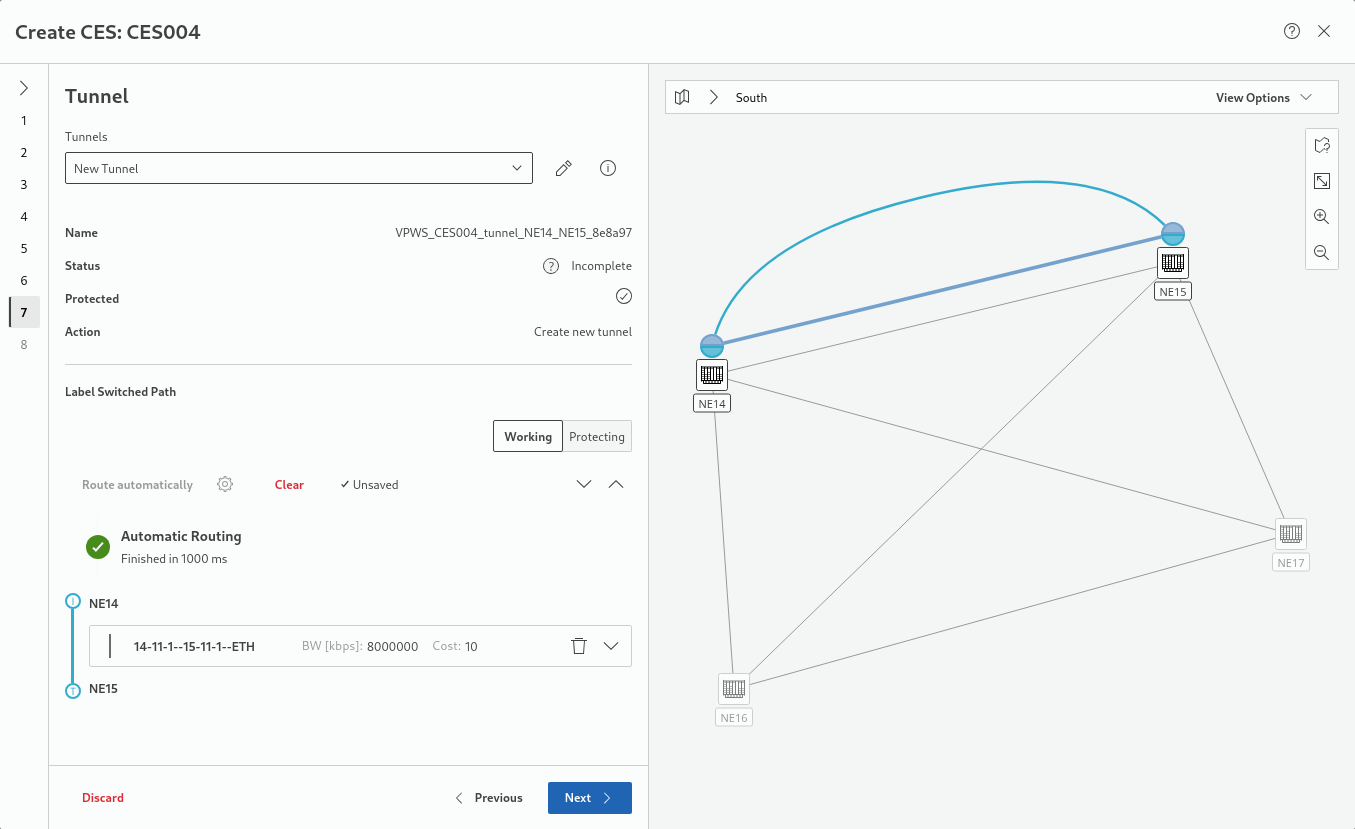
For services with protected LSPs, select the Protecting LSP:
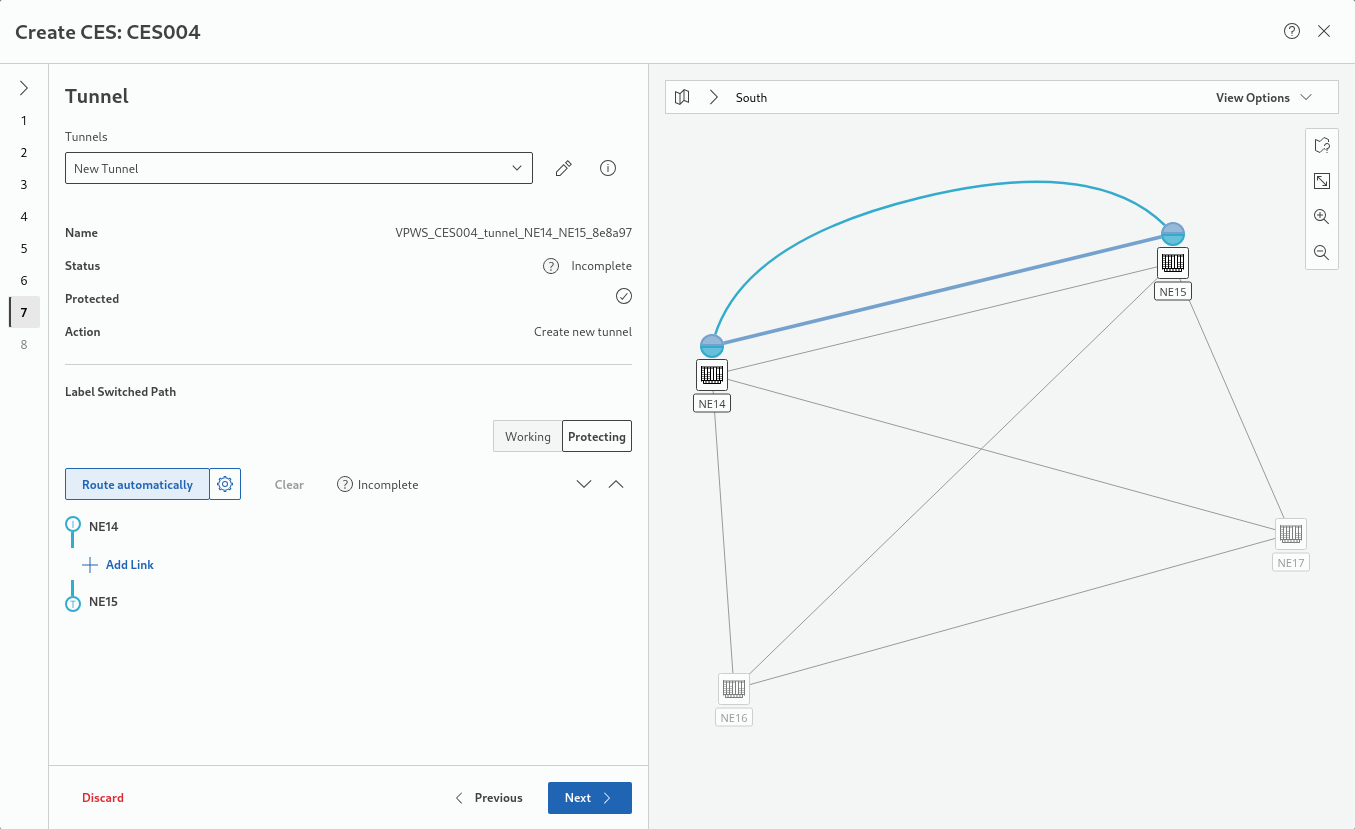
and click “Route automatically” again. This will automatically route the Protecting LSP:
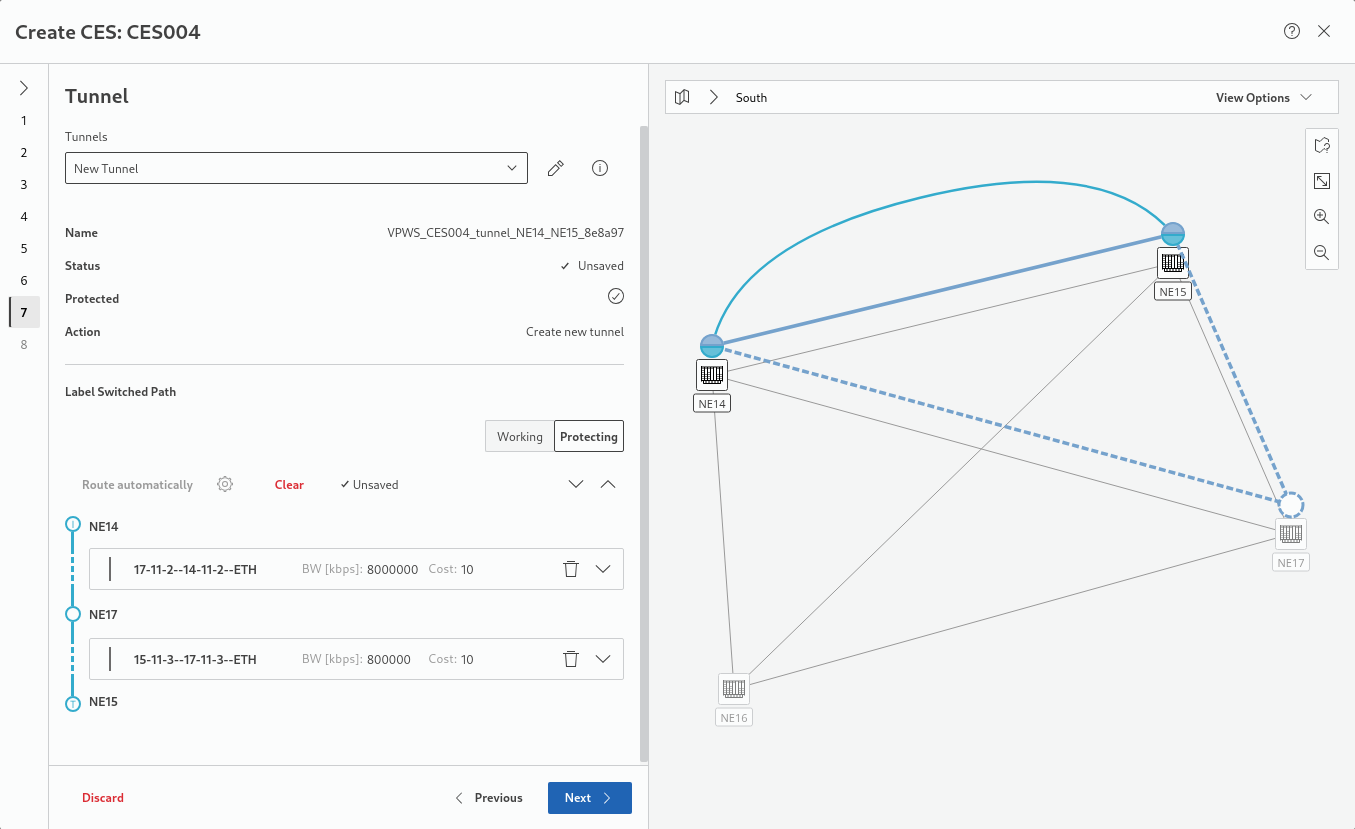
When all required LSPs are routed, click “Next >” to proceed to step 8 Summary.
Step 8: Summary
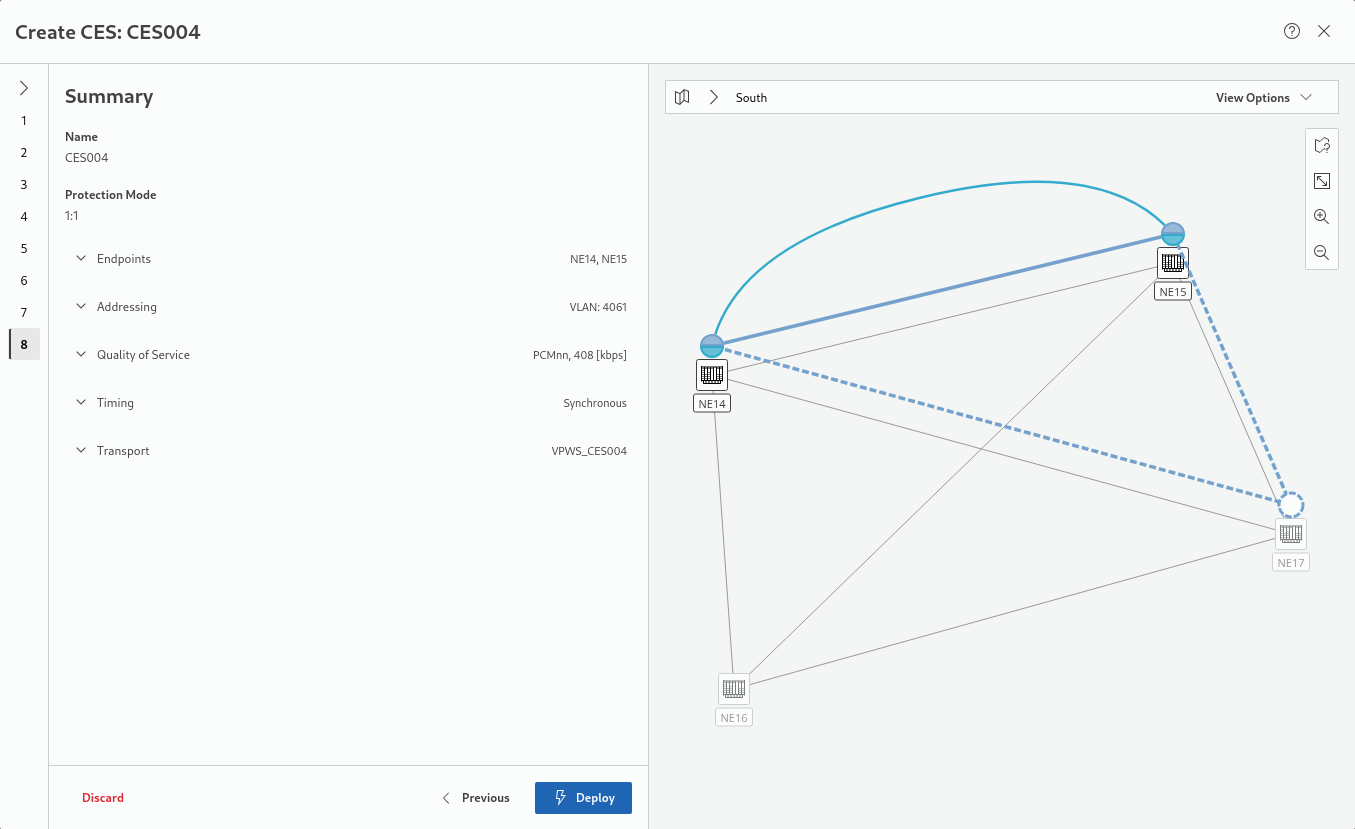
This summarizes the service settings. Use the expand and collapse arrows the view more or less details.
When done, click on “Deploy” to deploy the service to the network. Progress will take some time, depending on the available bandwidth and the number of involved NEs. A confirmation is issued once the service deployment is terminated.
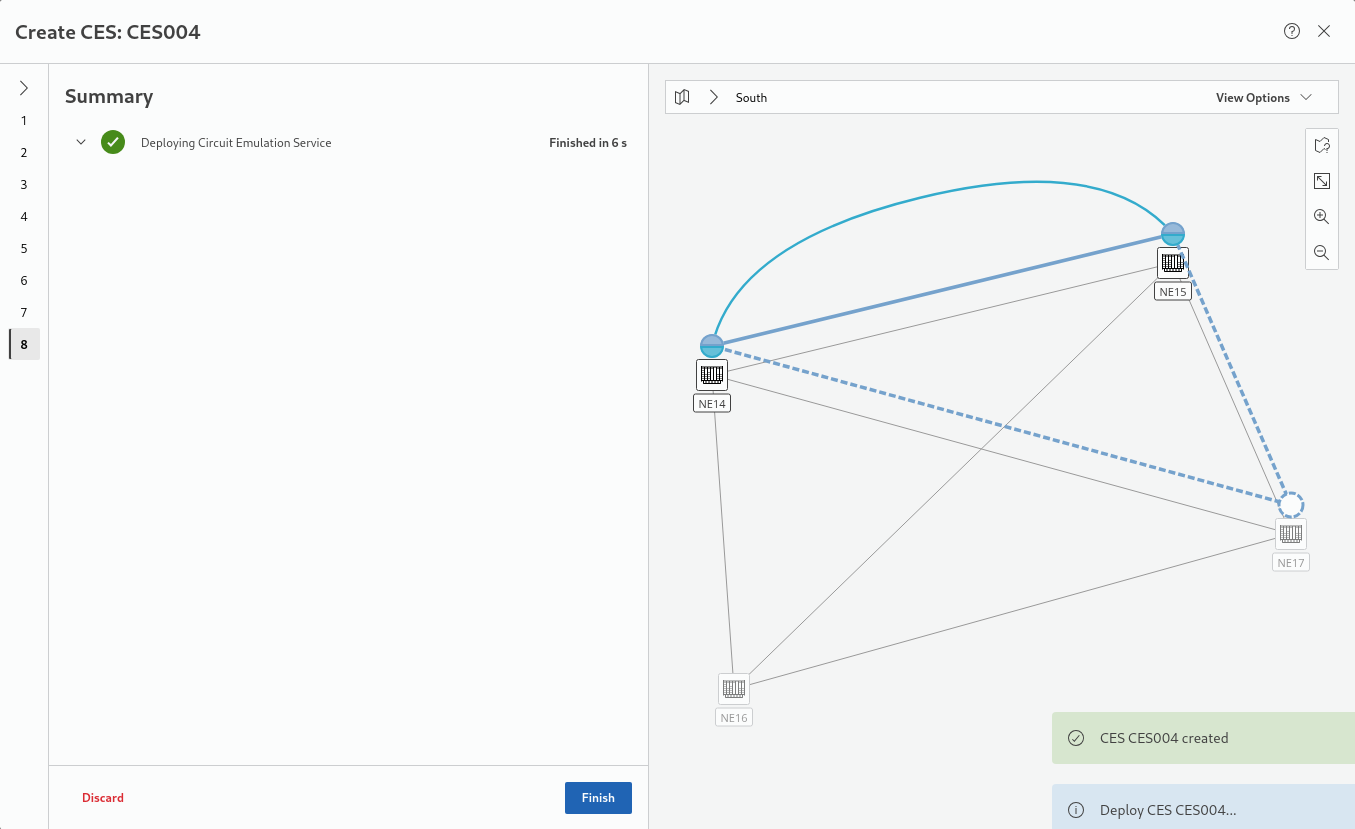
Click “Finish” to close the service creation wizard and return to the Circuit Emulation app.
A deployed Circuit Emulation Service can be used as resource while creating a Circuit Service, with the appropriate parameters and settings selected during creation.
VPWS
This tab in the Circuit Emulation UI provides a list in the entity browser of existing Virtual Private Wire Services, filter options, and a search utility. The listed VPWS are used for services created in the “Circuit Emulation Service” tab.
Section
This tab in the Circuit Emulation UI provides a list in the entity browser of physical and logical sections with Circuit Emulation relevant information, filter options, and a search utility. It also allows you to create a new section.
NE
This tab in the Circuit Emulation UI provides a list in the entity browser of managed NEs with Circuit Emulation relevant information, filter options, and a search utility.