
Performance Management (PM) Client
The main functions of the Performance Management (PM) Client dialog are:
− Create PM Collection Job
− Modify PM Collection Job
− Duplicate PM Collection Job
− Delete PM Collection Job(s)
The table lists all the existing PM collection jobs with their corresponding information. These include the Name, data counter periodicity:15min and/or 24h, creator, time of modification, and description.
Dialog image
PM Client
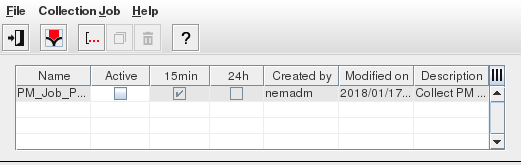
Controls (buttons, menu items, etc.)
Menu “File”
Exit |  | Exits the PM Client Window |
Menu “Collection Job”
Create |  | Opens the “Collection Job Wizard” window to create new PM collection job, see Create PM Collection Job. |
Modify |  | Modifies/Edits the properties of the selected PM collection job. |
Duplicate |  | Duplicates the selected PM collection job. |
Delete |  | Deletes the selected PM collection job(s). This will open a pop-up message for deletion confirmation. |
Menu “Help”
? Help | Starts the FOXMAN‑UN help viewer and opens this page. |
About | Displays the software version of the installed FOXMAN‑UN. |
PM Collection Job List (Table)
Name | Name of the PM collection job entered during job creation. |
Active | The box will be ticked if the PM collection job was set to active during creation. If no PM data is required, the collection can be stopped by modifying it and disabling the “Active” option without deleting the job. |
15min | Box is ticked if the job was specified to collect 15 minutes interval PM data. |
24h | Box is ticked if the job was specified to collect 24 hours interval PM data. |
Created by | Name of the user that created the job. |
Modified on | Date and time of the latest job modification. |
Last Run | Date and time of the last job run. |
Next Run | Date and time of the next scheduled job run. |
Description | Description of the PM collection job entered during job creation. |
Table Sorting and Filtering/Export and Printing
Please refer to Table Sorter section for details.