
Key tab
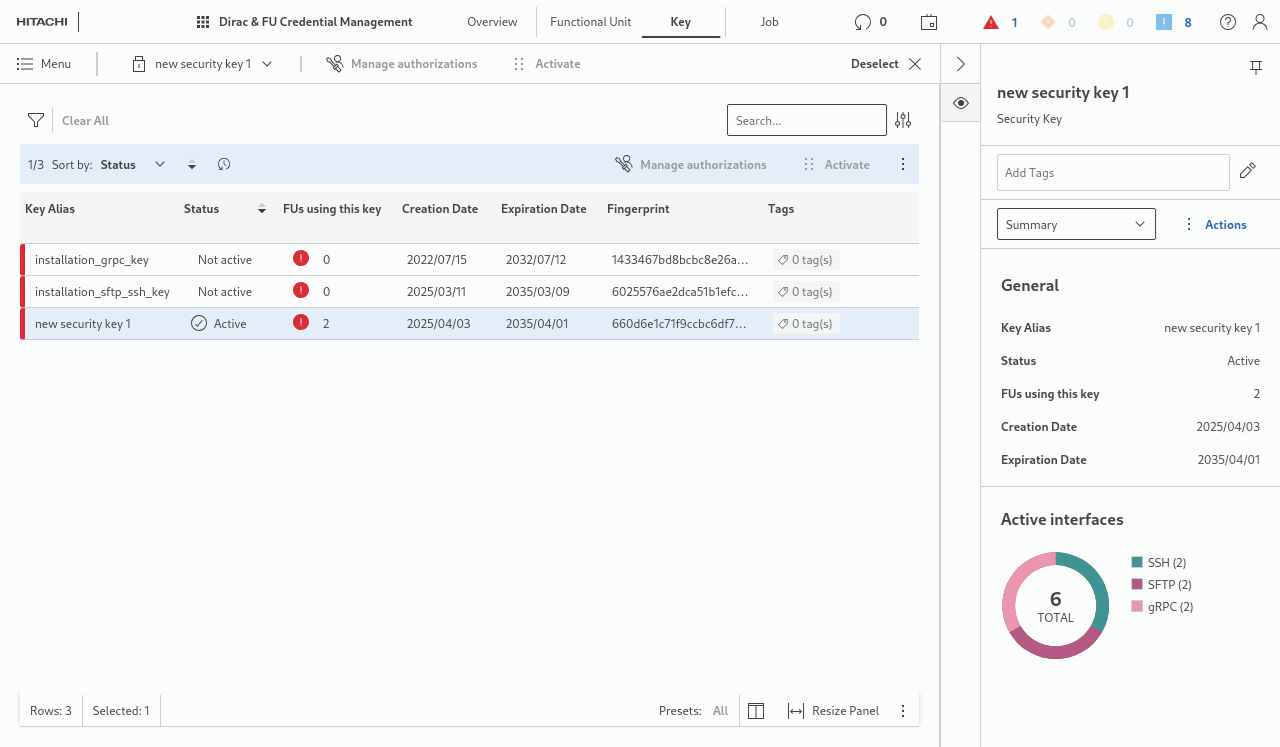
The table lists all keys used by functional units. It provides detailed information on the keys, such as
• Key alias,
• Status,
• FUs using the key,
• Creation date,
• Expiration date,
• Fingerprint,
• Tags assigned to the key.
The application also provides a “+ Create” button to create a new security key. The button initiates a wizard for key creation. The following information is required to be entered by the user:
• Name of the new security key.
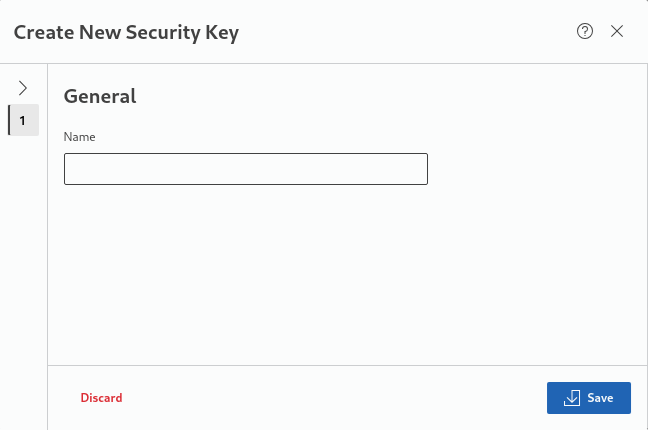
Upon finishing the key creation by saving the new key, the key is added to the table of key aliases.
When a key is selected from the table, some detailed information is shown in the details panel.
For a selected key, the table entry provides the following options from the context menu or from the ribbon:
• Delete the key - this will delete the key from the table, provided the key is inactive. Active keys cannot be deleted.
• Manage authorizations - this will open the Key authorization manager.
• Activate the key - this will activate the key and display a confirmation message.
Job tab
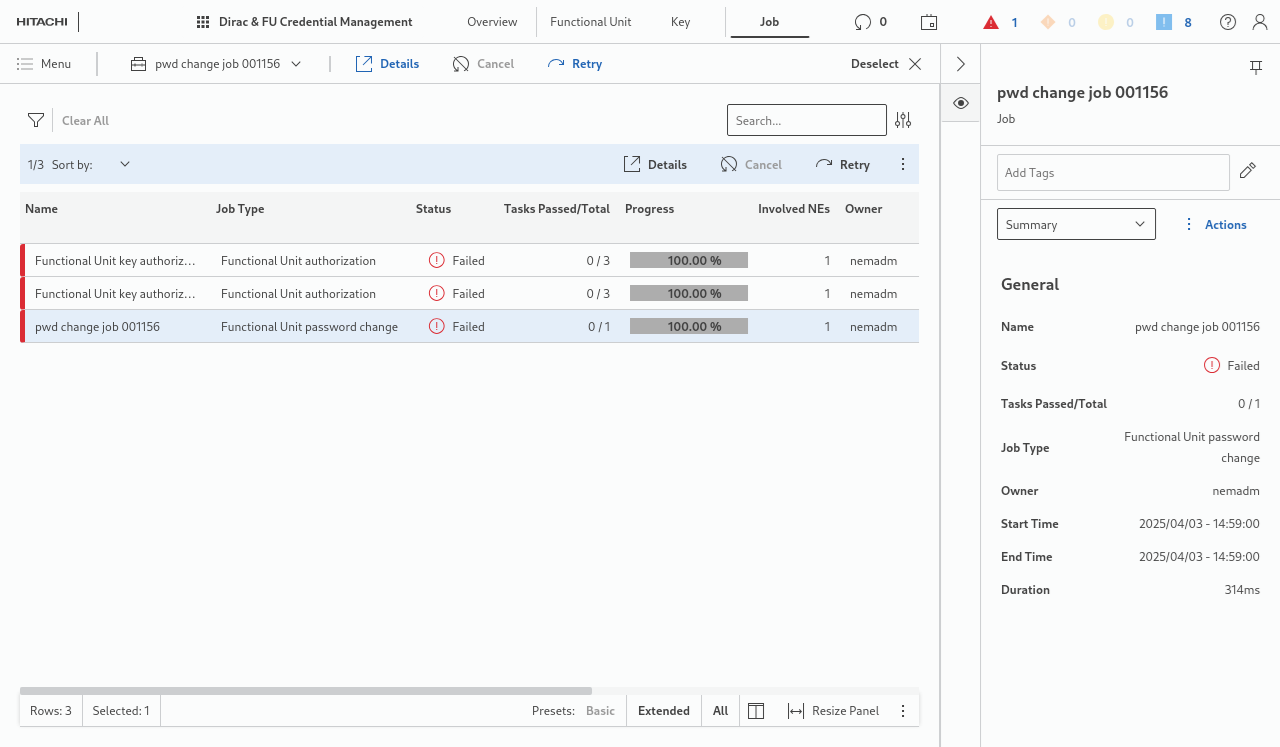
The Job tab lists jobs executed or being in execution with their related information, such as
• Name,
• Job Type,
• Status,
• Tasks Passed/Total,
• Progress,
• Involved NEs,
• Owner,
• Start Time,
• End Time,
• Duration,
• Tags.
With no job selected from the list, the details panel shows summary information related to the
• number of job entities,
• number of scheduled job entities,
• number of job entities in progress,
and two diagrams showing the ratio of
• scheduled job types and
• processing job types
vs. the total number of job types.
For a selected job, the details panel shows a summary of information related to the job.
Via the drop-down selection in the details panel, you can also open “Related” information on the selected job. Related information includes the NEs used by the job.
The Details page called for a selected task shows more information available about the job, its tasks and sub-tasks, and the related NE(s).