
Creating end-to-end Circuit
Once you have an appropriate service of type CES configured and deployed and the prerequisites for circuit configuration are fulfilled, click on the “+ Create” button on the “Circuit Service” tab:
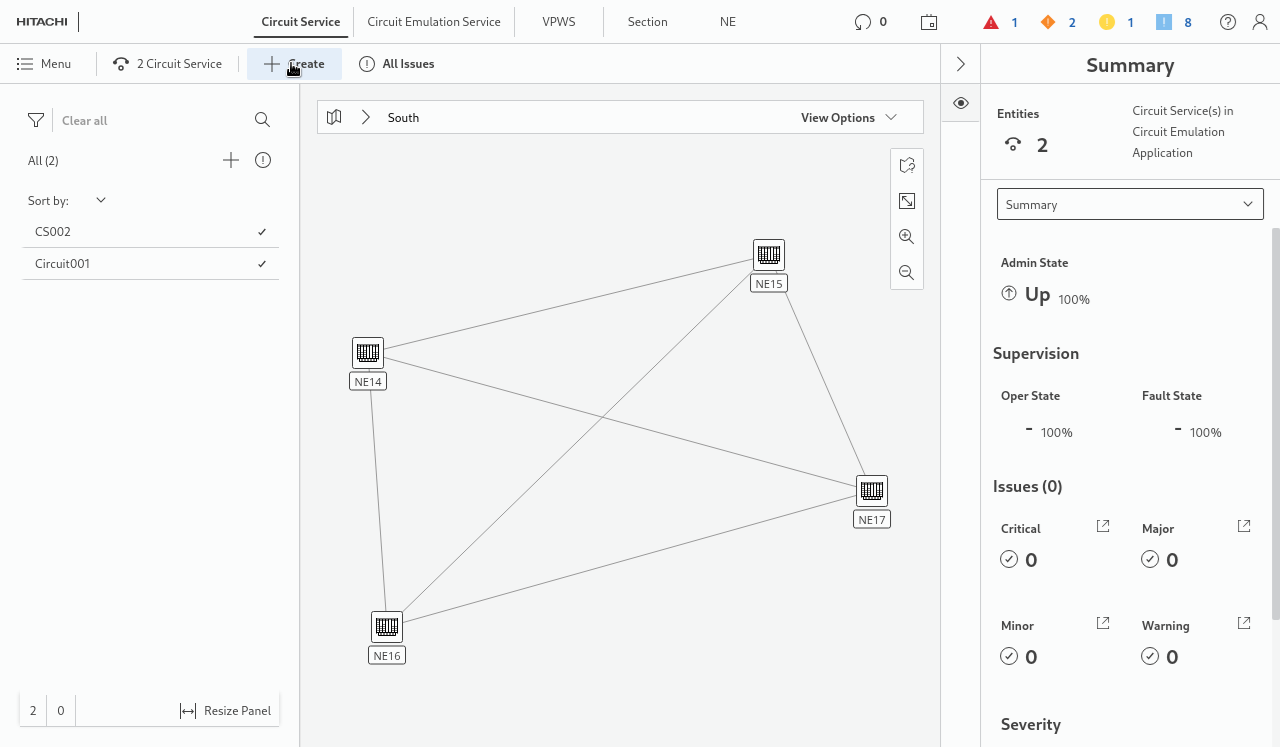
This will start the Circuit Service creation wizard.
Follow the steps in the wizard:
1 General
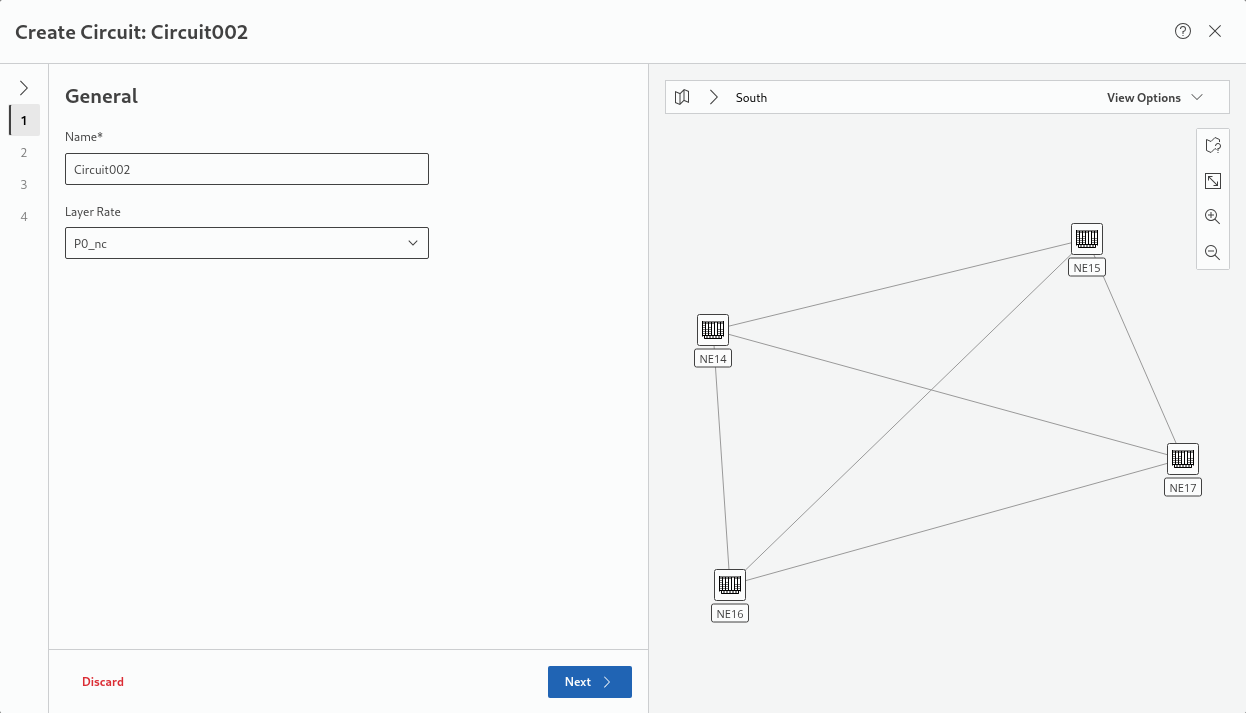
− Enter a service name.
− Select the required layer Rate (P0_nc, P12)
→ click “Next >” to proceed.
2 Endpoints
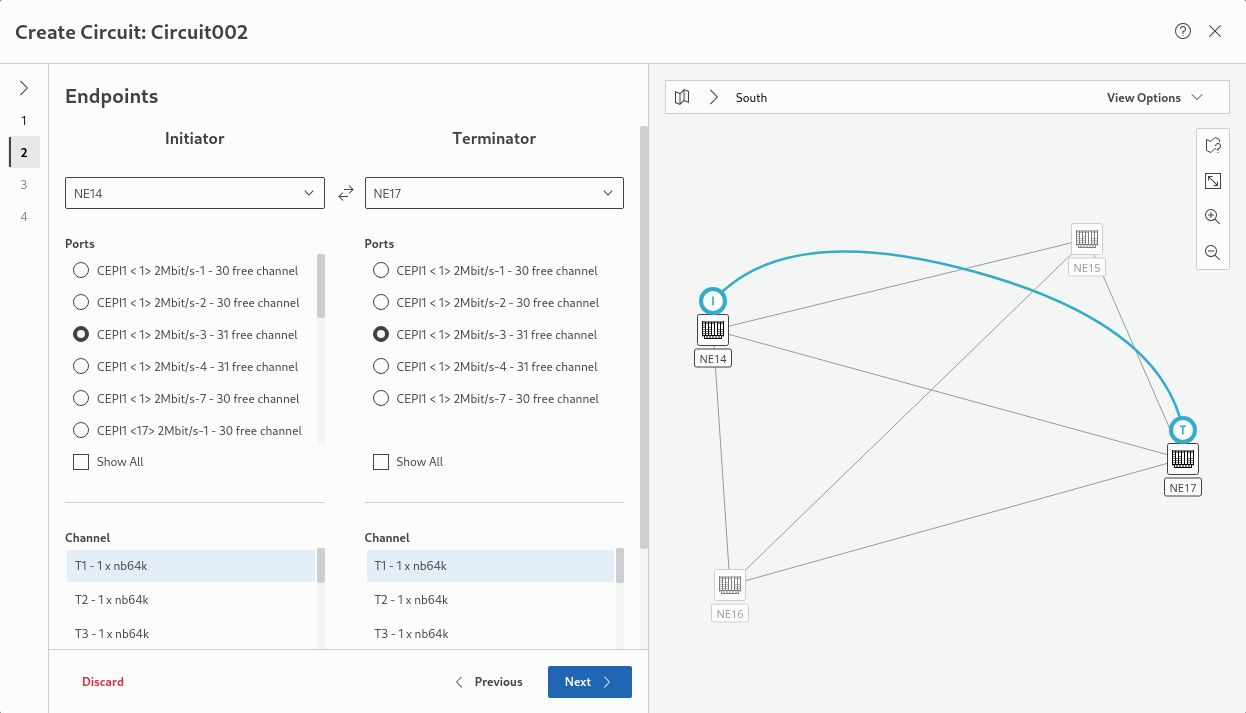
− Select the Initiator and Terminator NEs.
− Select a port from the list of suitable ports for both Initiator and Terminator NEs.
Note that only ports with matching termination mode can be selected. If “Show All” is enabled, the list includes ports with any termination mode. Unsuitable ports are shown for information purposes only.
− Scroll down and select the suitable channel(s) from the list of channels for Initiator and Terminator NEs.
→ click “Next >” to proceed.
3 Circuit Emulation Service
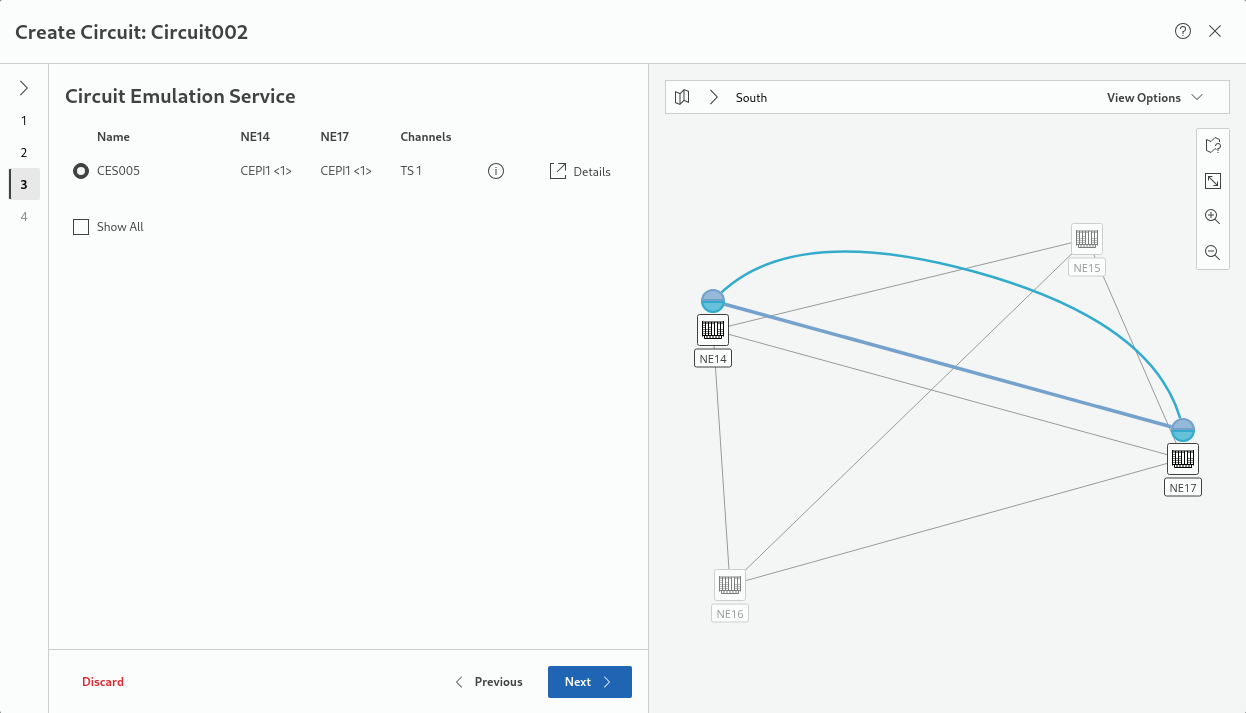
− From the list of available Circuit Emulation services, select the required service. Note that only suitable CE services are listed.
If “Show All” is enabled, the list also includes unsuitable CE services. Unsuitable ports are shown for information purposes only. Details on the CE service, including a reason for not being eligible for transporting the Circuit, are shown when hovering over the (i) icon of the list entry. A possible reason could be, e.g., “CAS mismatch”.
Example: If the Circuit Emulation service to be selected in this step 3 has a termination mode without CAS (e.g., PCM30, PCM31), at least one of the endpoints that were selected in step 2 must be without CAS (as indicated in the channel list in step 2, e.g., “T1 - 1 x nb64k”). If both endpoints use CAS (as indicated in the channel list in step 2, e.g., “T1 - 1 x nb64k - CAS”), only Circuit Emulation services with termination modes using CAS (e.g., PCM30C, PCM31C) are eligible.
→ click “Next >” to proceed.
4 Summary
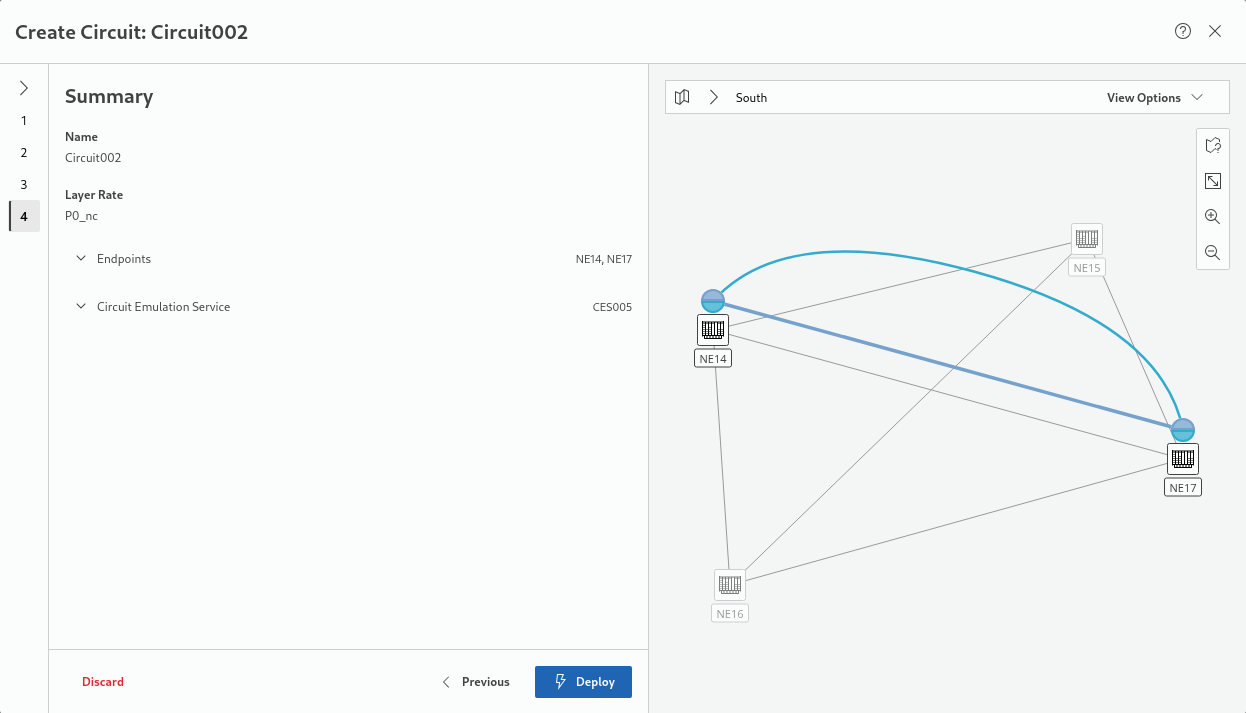
− Under “Endpoints” and under “Transport Services” you can verify the settings. Once these are OK,
− click “Deploy” to deploy the circuit service configuration to the network.
− This will show a deployment progress icon with the text “Deploying Circuit Service”.
− Once the service is deployed, details are available:
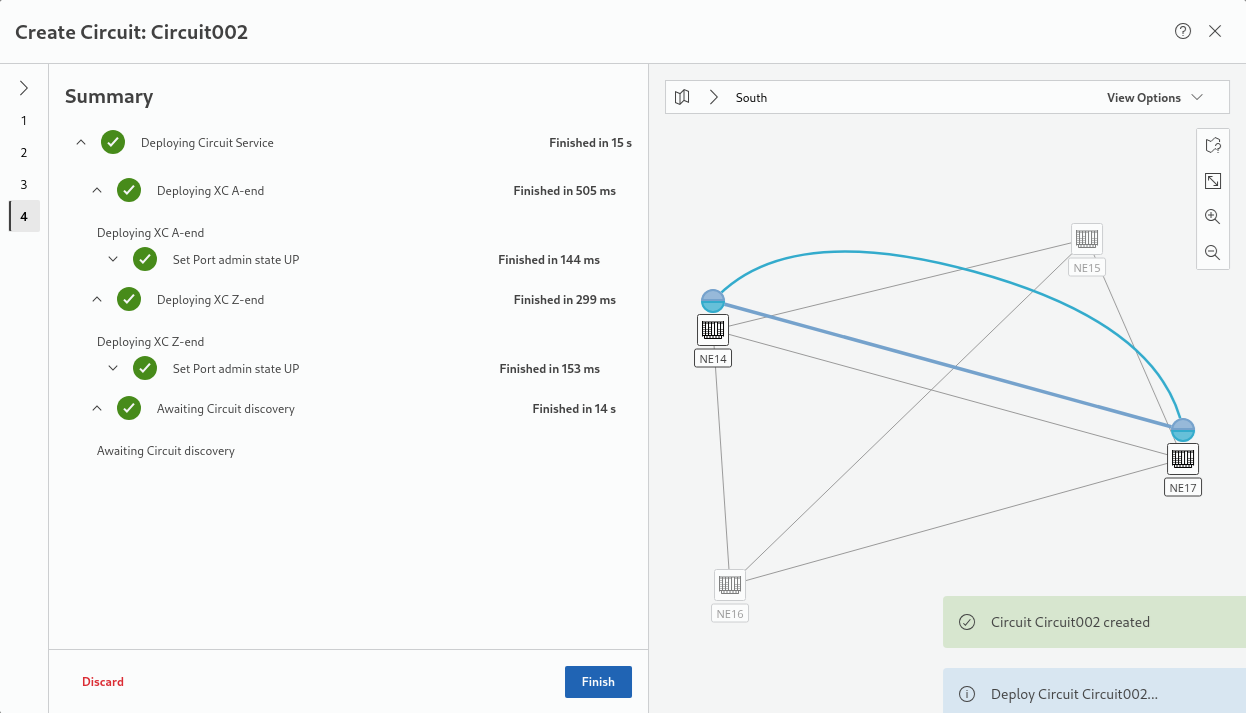
→ Once successfully completed, the final deployment status is shown and the wizard can be closed with the “Finish” button.
In case an error during deployment occurs, the errors are shown here.
In case an error during deployment occurs, the errors are shown here.