
Default Interactions within map
The user can manage the map view by using:
• Toolbars
• Map Selector Bar
Through the map selector bar, the user can change the map or topology that is visualized. To do that, the user can click the map button or breadcrumbs chevron and select a desired visualization from the dropdown.
On the right-hand side of the map selector bar, the “zoom to selection” can be activated.
Clicking the map button opens the full map menu with all available maps and the “Manage Maps” command for starting the Map Manager.
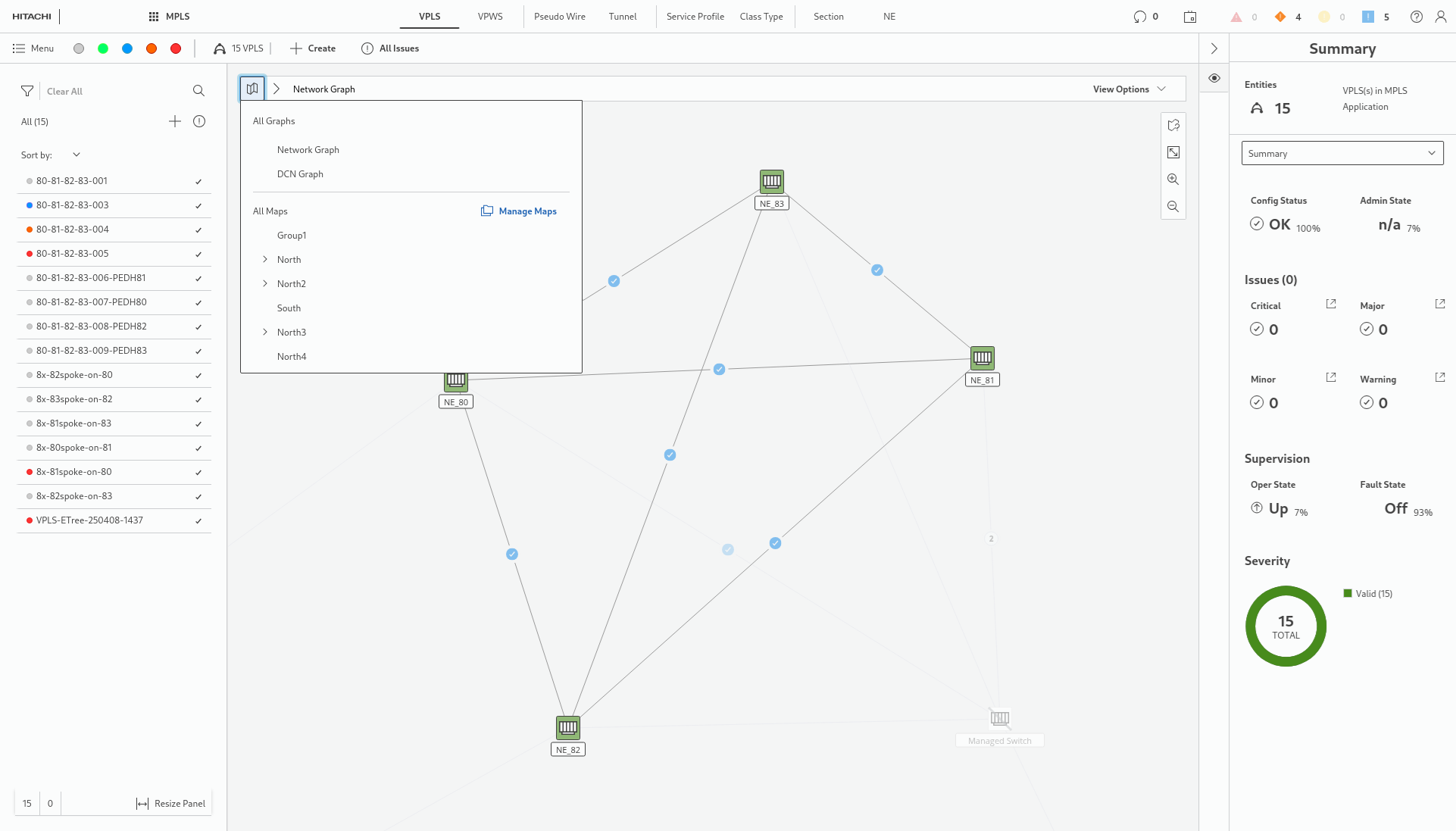
Selecting map or opening “Manage Maps” component
Clicking the breadcrumbs chevron opens the map selection list.
On the right-hand side of the map selector bar, the “zoom to selection” can be activated.
Through the toolbars the user can manipulate the view – zoom in or zoom out, fit the map to the content (i.e., zoom to show all items on the map) and also open the map legend panel.
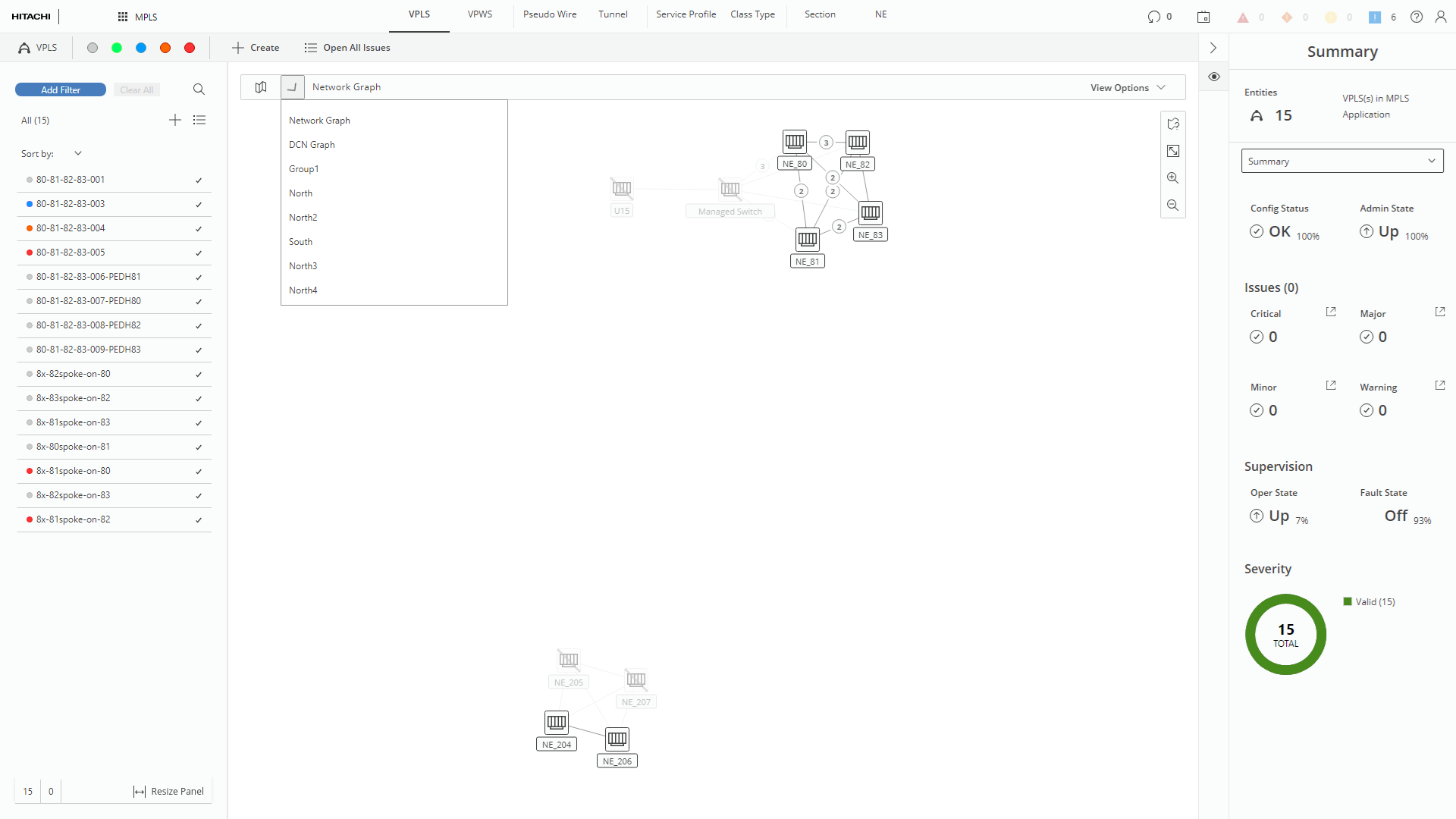
Changing map by using Map Selector component (here in opened state)
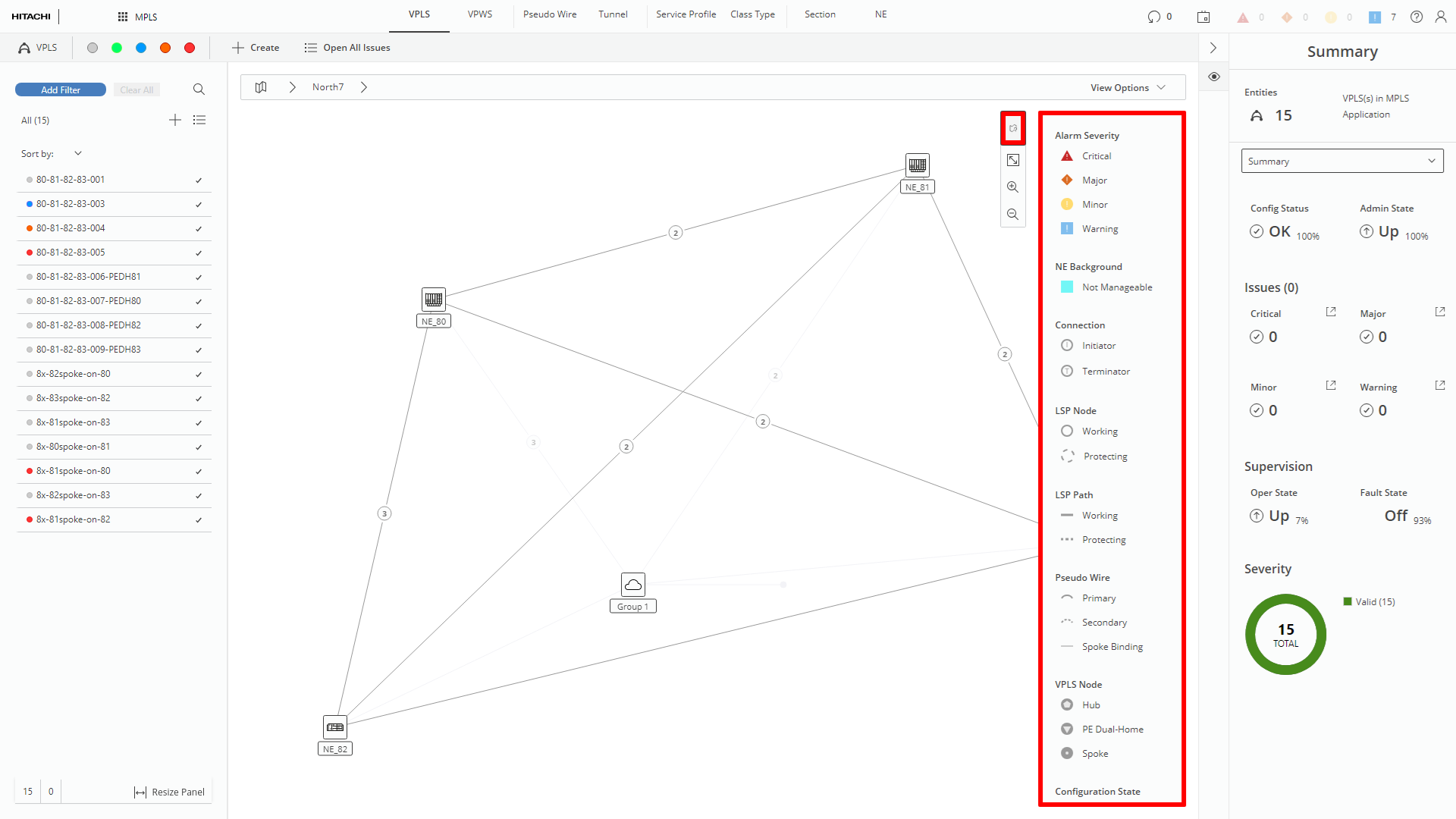
Legend panel in opened state (marked red)