
Profiles & CPS – Select NEs (legacy dialog)
Purpose
The Select NEs dialog allows the selection of NE(s) for which the selected profile(s) and/or CPS will be downloaded.

Please note:
The list includes only the member FOX61x NEs of the domain(s) assigned to the current user.
Dialog image
Select NEs
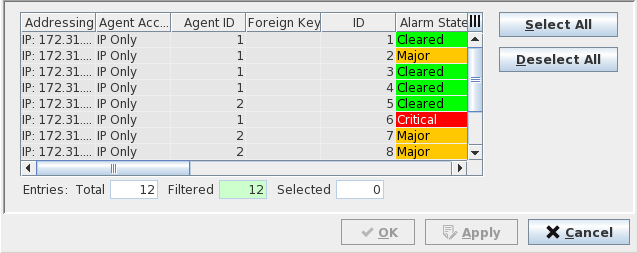
Mandatory entries
Select the NE(s) to which profile(s) and/or CPS will be downloaded.
Optional entries
Not applicable.
Controls (buttons, menu items, etc.)
Please note:
• To select a single item from the table list: Click on a specific NE/FO.
• To select multiple items from the table list: Press “Ctrl key” then click on the required NEs/FOs.
• To select a range of items from the table list: Click on the first NE/FO, Press “Shift key” then click on the last NE/FO to be included in the range.
Select All | Selects all the NEs in the table. |
Deselect All | Clears the selection. |
OK | Applies the modifications and closes the dialog. |
Apply | Applies the modifications without closing the dialog. |
Cancel | Closes the dialog without applying the modifications. |
Table Sorting and Filtering/Export and Printing
Please refer to Table Sorter section for details.