
ALCAR
General
The ALCAR is a special FOX51x unit designed for alarm collection. It has 24 binary alarm inputs, 4 relay outputs, and 4 serial port outputs.
ALCAR alarms and commands can be assigned to Foreign Objects. They then operate independently from the FOX51x the ALCAR is configured in. Only board alarms (HW Failure, Unit Not Available, Power Supply Failure) will be reported as FOX51x alarms.
The alarms and commands assigned to a Foreign Object can be viewed via the FO Properties context menu (Map Population – Map Background).
Configuration
FO alarms are directly configured via the ALCAR configuration in UCST. The FO has to be created first using the NEM Configurator.
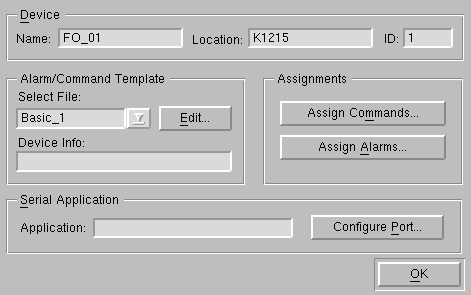
After placing one or several ALCARs in the subrack, opening ALCAR for configuration calls the “ALCAR Devices” dialog which shows all already configured FOs. Pressing “New” allows selecting one of the available FOs as an ALCAR device in the “New Device” dialog. If a FO is selected that already exists as ALCAR device, the configuration dialog is opened for modifications (this corresponds to selecting an existing device in the device list and pressing “Configuration”). This calls the “Configure Device” dialog:
Configure Device
Templates
Each ALCAR device has to be assigned to an “Alarm /Command Template”. A template defines a number of alarms with their fault cause text, severity, and input contact polarity as well as a number of commands with name, normally open state text, and normally closed state text. The same template can be assigned to more than one FO.
A new template is created in the “Configure Device” dialog by typing a name in the “Select File” combo box. If no templates exist, the combo box is empty, else the template created first is shown. In this case that name has to be marked and overwritten to create a new template. Pressing “Edit” calls the “Edit Alarms/Commands Template” dialog.
Edit Alarms/Commands Template
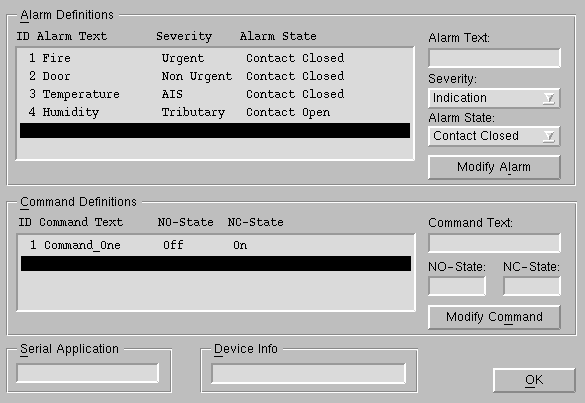
To add an alarm to the template:
In “Alarm Text” | Enter a name of maximum 16 characters which will be displayed as Fault Cause in FOXMAN‑UN. |
In “Severity” | Select a severity according to the following mapping table: “Urgent” is mapped to “Critical”, “Non Urgent” is mapped to “Major”, “AIS” is mapped to “Minor”, “Tributary” is mapped to “Warning”. Note: Do not use the ALCAR severity “Indication”. It does not cause an alarm in FOXMAN‑UN. |
In “Alarm State” | Determine whether the alarm is to be reported on closing the input contact or on opening it. |
To add a command to the template
In “Command Text” | Enter a name of maximum 16 characters. |
In “NO-State” | Enter a name of maximum 8 characters to identify the normally open state of the relay contact. |
In “NC-State” | Enter a name of maximum 8 characters to identify the normally closed state of the relay contact. |

Please note:
When editing an existing template, the first alarm and the first command will be selected on entering the dialog. To add a new alarm or command rather than edit an existing one, the first empty line after the list must be selected.
When editing existing templates, the alarm and command assignments (see below) of all FOs using that template must be checked and modified accordingly. If “Assign Alarms” and “Assign Commands” is not entered, the modified template will have no effect.
Assigning alarms / commands
Leaving the template dialog returns the “Configure Device” dialog. The FO is now assigned to the template, but no alarm inputs or command outputs are assigned yet. A corresponding message is displayed when trying to leave the dialog at this stage.
The “Assign Alarm Inputs” dialog presents the alarms of the selected template in the “Alarm List”:
Assign Alarm Inputs
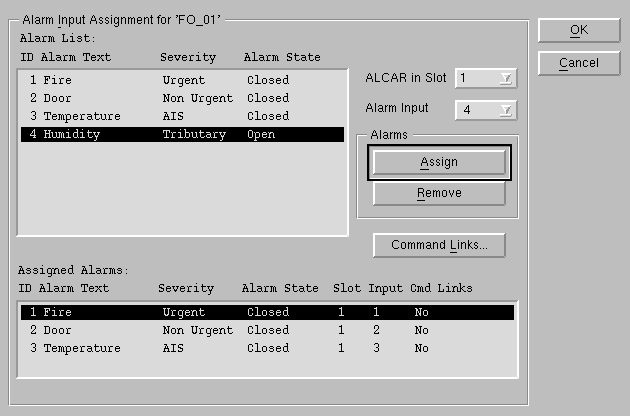
To assign an alarm:
In “Alarm List” | Select any alarm. On entering the dialog the selection is on the first alarm and moves automatically down to the next one after an assignment. |
In “ALCAR in Slot” | If more than one ALCAR is present in the subrack, select the desired slot. Alarms of the same FO can be distributed over several ALCARs. |
In “Alarm Input” | Select the desired input number. The lowest free input is automatically presented. |
Press “Assign” | Shows the alarm in the “Assigned Alarms” list. |
The assignment of commands occurs similarly to the assignment of alarms.
Please note:
Modifying and deleting entries in a template is recognized by UCST and results in a message when entering the “Assign Alarms Inputs” and “Assign Commands Outputs” dialogs. We recommend answering the question in the message with “No” and proceeding by first removing all assignments and then redoing them.
Command links
Alarms can be made to automatically activate commands, e.g. a fire alarm can turn on a siren or warning light. Command links can be set in the “Assign Alarm Inputs” via the “Command Link” button, provided the corresponding commands have already been assigned to an ALCAR output. Several alarms can be made to activate the same command.
Configuration download
After the configuration of the required alarm inputs and command outputs has been completed, a partial download (menu Files > Partial Download) has to be executed before the FO alarms and commands become active.
Manual command activation
Commands can be activated manually only via UCST. In the “ALCAR Devices” dialog select the required FO and press the “Alarms/Commands” button. In the resulting dialog select the desired output in the “Commands” list and press “Change”. The current and the new state will be displayed. Press “Change State” to switch the output.