
Enabling Log Event Mode (System Events)
To enable the log event mode which provides a table listing the system event log, the user must click the System Events component in the global header. The activation of this mode is indicated by highlighting the System Events icon in the global header with blue background, appearance change of the ribbon (“Log Event Mode” badge visible) and new content in the entity browser (related to the system events).
The user can select among the system event views
• Last 24h,
• Last 7 days,
• Last 30 days,
and can sort or filter the table entries, and show or hide columns of the table.
To disable this mode, the user can deselect the System Events component or click “Close Mode” in the ribbon.
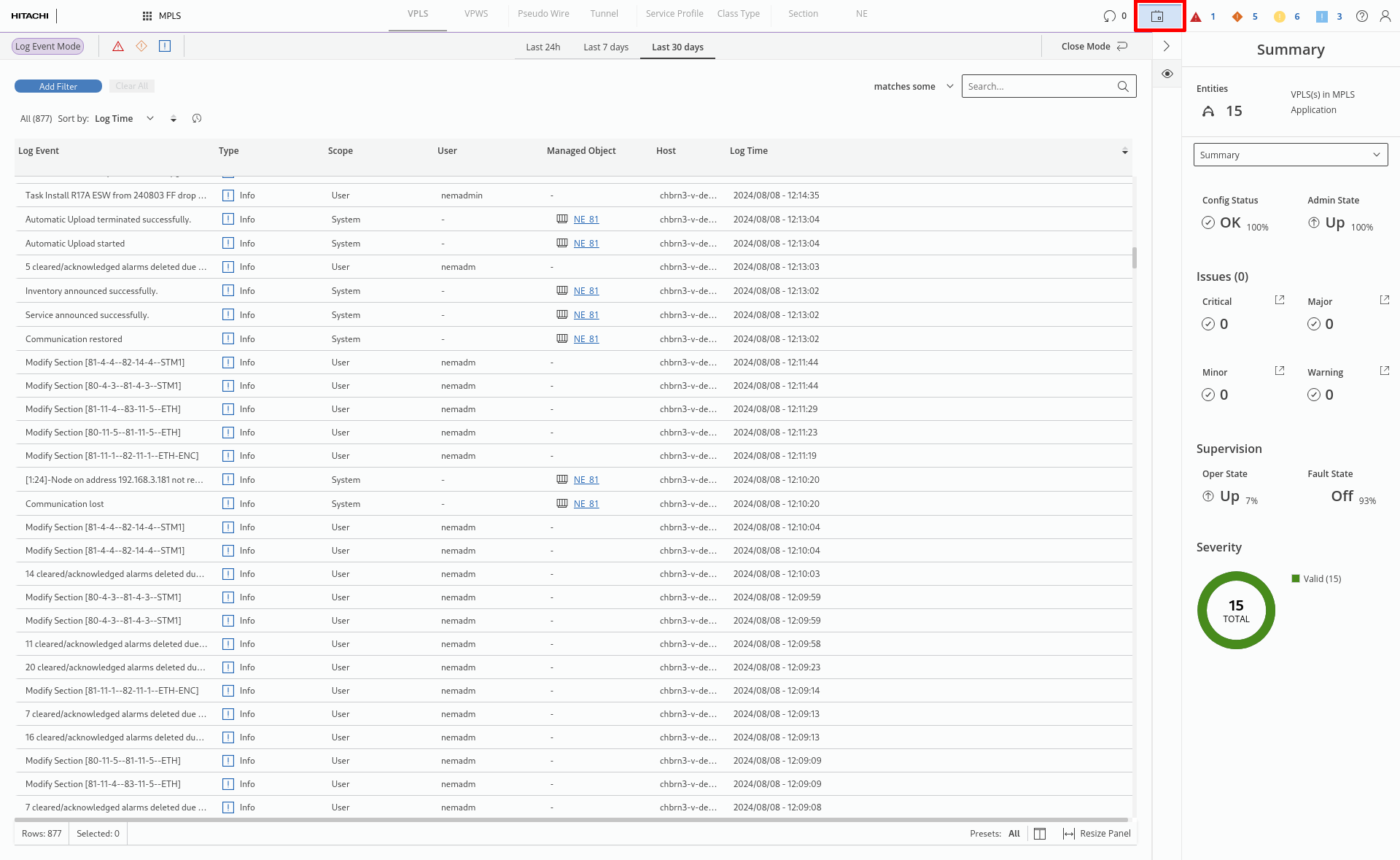
Log Event Mode (system events) overview