
Managing Details Panel
The user can see details of any entity in the details panel (Right Panel). To see details there, the user just needs to select any entity on the map or in the entity browser. When nothing is selected the user can see the application’s summary.
By default, the user sees the details panel in the preview mode. The preview mode is a mode that follows selection – whatever is being selected, its details are presented in the details panel. The preview mode is indicated by active “Preview” tile in the details navigation bar.
The User can also pin/unpin elements (explained in the below point) to be able to traverse through different entities’ details without need to reselecting things from the entity browser or the map. Every pinned element is indicated by its own tile in the details navigation bar. To activate view of pinned entity in the details panel the user needs to click on available tile in the details navigation bar.
This action is independent of selections in other places of application. Pinned element’s details view activation and its details visibility in the details panel is not affecting selection in other places. There is a possibility to have selected one service from the entity browser and seeing details of other service in the details panel. However, when the user wants to see details of generally selected entity – they are always hidden under “preview” tile.
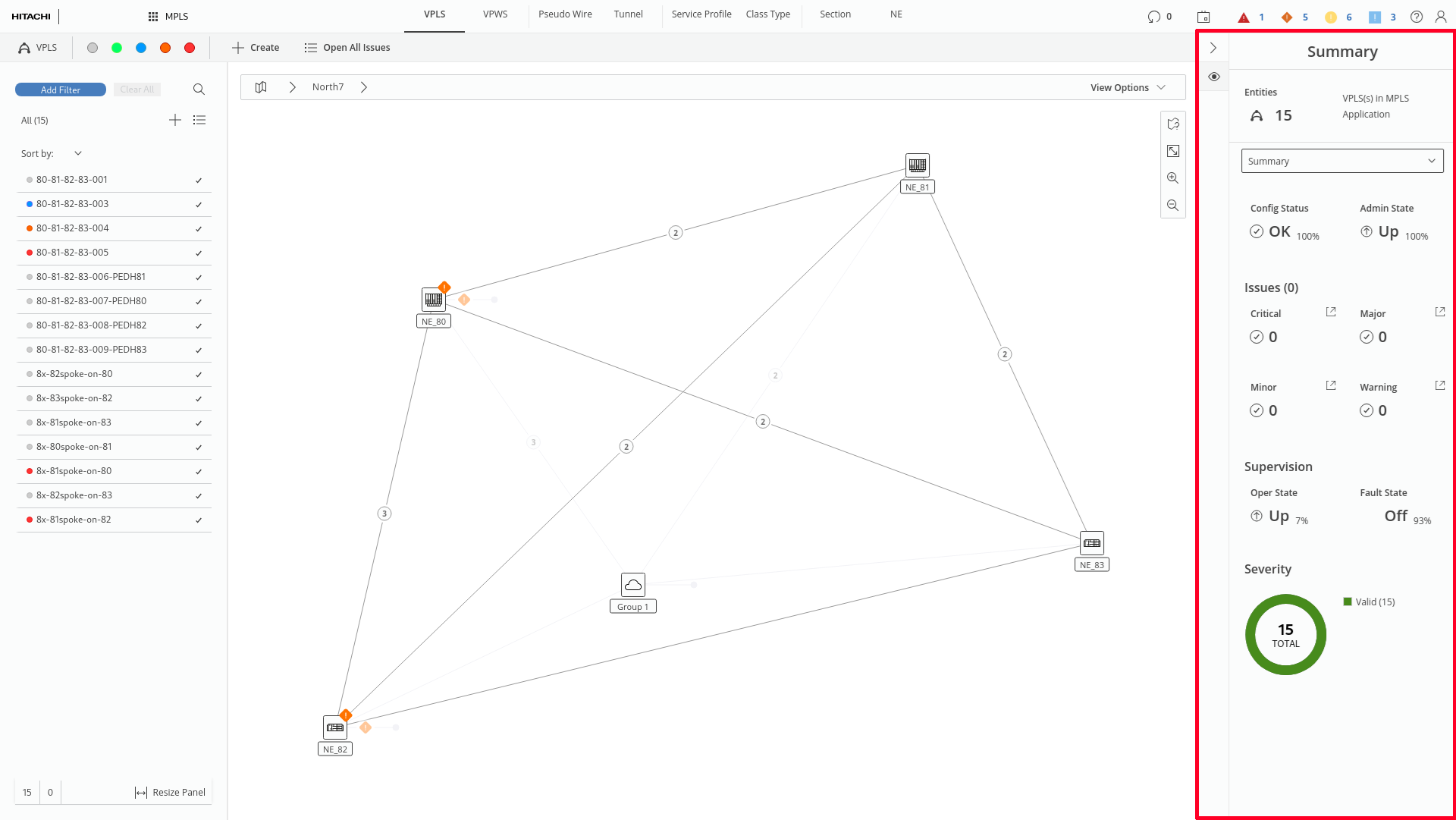
View when nothing is selected (marked red)
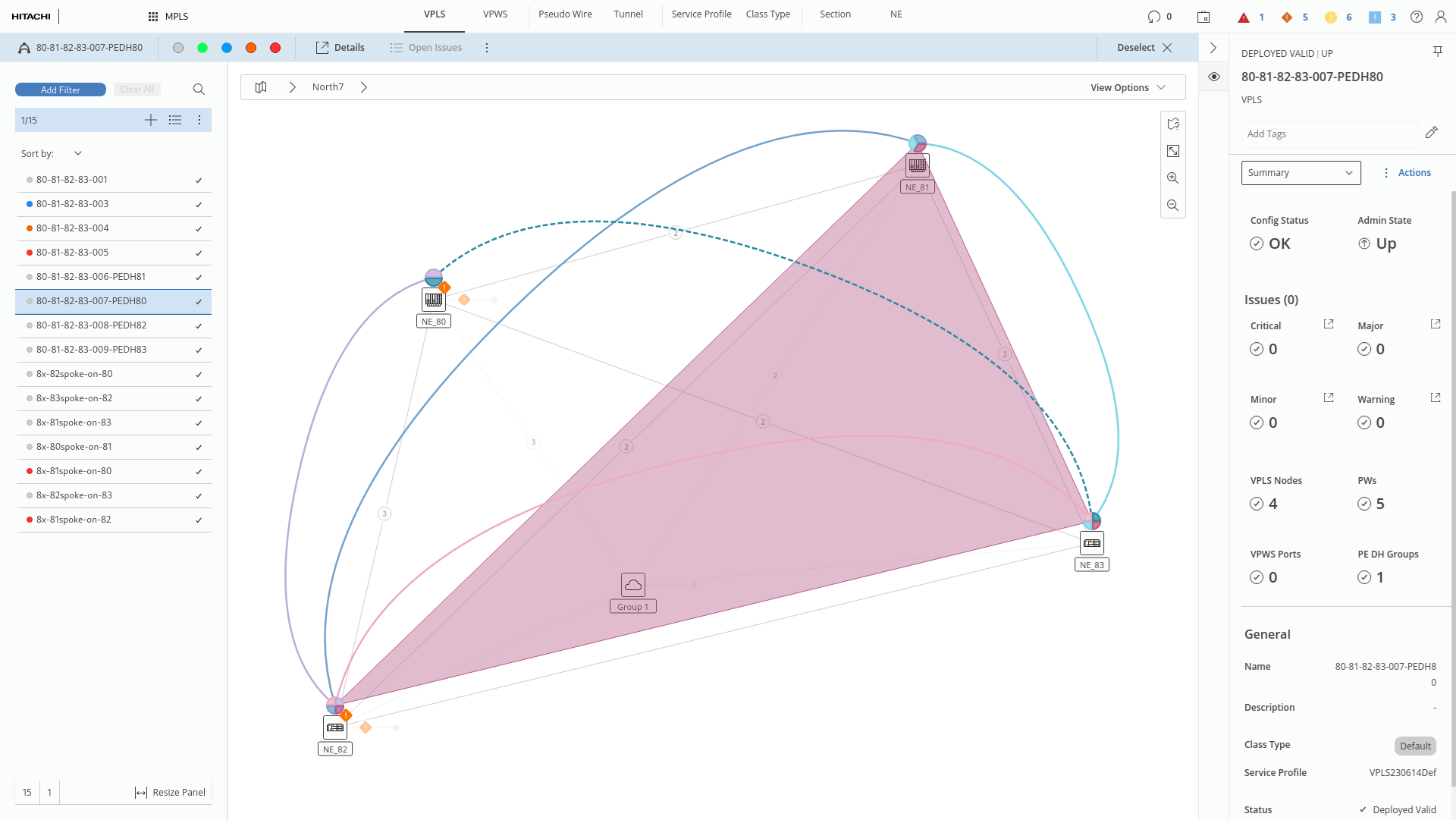
Details Panel with details of selected entity