
Managing Entity Browser
The user can manage the entity browser table by options available within the action bar, the summary Bar or by interactions with table headers and row. The user can sort the table using “sort by” dropdown within the action bar or by clicking specific column’s table header.
Sorting can be applied by using “sorting dropdown” or by clicking a column header.
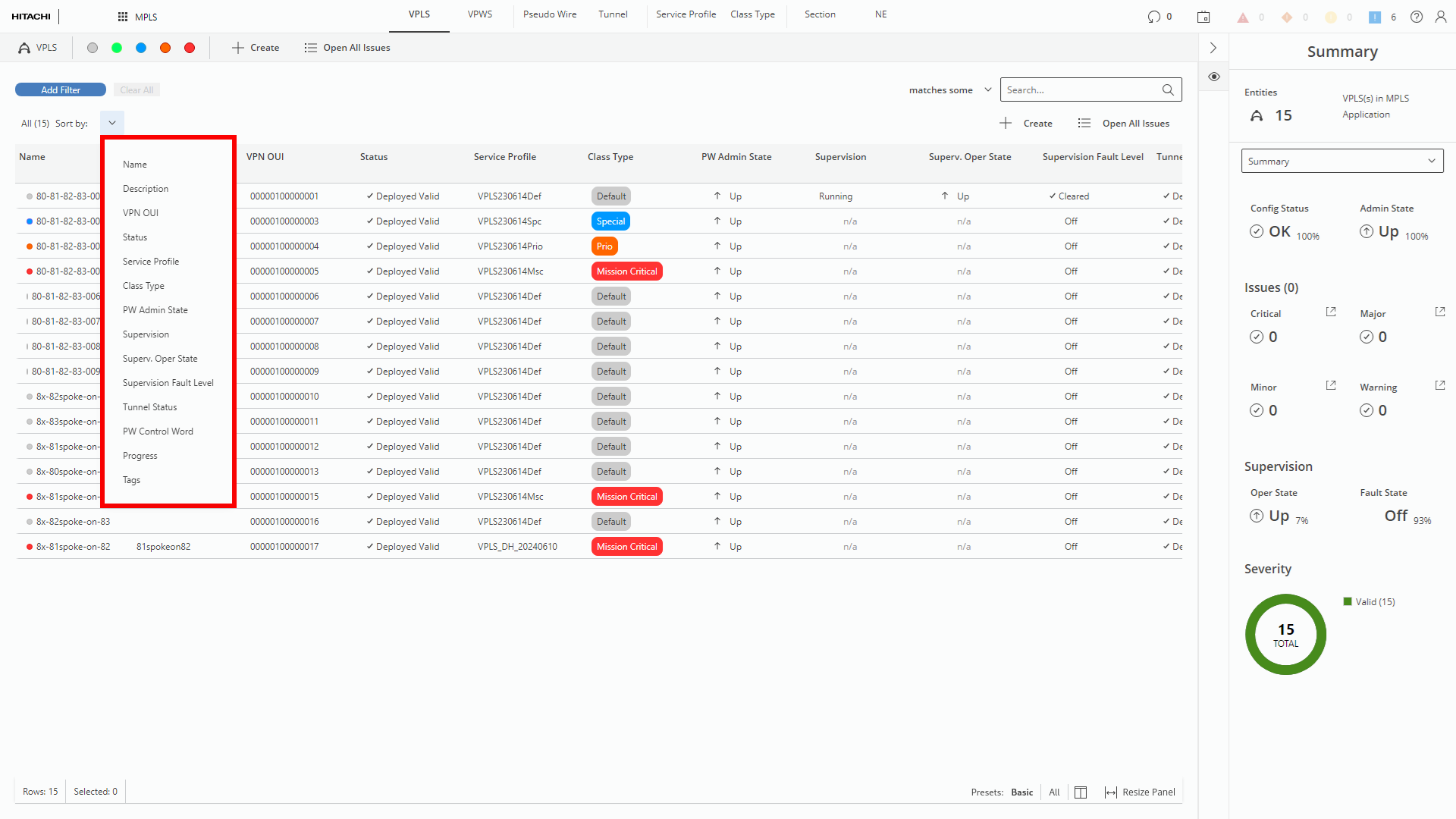
‘Sort by’ in Entity Browser (marked red)
State of sorting dropdown and column’s header sorting are interdependent – one influence the other. Sorting icon in the right side of header cell indicates for what column sorting is applied
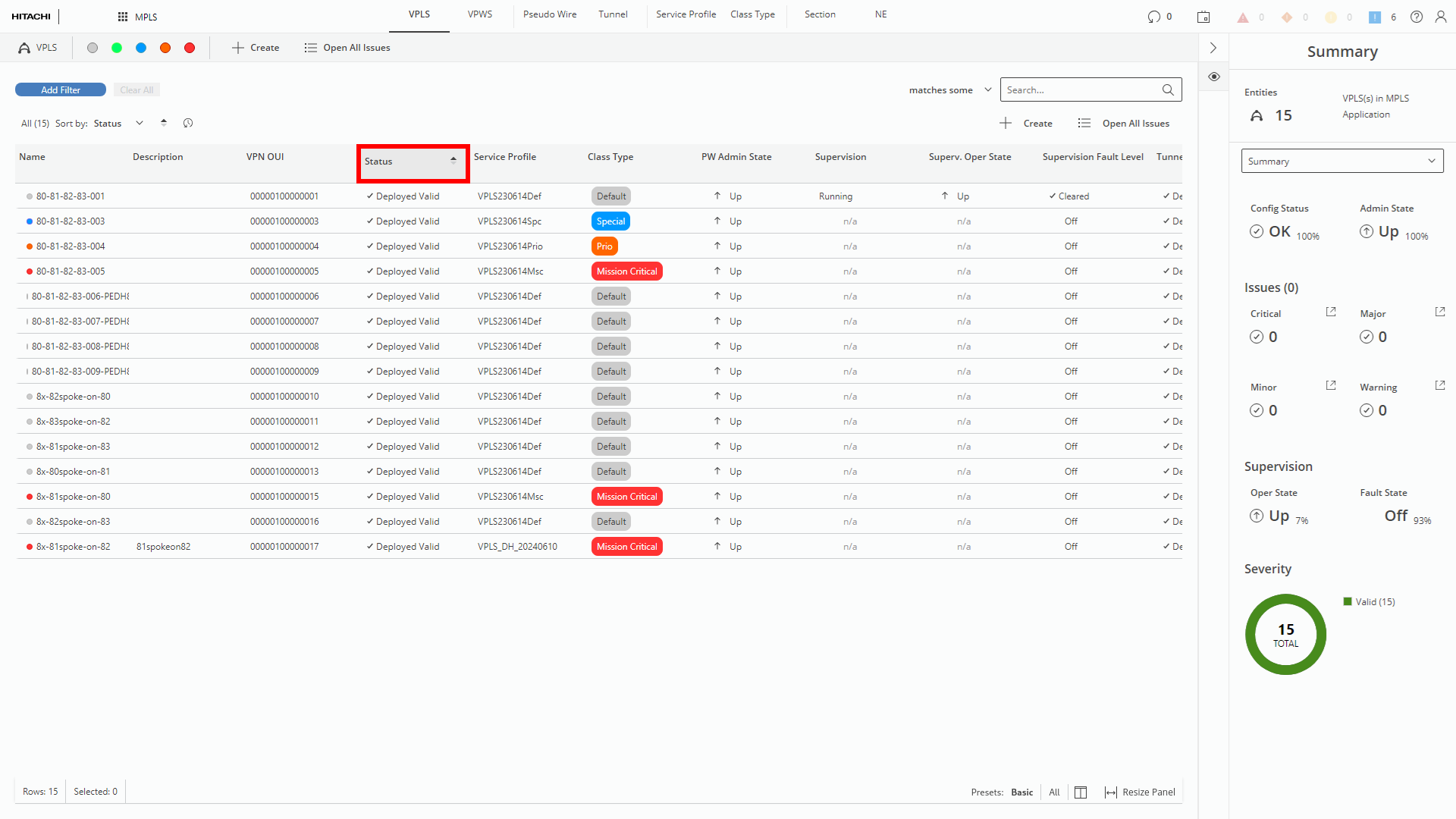
Sorting by selecting a column (marked red)
The user can change the size of the panel by the view mode selector, after clicking on the Resize Panel icon:
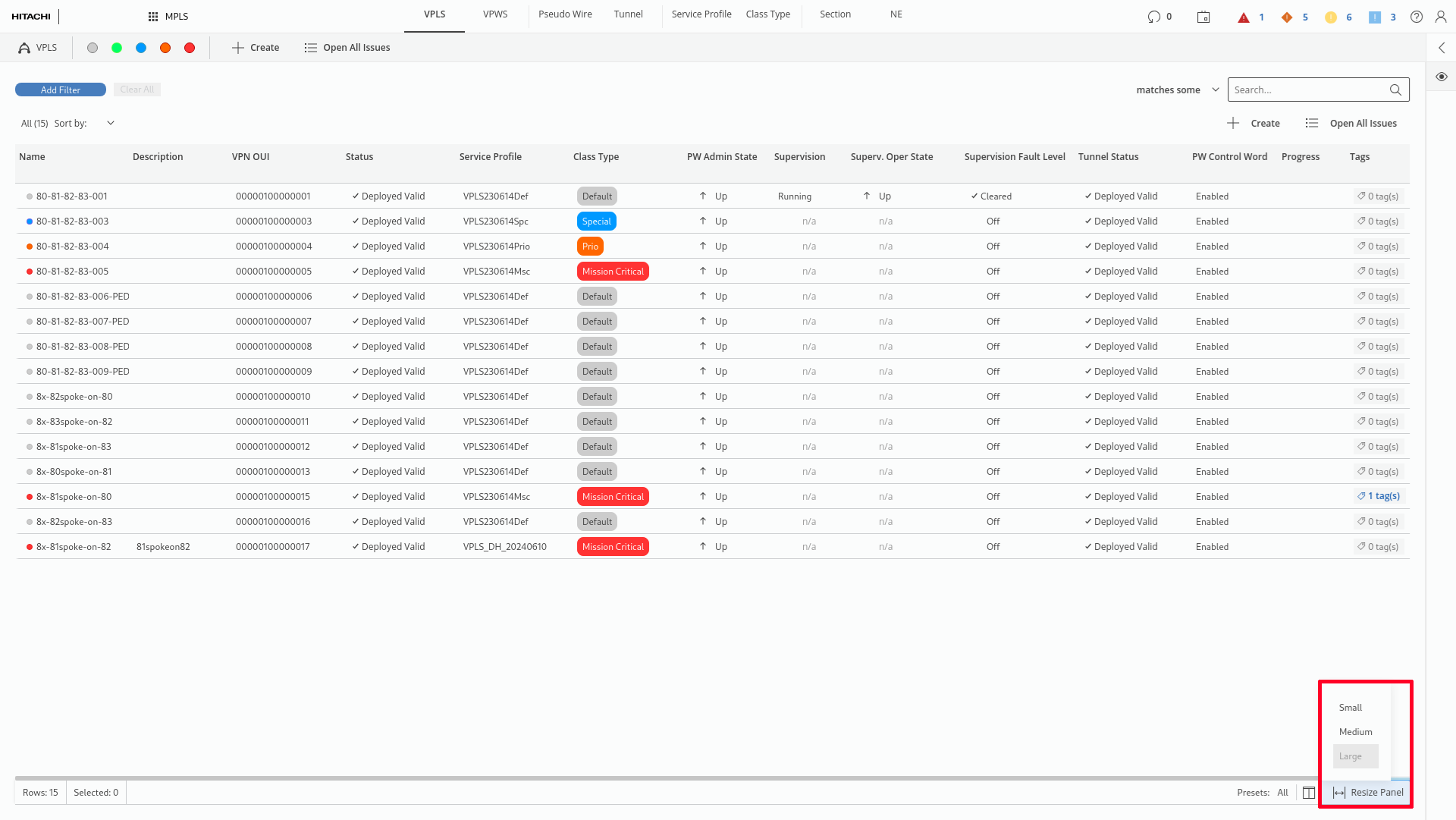
Changing size of Entity Browser (marked red)
The user can manipulate visibility of the columns by using table column visibility or the table content presets. The applied preset is highlighted by bold font. Table Column Visibility panel list can be accessed by clicking the preset icon.
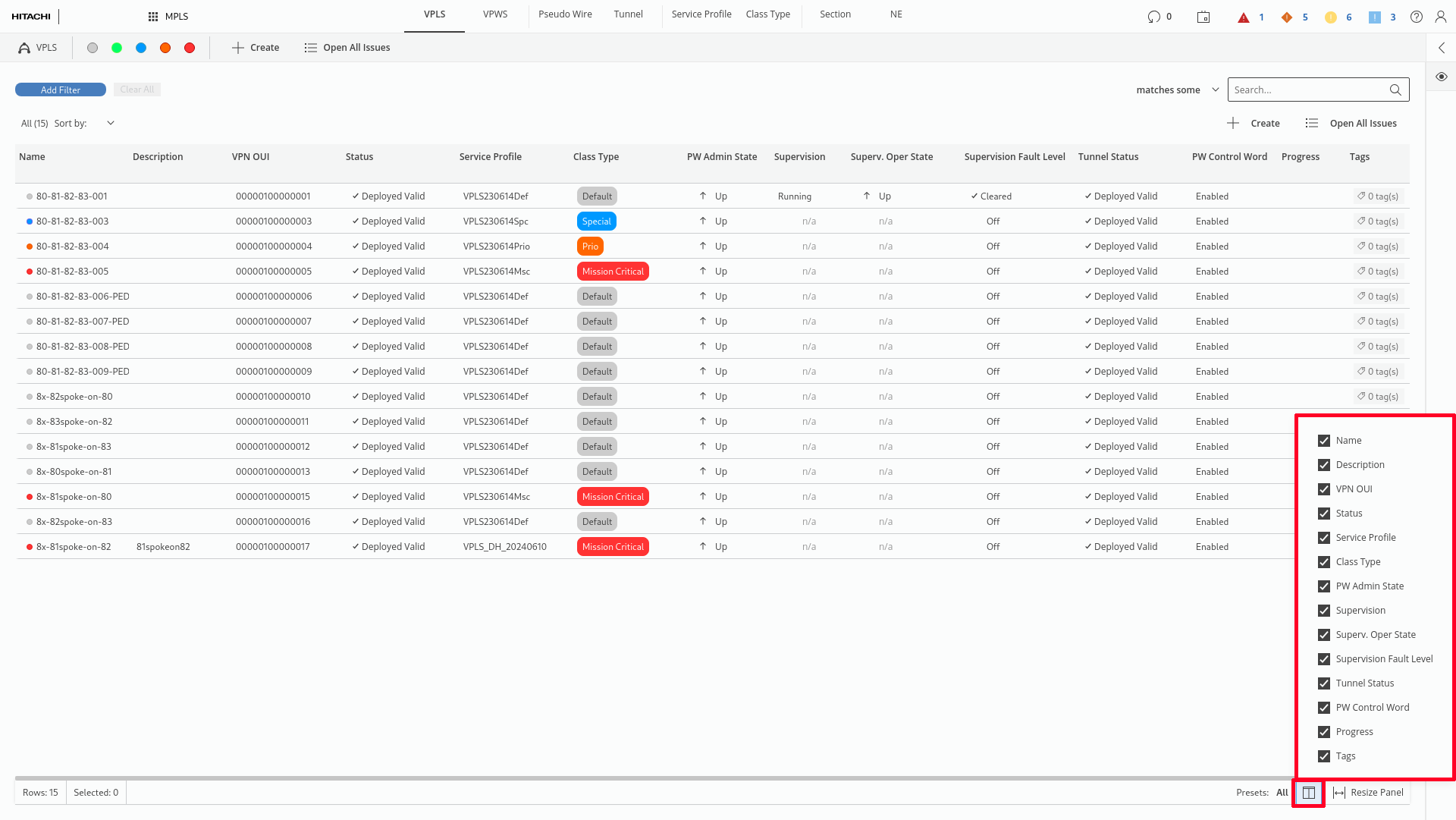
Presets panel in Entity Browser (marked red)