
Ribbon
Ribbon is a secondary navigation bar providing quick access to the basic actions and interactions with the system.
It is a component that has various states and therefore various options available. The state of the ribbon reflects the state of the entity browser (left panel):
When nothing is selected – ribbon provides a title stating what objects are presented in the entity browser; global filtering actions for filtering out tables in the entity browser; global actions for specific types of object; basic options for view management. The type of the above states depends on the part of the application we are in (tab) and therefore the type of data we see in the entity browser.
When entity or entities are selected – ribbon provides a title stating what objects are selected in the entity browser; actions dedicated to selected entity or entities; basic options for view management.
As mentioned, above ribbon consists of (from left):
Title – name of the tab the user is currently in or the name of the selected entities.
Global filters – allowing to filter the content of the entity browser. Depending on the tab or application the user is in, different filters are available. For service and transport layers in MPLS application class-type filters are available. For the physical layer (Network Elements and Sections) alarm severity filters are available. When the alarm or tasks visualization mode is applied, alarm severity or task state filters are available.
Actions – can be general, can be selected-entity specific. General actions e.g., “create”, allow the user to open a creation wizard for a given entity type. Actions for the selected entity include opening its detail page or opening the creation wizard for editing purposes. In some cases, available actions are not strictly limited to the actions related to the given context – when browsing MPLS Map app, with the Network Elements tab opened, the user still can create a new service.
View Options (View Modes) – quick options in form of toggle buttons that can change the visibility of various element types on the visualization (map); they allow quick change of perspective from which the user is looking on visualized objects.
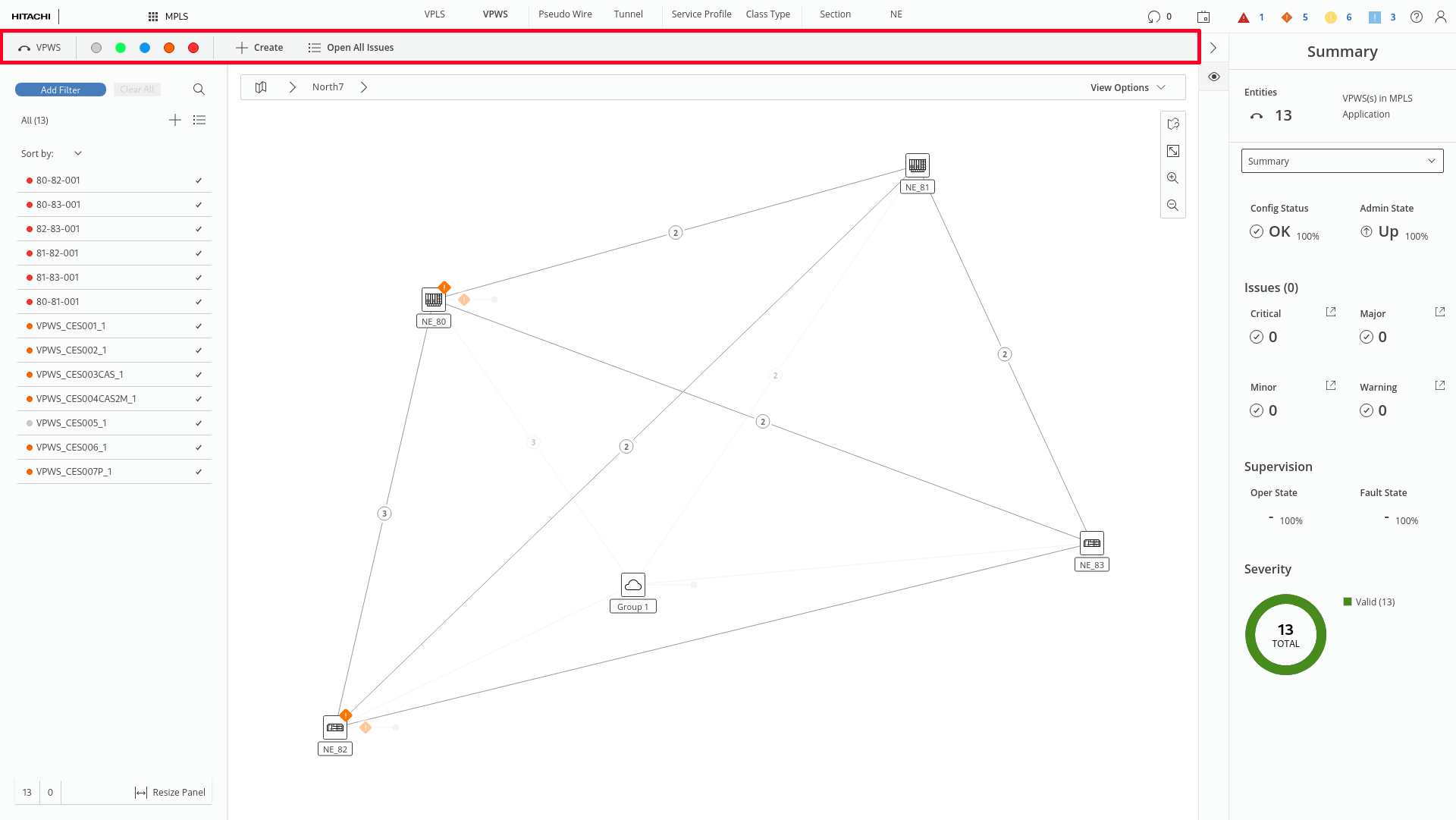
Ribbon in unselected state (marked red)
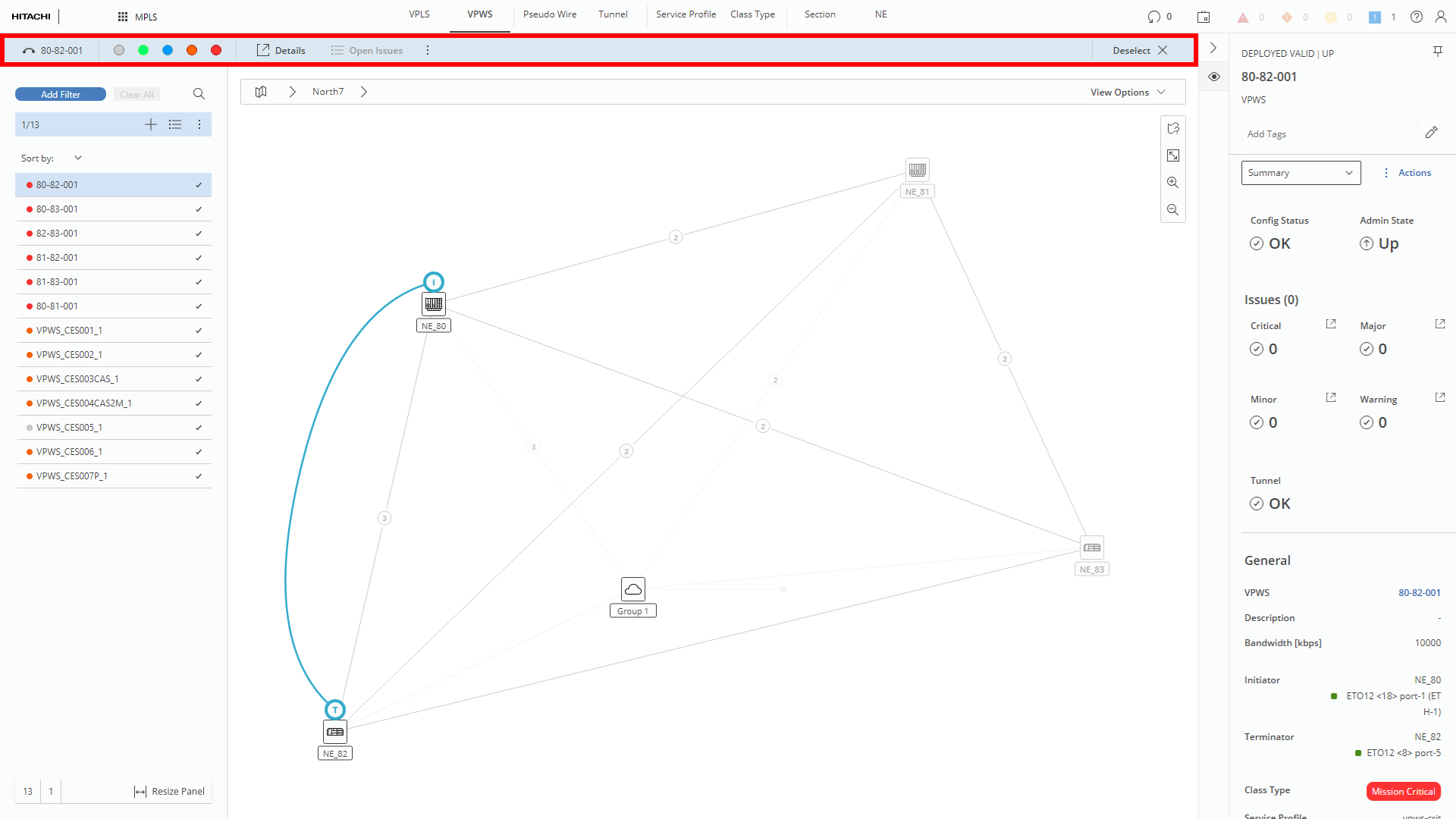
Ribbon when entity is selected (marked red)