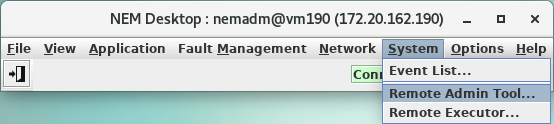
Startup
The RAT can be started either from the NEM Host Manager or the NEM Desktop. In the NEM Host Manager select the table row containing the server for which the RAT shall be started, and click on the <Manage> button.
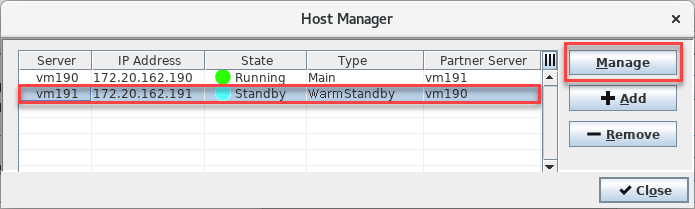
Then the login screen will be shown and login to the Server as a FOXMAN-UN admin user must be performed.
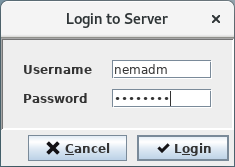
If a user logs in to the specified host for the first time, they will be prompted an “SSL Certificate Verification” dialog upon pressing the <Login> button which looks as the following sample dialog:
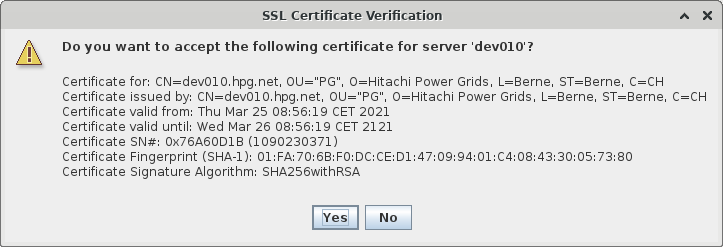
If the user presses the <No> button, they will not be able to connect to the FOXMAN-UN server. The next time they try to login to the same host from the same client, they will be prompted again the “SSL Certificate Verification” dialog.
If the user presses the <Yes> button, they will be connected to the FOXMAN-UN server. The next time they try to login to the same host from the same client, they will directly be connected to the server (they will no longer be prompted the “SSL Certificate Verification” dialog).

Please note:
Make sure that you are connecting to the correct server especially from a remote client. This is particularly important when you are working in a non-safe network environment like for instance accessing a FOXMAN-UN server over the public Internet.
Validation can be done by the user by contacting the server administrator and comparing the fingerprint of the FOXMAN-UN server certificate stored on the server to the one presented in the “SSL Certificate Verification” dialog on the FOXMAN-UN client.
To start up the Remote Admin Tool from the NEM Desktop open the menu <System> <Remote Admin Tool…>. The RAT will directly start up without the need to log in to the server.