
NEM Host Manager
The NEM Host Manager serves definition of hosts to which the user can connect from the NEM Login Window. It can be launched by clicking on the gearwheel icon  on the Login Window. Every FOXMAN-UN client needs to define its own list of hosts. Prior to being able to add hosts in the Host Manager, all desired hosts must be added to the hosts file of the corresponding client machine. On Linux systems the host file named “hosts” resides under /etc and on Windows systems under C:\Windows\System32\drivers\etc\
on the Login Window. Every FOXMAN-UN client needs to define its own list of hosts. Prior to being able to add hosts in the Host Manager, all desired hosts must be added to the hosts file of the corresponding client machine. On Linux systems the host file named “hosts” resides under /etc and on Windows systems under C:\Windows\System32\drivers\etc\[nemadmin@vm190 ~]$ cat /etc/hosts
127.0.0.1 localhost localhost.localdomain
172.20.162.190 vm190 vm190.localdomain
172.20.162.191 vm191 vm191.localdomain

Please note:
If a DNS Server is configured for the respective system, the hosts file must not be adapted.
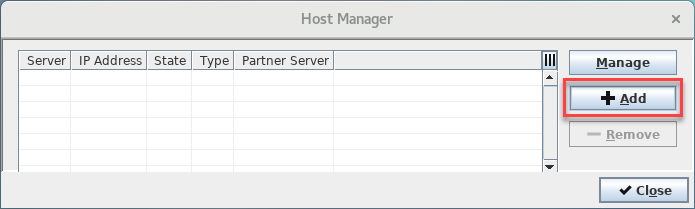
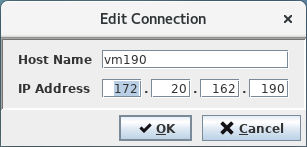
Once done host can be added in the Host Manager by means of the <+Add> button. Clicking on the button will open an <Edit Connection> dialog. Therein a desired hostname and corresponding IP address can be specified. Confirmed by the <OK> button the host will be added to the hosts list of the Host Manager.
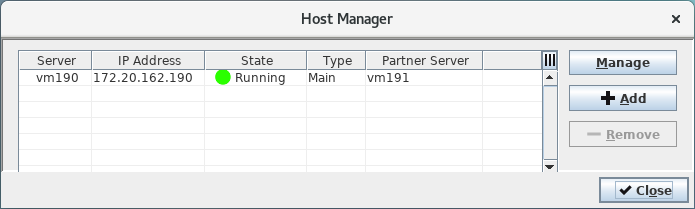
All added hosts will be visible in the hosts list of the Host Manager with the following attributes:
• Server (hostname)
• IP Address
• State
• Type
• Partner Server
Partner servers will only be visible if they have been paired properly. Following an example of a Host Manager showing three servers of different type:
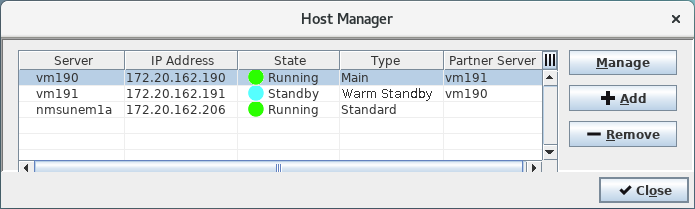
Selection of a server in the hosts list and clicking on the <Manage> button will start the Remote Admin Tool for the selected server (refer to chapter Remote Admin Tool). Double-clicking on a row in the hosts list will close the Host Manager and enter the respective host in the “host field” of the NEM Login Window.