
SENC1 FU Enrollment
If required, pre-enrollment in a secure room is done as described in the SENC1 user manual, section “SENC1 Basic Setup in a Secure Room”.
After adding an FOX61x with an assigned SENC1 HW unit, or, alternatively, adding/assigning a SENC1 HW unit to an FOX61x already managed by FOXMAN-UN, the related SENC1 FUs will appear in the FOXMAN-UN ESM “Crypto Engines” tab.
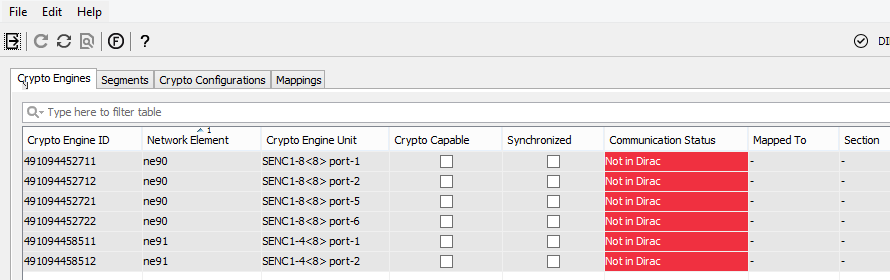
ESM, Crypto Engines tab
For each SENC1 HW unit you will see 2 or 4 Crypto Engines, depending on the type of SENC1 HW.
All SENC1 HW units that are assigned will be shown in the ESM. The respective Crypto Engines will appear with a communication status “Not in Dirac” as long as they have not been defined in DIRAC.
The procedure to add a SENC1 HW unit to DIRAC and to do the initial configuration of the unit is called “Enroll procedure”, or “Add to Dirac”.
This procedure can be started from the “Functional Unit View” (FU View) dialog window. The FU View can be invoked via icon bar (Icon with an “F”) or from the context menu (Functional Unit) on a Crypto Engine entry in the Crypto Engines table.
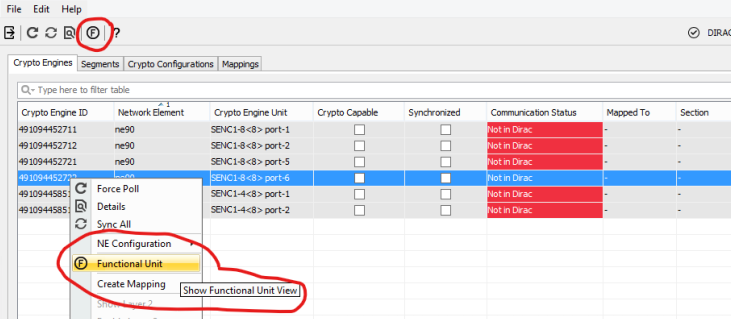
ESM - options to open FU View
In the FU View you see all FUs detected by FOXMAN-UN.
Before the enrollment procedure you will see the units with a red warning, indicating that the unit was not yet enrolled:

ESM - FU View
In order to invoke the enrollment procedure you can select in such a list all units you want to enroll and click on the “Add to Dirac” button, or you can select one specific FU (viewing the details of such FU) and click on the “Add to Dirac” button.

ESM - “Add to Dirac” button for several CEs
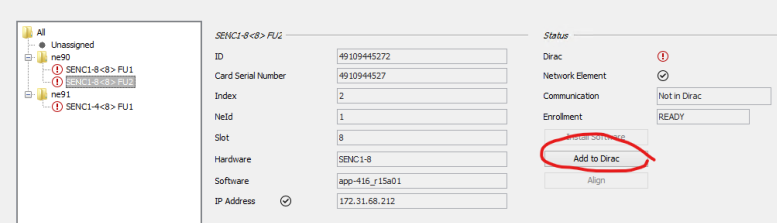
ESM - “Add to Dirac” button for single CE
A dialog to provide missing data and to confirm the execution of the enrollment procedure will appear then on the screen.
This dialog is slightly different depending on the current enrollment status of the FU:
• If Enrollment Status of FU is “Factory Default”, then you are requested to provide NEW passwords to protect the access to the unit via ssh (two times to protect against typos).
• In any other case, you are requested to introduce the current password of the units, in order to perform the operations.
New passwords must be at least 12 characters long and include digits and characters (check this against definition in SENC1 unit)
Also the name of the button may vary slightly depending on the current enrollment status of the unit.
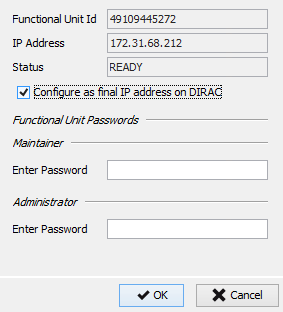
Details of “Add to Dirac”
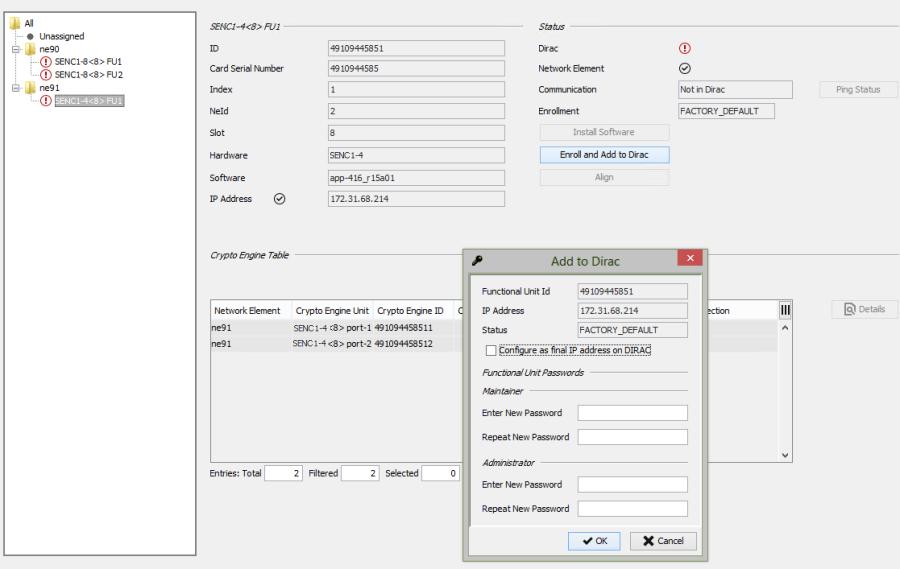
View with “Add to Dirac” details
The enrollment procedure is basically executing the following operations towards DIRAC and SENC1:
• Set date and time (if in factory default);
• Set passwords (if in factory default);
• Initialize SENC1 (if required);
• Interchange of certificates (SENC1 is provided with DIRAC certificate and DIRAC is provided with SENC1 public certificate);
• Add FU to DIRAC. This also authorizes DIRAC to connect directly to FU SSH and SFTP interfaces with private/&public key authentication.
Once the unit is enrolled and known to DIRAC, FOXMAN-UN will be able to work with it.
In the enrollment Dialog (“Add to Dirac”), there is an option named “Configure as final IP address on Dirac”. The IP address is automatically detected from what is configured in the node. During the enrollment procedure, we need to define if this will be the one used as final one for DIRAC or not. The use case behind this option is the initial enrollment of the card in a secure room, where different IP addresses will be used instead of the final one.
If the option is selected, the FU will be created in DIRAC with the already detected IP address; if the option is not selected, the FU will be created in DIRAC without IP address, and later on you will able to propagate the configured IP address to DIRAC.
Once the unit is added to DIRAC, the communication state will change and the unit will be created in DIRAC:
• Communication status will change to real communication status “Manageable” or “Not manageable”;
• Enrollment Status will be set to “Ready”;
• IP Address will show a valid/invalid Status, depending if the option “Configure as final IP” was selected or not.
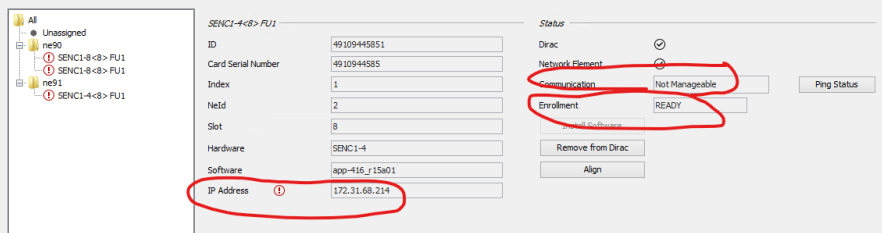
FU View with invalid IP address before alignment
In order to provide the final IP address to DIRAC, you just need to click on the button “Align”.
After doing that, all parameters will be configured and the FU status icon should not be red any more.