
The Application Dialog
An Application dialog can be in two modes:
− View mode,
− Edit mode.
The View mode allows viewing the details of the Application such as:
− the TE(s) contained in the Application,
− the Path(s), Specific Data and TP properties of the selected TE,
− likewise, it allows to cut TE(s) to be pasted to another Application.
The Edit mode must be activated explicitly in the dialog. This mode allows management of the Application such as:
− creating/modifying/deleting TE(s),
− adding TE(s) from other Application(s),
− Routing (Path selection) of the selected TE,
− modifying the resources in the database if the user commit his changes with an «Apply».
An Application dialog to create new Application is called from the Main Window menu: File > New Application. The dialog is automatically in Edit mode.
The Application dialog to View or Edit an existing application is called from the Main Window’s Application Context menu > “Details” as shown in Application Lists.
The Application is identified by its:
− Name,
− Service,
− Status.
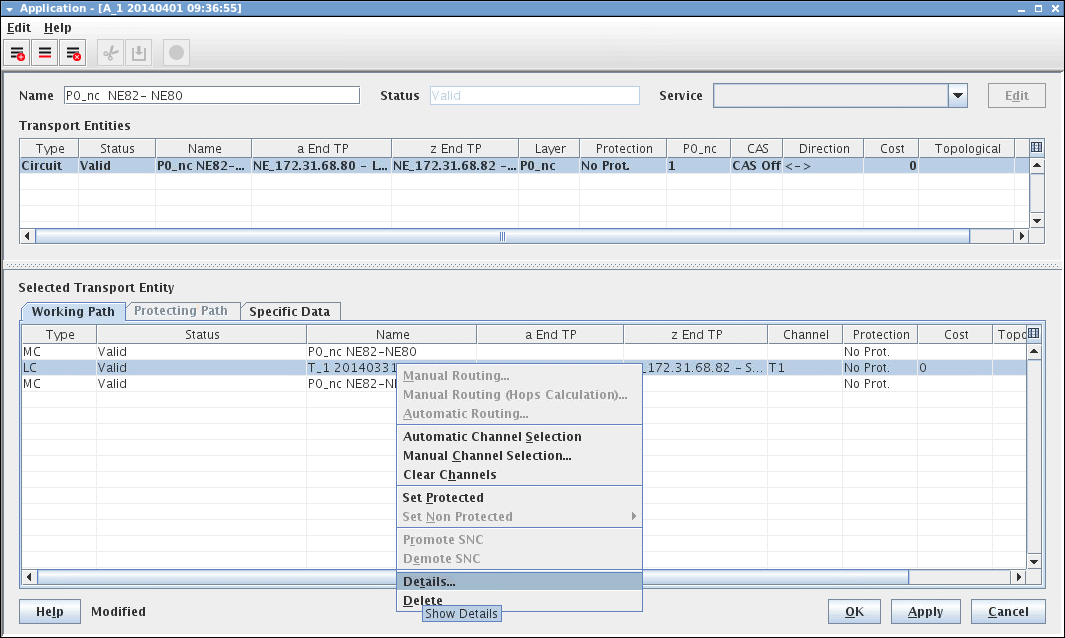
Main Application View/Edit
Name | This is the name of the Application. It is possible to add a new self-explanatory name. |
Status | Indicates if the Application is established and running. Can not be edited. |
Service | Each TE can be labeled to identify certain services. Example: Service 1 -> Voice, Service 2 -> Data and Service 3 -> ISDN. |
Edit | Changes the dialog from “View” mode to “Edit” mode, which allows: - any adaptation or modification of the Application Name and Status, - creation of new TE(s), - modification of TE(s), - deletion of TE(s). |

Please note:
The fields in the main Application view are 'grayed out' as long the «Edit» button has not been activated. With «Cancel» you leave the dialog without generating any change in the network. With «OK» or «Apply» the changes will be established.
The Main Application dialog displays information regarding the
− Transport Entities, and
− Selected Transport Entities.